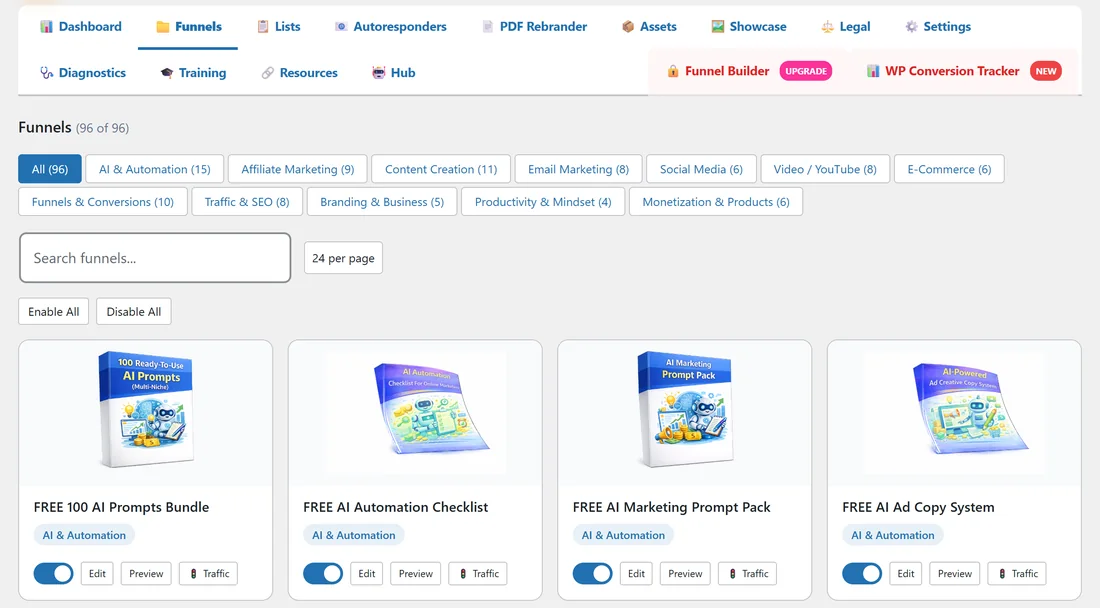
The Funnels tab is your control room for every funnel. From one screen you can see which funnels are live, find a funnel by name, and jump to its settings or its traffic ideas.
Where to find it:
Open Free List Building in the WordPress sidebar and click the Funnels tab (or the 📁 Funnels item in the sidebar menu). The heading shows how many funnels match your filter, for example Funnels (96 of 96).
The filter row:

Under the heading is one button per category with its funnel count, starting with All (96). Click a category to show only its funnels. The button you are on is highlighted.
Below the categories you have:
- Search funnels: type part of a title and the cards on the page filter as you type.
- The per page menu: 12 per page, 24 per page (the default), 48 per page or All (96).
- Enable All and Disable All: switch every card on the current page on or off.
Each funnel card:
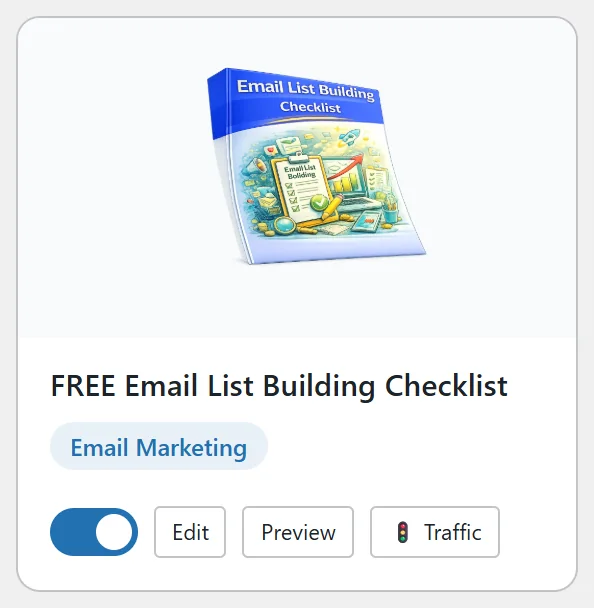
Every card shows the cover image, the funnel title and its category badge, then a row of controls:
- The switch: blue means the funnel is live. Click it to switch the funnel on or off. It saves at once.
- Edit: opens the funnel's settings page (see Editing a Funnel).
- Preview: opens the live squeeze page in a new tab. It shows only when the funnel is switched on and its files are installed.
- Traffic: opens the Traffic Toolkit for that funnel, with ready-to-post captions, emails and scripts.
A card that is switched off looks faded. A card that says No Assets has no files on your server yet.
Paging:

When there are more funnels than fit on one page, the bottom of the list shows Page 1 of 4 and page buttons. The search box and the Enable All and Disable All buttons work on the cards of the page you are looking at, so pick All (96) or a category first when you want them to reach more funnels.
Step by step:
- Click the Funnels tab.
- Click a category, for example Email Marketing (8).
- Type a word in Search funnels, for example list.
- Click the switch on a card to take it live, or click Edit to change its settings.
- Click Preview to check the page as a visitor sees it.
A real example:
Sam wants to promote the email funnels this month. Sam clicks Email Marketing (8), types list in the search box and gets three cards: FREE Email List Building Checklist, List Segmentation Handbook and Engaged Email List Guide. All three are already switched on, so Sam clicks Traffic on the first one and copies a ready-made post for Facebook.
Tips:
- To switch a whole category off in one go, click the category, choose All (96) per page, then click Disable All.
- Use Preview after any change to see the page exactly as a visitor will.
- Custom funnels from the Funnel Builder add-on show on this tab too, with the same switch and buttons.