Collected Emails is a copy of your subscribers kept on your own WordPress site. Every time a visitor opts in and the address reaches your site, the plugin stores it here as well as sending it to your autoresponder.
That gives you a safety net. If an autoresponder connection ever has a problem, the addresses are still here and you can export them and import them later.
Where to find it:
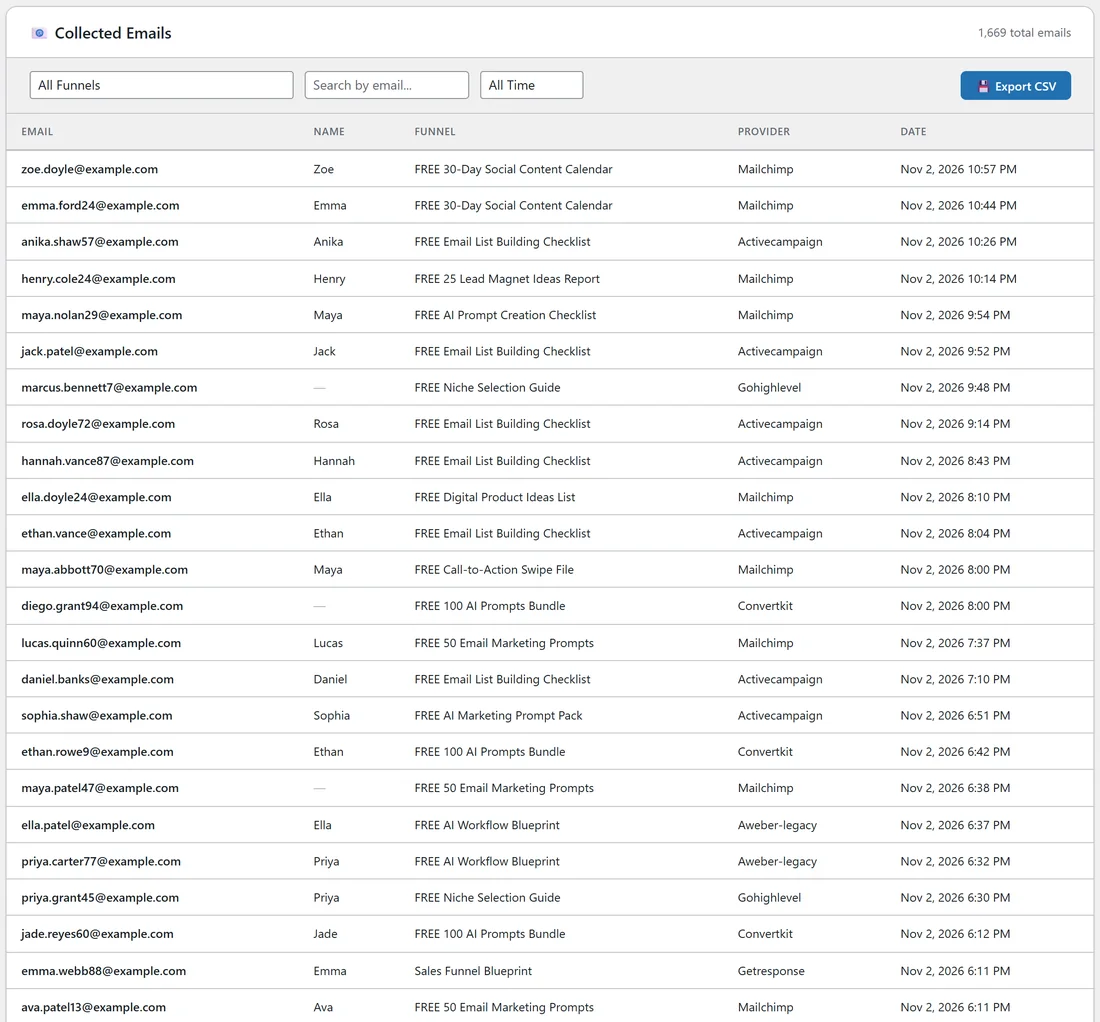
Free List Building, then the Lists tab. Scroll down past the Funnel Connection Overview to the Collected Emails section. The total number of stored addresses shows on the right of its heading, for example 1,669 total emails.
What each column shows:

- Email: the subscriber's address.
- Name: the first name, when Collect First Name is on in Settings and the visitor typed one. Otherwise a dash.
- Funnel: the funnel title they opted in on.
- Provider: the autoresponder the funnel is set to use today.
- Date: when they opted in, newest first.
The table loads 25 rows at a time. Use the page buttons under the table (Prev, the page numbers and Next) to move through the list. "Showing 1-25 of 1669" tells you where you are.
Which opt-ins are stored:
- Providers connected by API (Mailchimp, ActiveCampaign, ConvertKit, GetResponse and the others): the address is stored as the form is sent.
- AWeber, GetResponse (Campaign Token), Sendiio and similar form-post providers: the page sends a copy of the address to your site at the same moment the form goes to the provider.
- The visitor's IP address and the page they came from are saved with each row. The referring page is included in the CSV export.
Step by step: check today's sign-ups:
- Open the Lists tab and scroll to Collected Emails.
- Set the date filter to Last 7 Days.
- Read the newest rows at the top of the table.
- To see one funnel only, pick it in the All Funnels drop-down.
A real example:
Sam runs a Facebook post for the Email List Building Checklist on yoursite.com. The next morning Sam sets Collected Emails to that funnel and Last 7 Days and sees new rows such as anika.shaw57@example.com, opted in at 10:26 PM, provider ActiveCampaign. Sam then checks ActiveCampaign and finds the same people on the Email Marketing Leads list.
Tips:
- The Provider column shows each funnel's current setting. If you move a funnel to another autoresponder, its older rows show the new name too.
- Turn on Collect First Name in Settings if you want names in this table and in your autoresponder (see Collect First Name).
- Download the whole table, or a filtered part of it, with Export CSV (see Export Opt-ins as CSV).
- To find one person, see Search, Filter, and Sort.