Every squeeze page and download page has Privacy Policy, Terms and Disclaimer links in its footer, and the Showcase page has them too. Out of the box those links open generic pages bundled with each funnel. The Legal tab lets you replace them for every funnel at once.
These pages are general templates, not legal advice. Have a qualified professional look over your pages before you rely on them.
Where to find it:
Free List Building, then the Legal tab. The page has three numbered cards: 1 Your Business Details, 2 Your Legal Documents and 3 AI Generation (Optional, Your Own API Key). The Save Legal Settings button is at the bottom.
Your Business Details:

- Business / Site Name: your business or site name.
- Website URL: your main site address.
- Contact Email: where people can reach you about privacy questions.
- Country: where your business is based, for example United Kingdom.
- I have visitors in the EU / UK (include GDPR section).
- I have visitors in California (include CCPA section).
These details are used by the AI generator and are worth keeping accurate either way.
Your Legal Documents, the three choices:
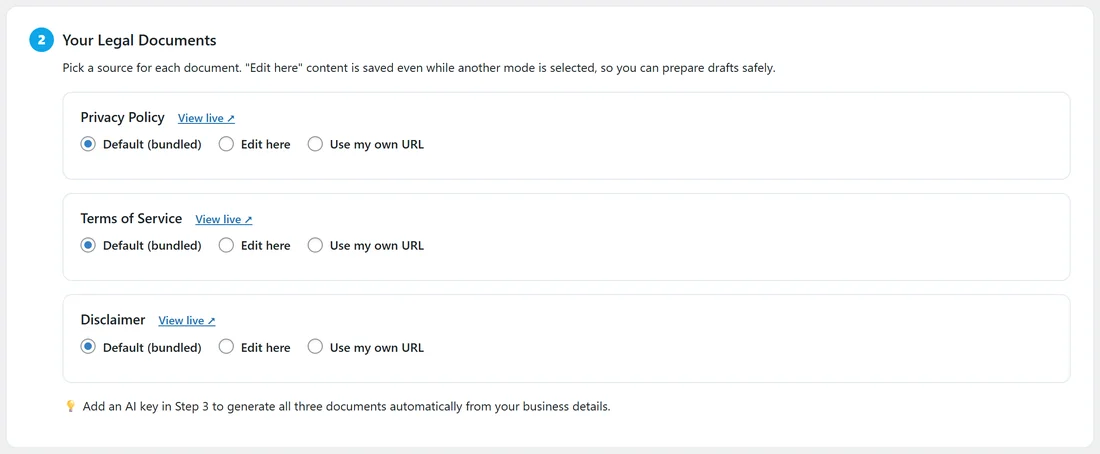
Each document (Privacy Policy, Terms of Service, Disclaimer) has its own row with three options.
- Default (bundled): every funnel shows its own bundled page. This is the starting setting.
- Edit here: a text box opens. Write or paste the page as simple HTML, for example headings and paragraphs. The page title is added for you. Every funnel and the Showcase then show this one version.
- Use my own URL: paste the address of a page you already have, for example https://yoursite.com/privacy-policy/. Funnel footer links point straight at it.
Text you type under Edit here is kept even while another option is selected, so you can prepare a draft safely and switch to it later.
Step by step:
- Open the Legal tab and fill in Your Business Details.
- For each document, choose Default (bundled), Edit here or Use my own URL.
- For Edit here, write the page in the box. For Use my own URL, paste the address.
- Click Save Legal Settings. Changes are live straight away.
- Click View live next to a document to check it in a new tab.
A real example:
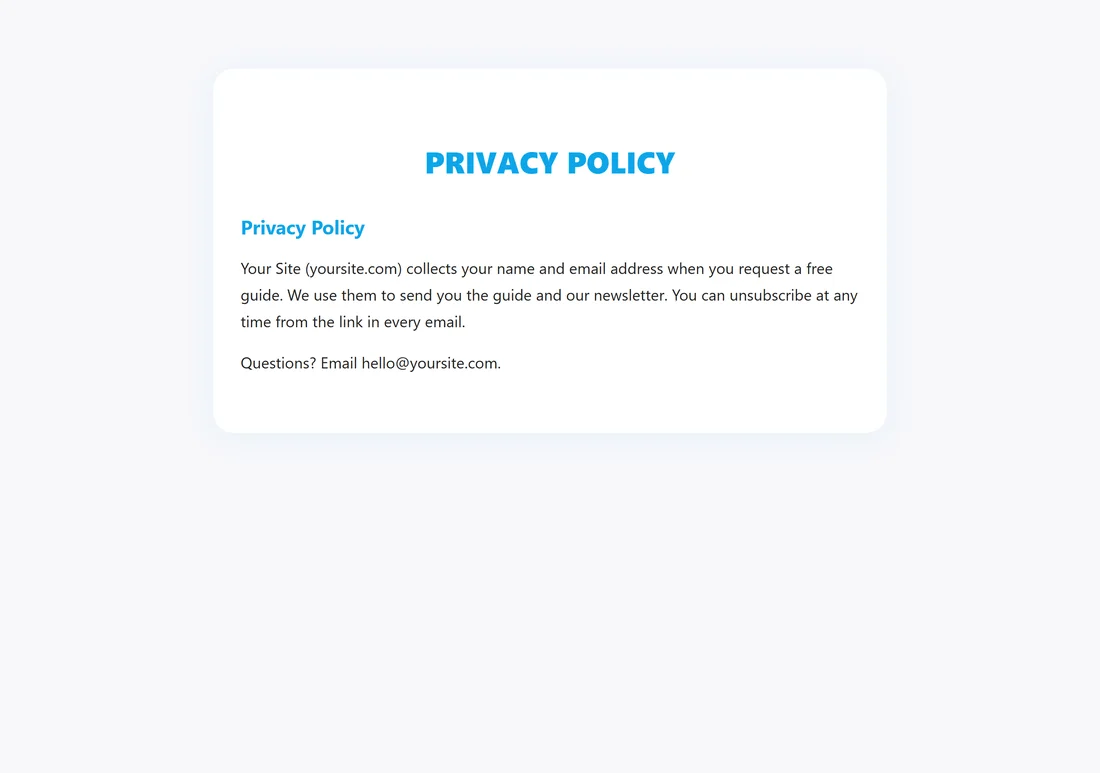
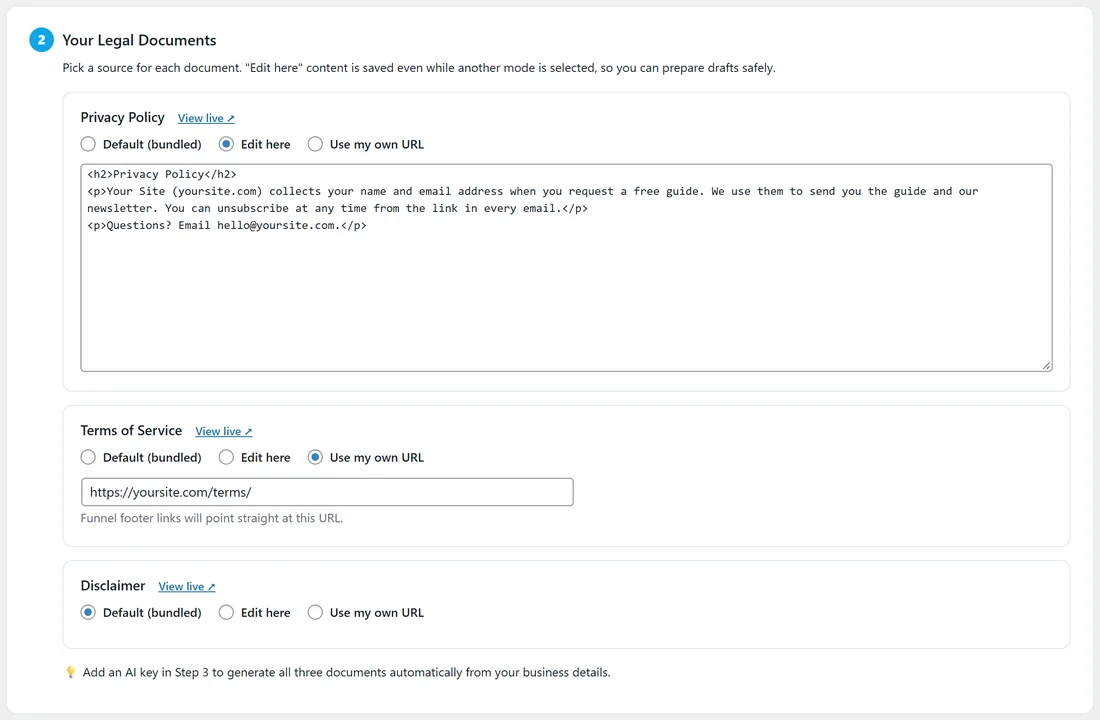
Sam already has terms of service on the main site, so Terms of Service is set to Use my own URL with https://yoursite.com/terms/. For the Privacy Policy Sam picks Edit here and writes a short page saying Your Site collects a name and email to send the free guide and the newsletter, with an unsubscribe link in every email and hello@yoursite.com for questions. The Disclaimer stays on Default (bundled). One save, and all 96 funnels use the new pages.
Tips:
- If a page still shows the old text after saving, clear your caching plugin or your host's cache.
- To have the plugin write all three pages for you from your business details, see Generating Legal Pages With AI.
- Keep your Contact Email current. It is the address people use for privacy requests.