The 25 prebuilt automations are finished flows: the trigger, the waits, the if/else branches, the tags and every email are already in place. You pick one, answer one or two questions (which list, which page), and it installs as a draft in your automation editor, ready to read, adjust and switch on. Each email carries a 📌 note saying why it exists and what to change.
With an AI key connected, the installer can also study the page you give it and write every email for your offer, in your trained voice.
Where to find it:
Emails, then 25 Prebuilt Automations. The 📦 25 Prebuilt automations button on the Automations screen opens the same page.
The grid:
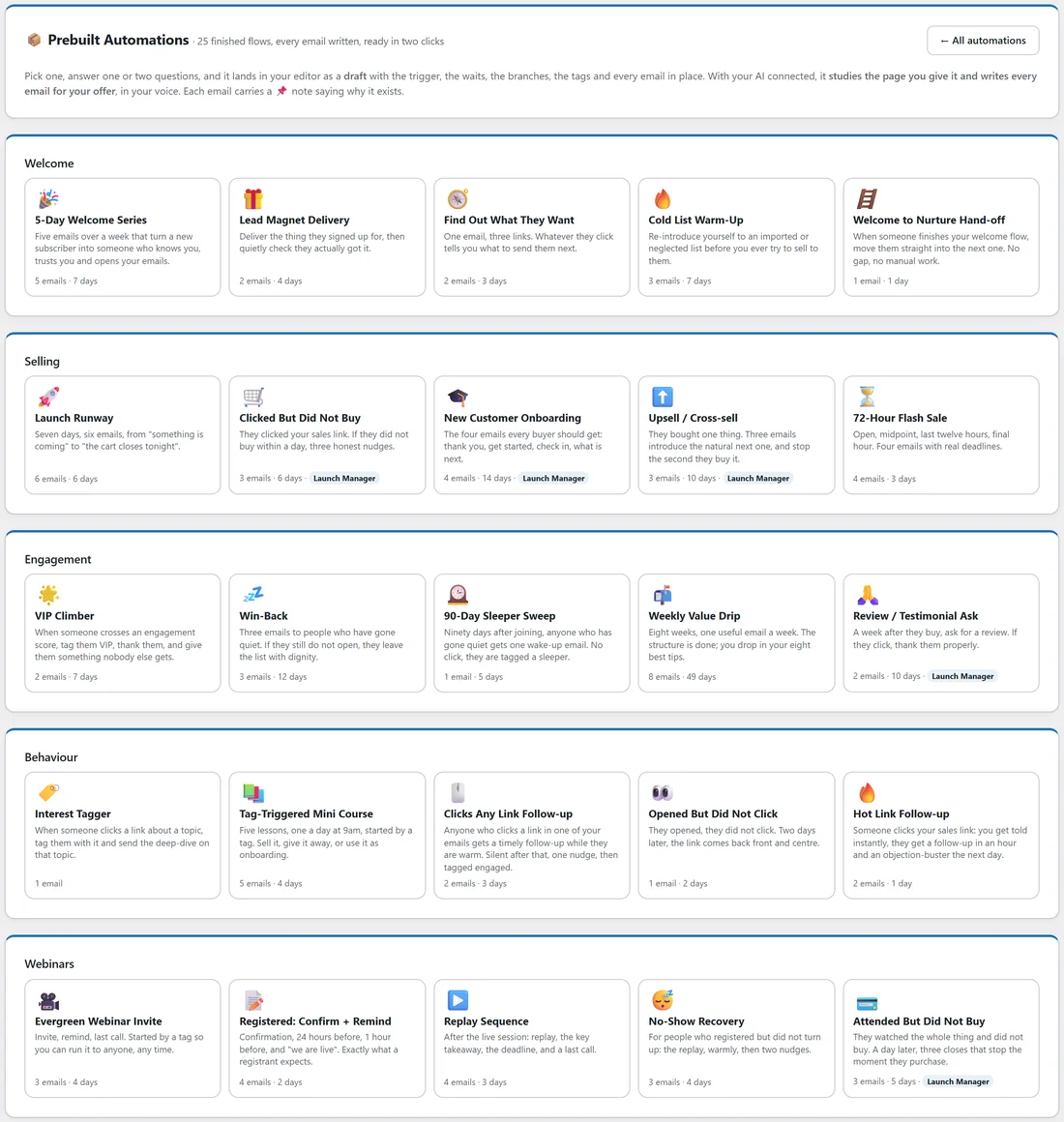
The flows are grouped in five rows of five: Welcome, Selling, Engagement, Behaviour and Webinars. Each tile shows the name, what it does, how many emails it has and how many days it runs. A tile marked Launch Manager needs a sales source: Launch Manager, or Commerce connected on Setup, then Integrations. Without one, the tile is shown locked with the reason.
Installing one:
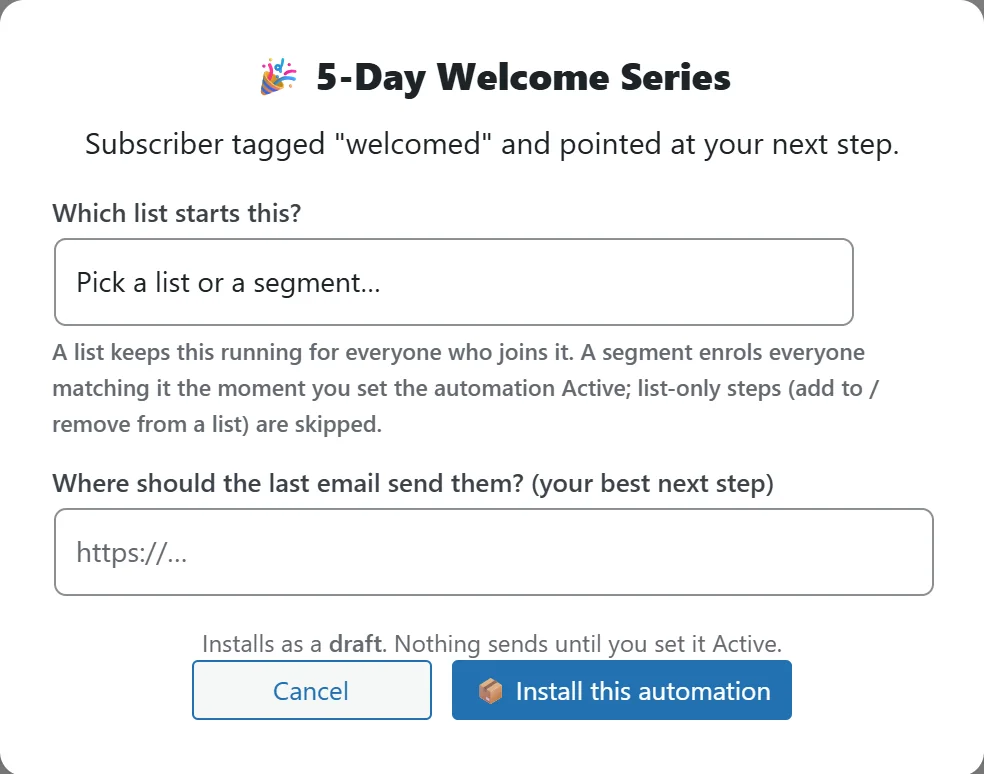
- Click a tile. A dialog opens with the flow's name and what it achieves.
- Answer the questions. Most flows ask for a list, tag or product and a page address (for example "Where should the last email send them?").
- For a list question you can pick a list, a segment, or + Create a new list… and type its name.
- With AI connected, ✨ Study my page and write every email with AI is ticked. Leave it ticked to have each email written from your page, or untick it to keep the ready-written emails.
- Click 📦 Install this automation.
- The editor opens with the notice "Installed as a draft." Read every email and its 📌 note, change what you like, test, then set it Active.
A list keeps the automation running for everyone who joins it. A segment instead enrolls everyone matching it at that moment: install it, then click ▶ Activate on the Automations list, and everyone in the segment enters (up to 5,000 each time you activate; activate again for the next batch). Steps that add to or remove from a list are left out of a segment install.
Writing every email with AI:
When the AI box is ticked, a progress window opens after the install.
- The automation is installed with the ready-written emails first, so nothing is ever lost.
- The AI studies the page you gave. If the page will not open for it, the window asks you to paste the page's text (open your page, press Ctrl+A then Ctrl+C, paste it in) and carries on in the same automation.
- It writes one email at a time, about 20 to 40 seconds each, using only what your page says. Keep the tab open.
- Stop after this email ends the job early; the rest keep their ready-written version.
- At the end it tells you how many emails were written from your page, then opens the automation.
Use Anything the AI should know? (optional) for facts that are not on the page, for example "mention the free bonus checklist". If your page blocks servers, open Page will not load for the AI? Paste its text instead before you install.
Fresh from a prebuilt, the editor also offers ✨ Adapt all emails to my voice, which rewrites every email in your trained voice. Your originals are one undo away in each editor.
The 25 flows:
Welcome flows:
- 5-Day Welcome Series: 5 emails, 7 days, starts when someone joins the list you choose.
- Lead Magnet Delivery: 2 emails, 4 days. Delivers the download, then checks they got it.
- Find Out What They Want: 2 emails, 3 days. One email with three links; the click tells you what to send next.
- Cold List Warm-Up: 3 emails, 7 days, manual start. Re-introduces you to an imported or quiet list.
- Welcome to Nurture Hand-off: 1 email, 1 day. Starts when someone finishes the automation you choose.
Selling flows:
- Launch Runway: 6 emails, 6 days, started by a tag. From "something is coming" to "the cart closes tonight".
- Clicked But Did Not Buy: 3 emails, 6 days, started by a click on your sales link (needs a sales source).
- New Customer Onboarding: 4 emails, 14 days, started by a purchase (needs a sales source).
- Upsell / Cross-sell: 3 emails, 10 days, started by a purchase; stops when they buy the next product (needs a sales source).
- 72-Hour Flash Sale: 4 emails, 3 days, started by a tag.
Engagement flows:
- VIP Climber: 2 emails, 7 days. Starts when someone's engagement score reaches 50.
- Win-Back: 3 emails, 12 days, started by a tag that marks someone inactive.
- 90-Day Sleeper Sweep: 1 email, 5 days. Starts 90 days after someone joined.
- Weekly Value Drip: 8 emails, 49 days, one a week, starts when someone joins a list.
- Review / Testimonial Ask: 2 emails, 10 days, started by a purchase (needs a sales source).
Behaviour flows:
- Interest Tagger: 1 email. Starts on a click on a link containing your text and tags the person.
- Tag-Triggered Mini Course: 5 emails, 4 days, one lesson a day at 9am, started by a tag.
- Clicks Any Link Follow-up: 2 emails, 3 days, starts on any click.
- Opened But Did Not Click: 1 email, 2 days, starts on an open.
- Hot Link Follow-up: 2 emails, 1 day. Tells you at once when someone clicks your sales link, then follows up.
Webinars flows:
- Evergreen Webinar Invite: 3 emails, 4 days, started by a tag.
- Registered: Confirm + Remind: 4 emails, 2 days, started by the tag your webinar tool applies.
- Replay Sequence: 4 emails, 3 days, started by the attendee tag.
- No-Show Recovery: 3 emails, 4 days, started by the no-show tag.
- Attended But Did Not Buy: 3 emails, 5 days, started by the attendee tag (needs a sales source).
A real example:
Anna at Leafwise Gardening wants a proper welcome for the Free Seed Starting Guide list.
- She opens Emails, then 25 Prebuilt Automations, and clicks 5-Day Welcome Series.
- For "Which list starts this?" she picks Free Seed Starting Guide.
- For "Where should the last email send them?" she types yoursite.com/seed-starting-course.
- With the AI box ticked, the AI reads that page and writes five emails about seed starting, ending with the course.
- She reads each email and its 📌 note, sends herself a test, sets Status to 🟢 Active (live) and saves.
Tips:
- Every installed flow is a normal automation: add steps, change waits, add exit rules. See Automation Steps: Emails, Waits, If And Else and Taking People Out Of An Automation.
- Train your voice first and the AI-written emails sound like you. See Train Your AI: Emails In Your Own Voice.
- Watch how each email performs once it runs. See The Automation Report: Every Email, Every Result.