Every saved form can be placed three ways: a shortcode on this WordPress site, a two-line JavaScript embed for any other page or website, and a raw HTML form for places that strip scripts. Every sign-up, wherever it happens, lands in this install with your lists, tags, opt-in rule and thank-you message.
Where to find it:
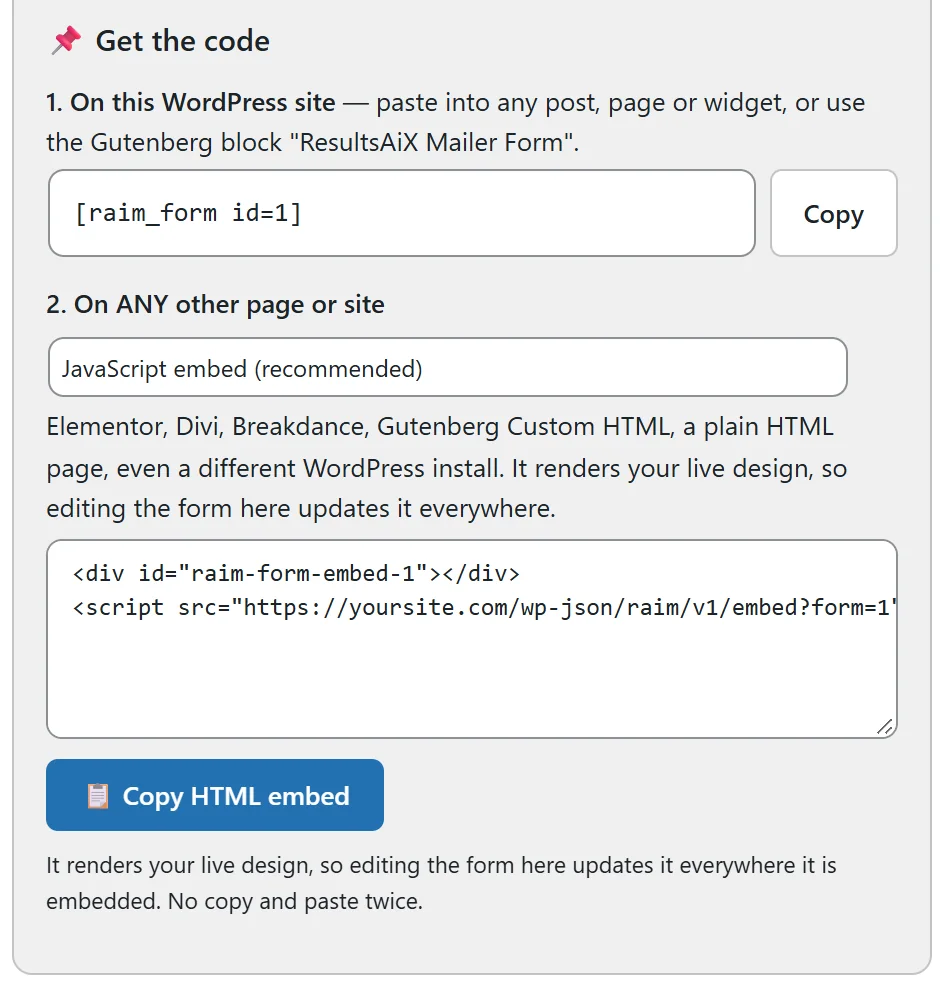
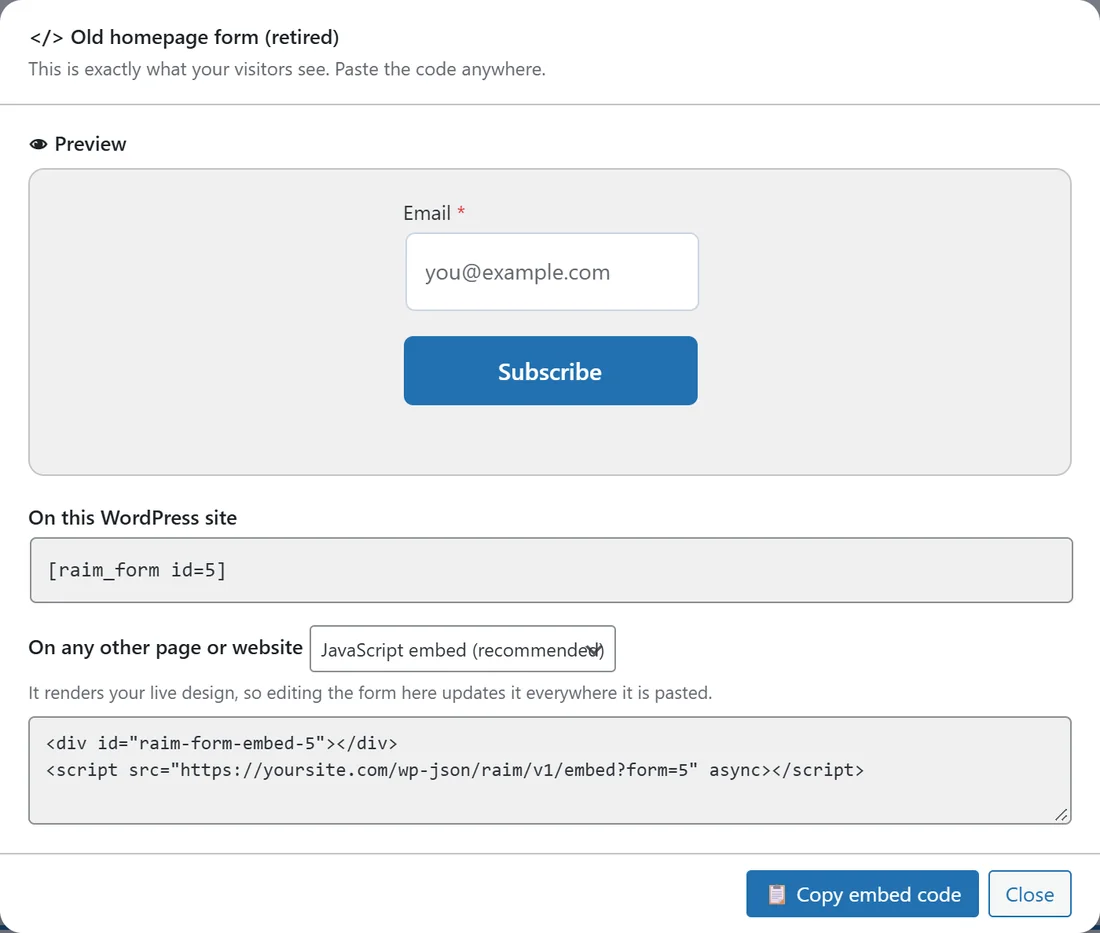
Forms, then ✏️ Edit on a form. The 📌 Get the code panel sits under the live preview on the right. It appears once the form has been saved. On the Forms list, </> Embed code on each row opens the same codes with a preview of the form.
- The shortcode (this WordPress site):
Copy the shortcode, for example [raim_form id=1], and paste it into any post, page or widget on this site. In the block editor, add a Shortcode block and paste it there. Most page builders have a shortcode element too.
- The JavaScript embed (any page or site):
Choose JavaScript embed (recommended) under 2. On ANY other page or site, then click 📋 Copy HTML embed. The code is two lines: an empty div and a script tag that loads the form from yoursite.com/wp-json/raim/v1/embed. Paste it into an HTML block or widget in Elementor, Divi, Breakdance, a Gutenberg Custom HTML block, a plain HTML page, or a different website. The form draws itself with your live design, so a change you save here shows everywhere it is embedded, with no new code to paste.
- The raw HTML form (no JavaScript):
Choose Raw HTML form (no JavaScript) to get a plain form that posts straight to your site. Use it where scripts are stripped or when you want full control of the markup. After sign-up it sends the visitor to the redirect address you set in After signup, or back to the page they came from. This copy is a snapshot: copy it again after you change the design.
Things to know:
- The form must be Active. An inactive form shows nothing wherever it is placed, which is a quick way to take a form down everywhere at once.
- Every field on the form is collected, custom fields included.
- Tags, lists, the double opt-in rule, the consent checkbox and the sequence setting all work exactly as set on the form.
- Views are counted for the shortcode, the JavaScript embed and the raw HTML form, so the Displays and Rate columns stay accurate.
Floating bars and slide-ins:
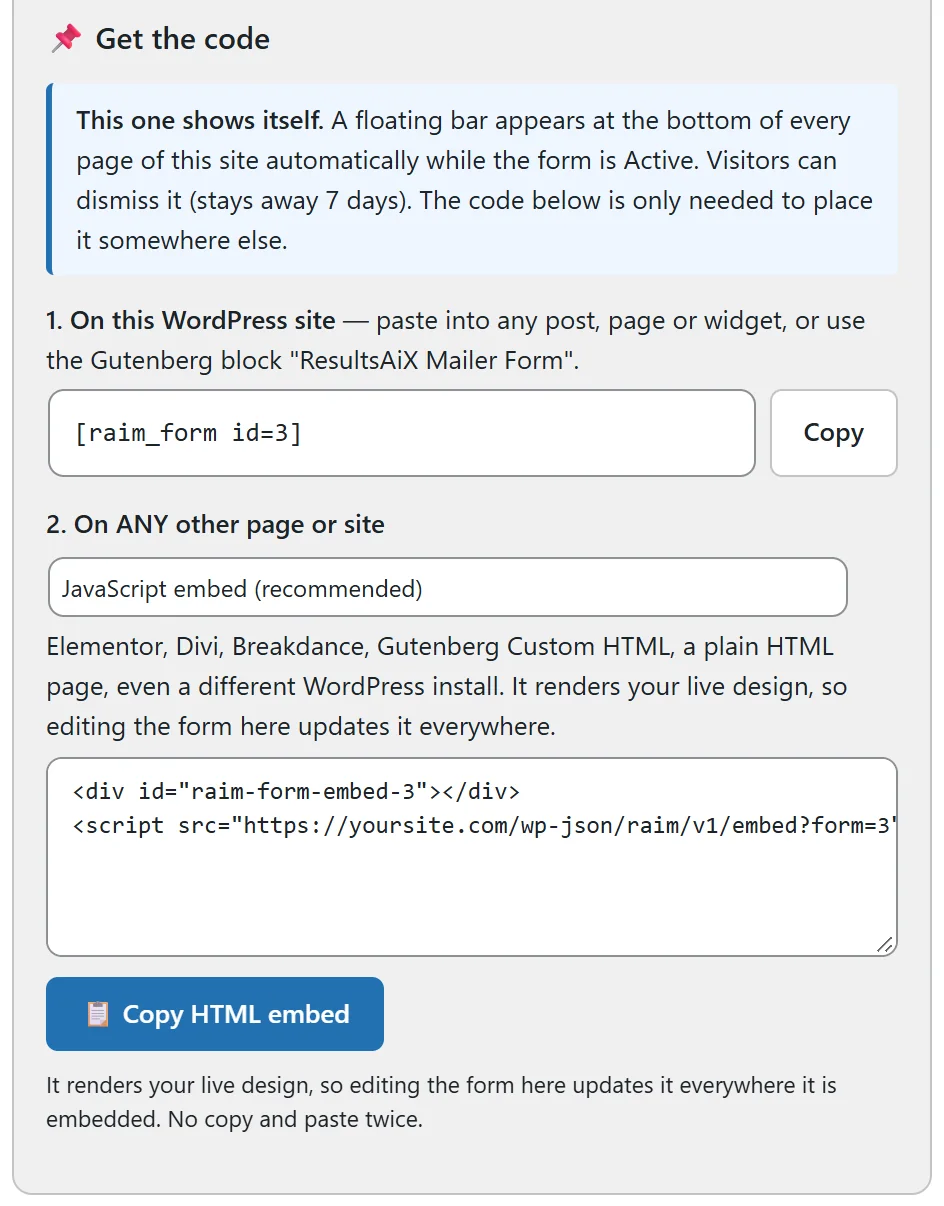
A form of type Floating bar or Slide-in needs no code on this site. While it is Active, a floating bar appears at the bottom of every page and a slide-in appears in the bottom corner a few seconds after the page loads. Visitors can dismiss it, and it then stays away for 7 days. The panel says "This one shows itself"; the codes are only needed to place it somewhere else.
A real example:
Leafwise Gardening runs its shop on a separate page builder site. Anna opens Forms, clicks </> Embed code on "Free seed starting guide", copies the JavaScript embed and pastes it into an HTML widget on the shop's sidebar. Sign-ups there join the Free Seed Starting Guide and Newsletter lists, are tagged seed-guide, get the confirmation email because the guide list uses double opt-in, and start the Seed guide delivery automation. When she changes the button colour later, the shop's form updates by itself.
Tips:
- Design the form first. See Forms And Popups and Build Me A Form: Describe It Or Say It.
- To see which pages the sign-ups come from, open 📊 Report on the Forms list.
- For double opt-in, see Double Opt-In Explained.