The Launches tab is where every launch lives: your own product launches, partners' launches you promote, JV launches, internal promos and live webinars. For your own launches it also runs your affiliate outreach, from the first invite to the thank-you after the launch.
Where to find it:
Click the Launches tab.
The launches list:
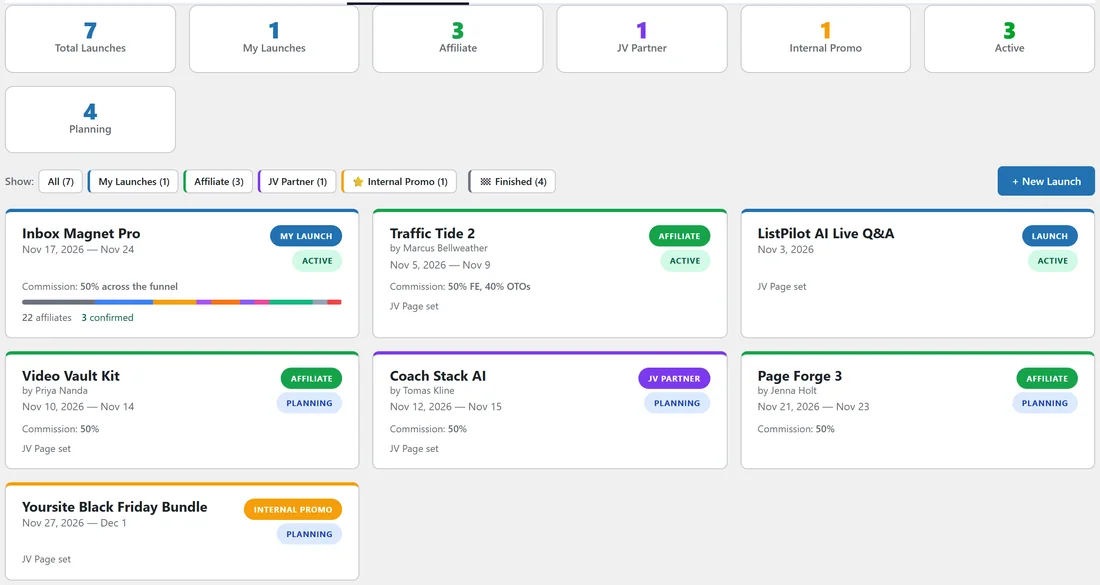
The cards at the top count Total Launches, My Launches, Affiliate, JV Partner, Internal Promo, Active and Planning. Below them, the Show buttons filter the list: All, My Launches, Affiliate, JV Partner, Internal Promo and Finished. Each launch card shows the name, dates, vendor, commission, type and status. For your own launches a coloured bar shows the pipeline, with how many affiliates are added and confirmed.
Creating a launch:
- Click + New Launch.
- Type the Launch Name.
- Choose the Type: My Launch, Affiliate Launch, JV Partner Launch or Internal Promo.
- Pick the Launch Date.
- Click Create. The launch opens on its Setup & Affiliates tab.
You can also add a launch from the calendar by clicking an empty day. See Launch Calendar.
The launch details:
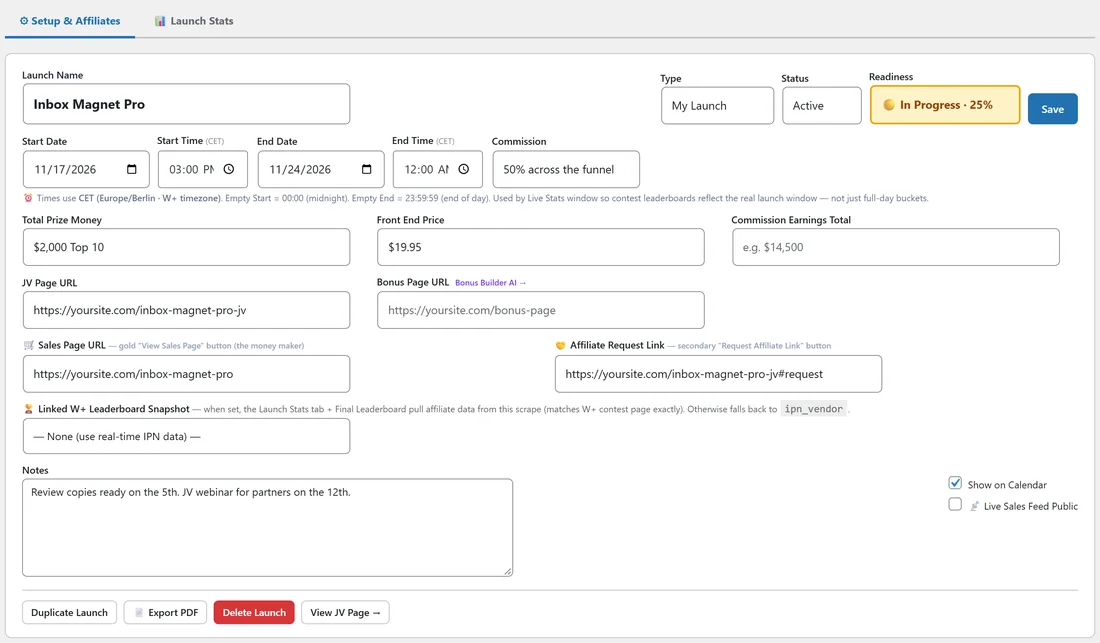
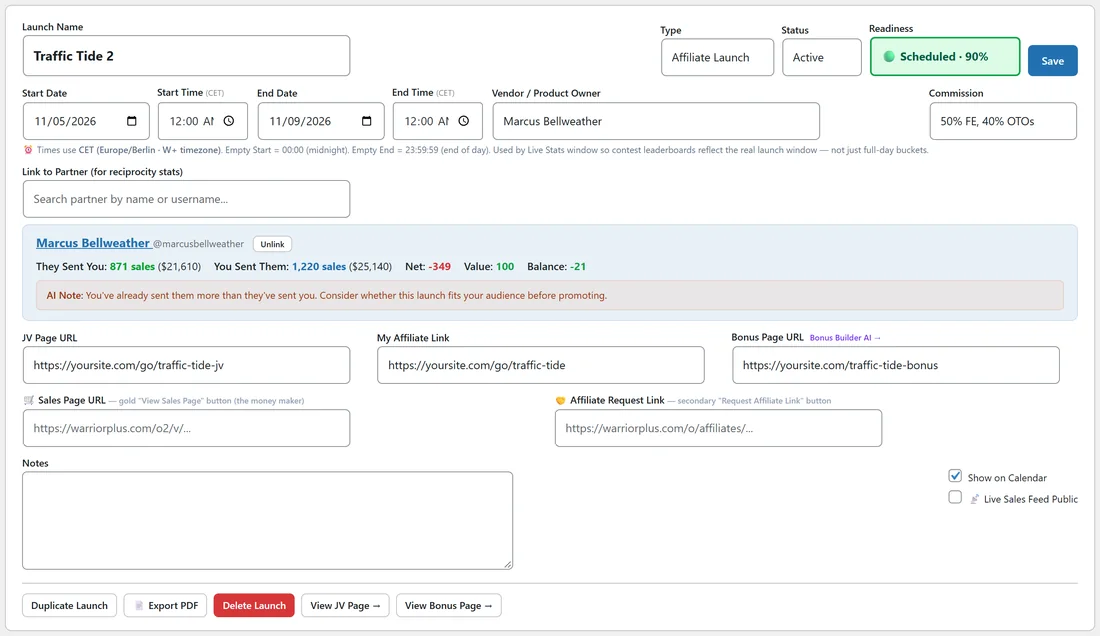
- Launch Name, Type, Status (Planning, Active, Completed, Archived) and Readiness. See Launch Readiness.
- Start Date, Start Time, End Date and End Time. Times use Central European Time, the WarriorPlus timezone. An empty start time means midnight and an empty end time means the end of the day. Launch Stats uses this exact window.
- Commission, such as 50% FE, 50% OTOs.
- For your own launches: Total Prize Money, Front End Price and Commission Earnings Total.
- For affiliate and JV launches: Vendor / Product Owner, and Link to Partner, which shows their reciprocity numbers right on the launch with a short recommendation.
- JV Page URL, My Affiliate Link (affiliate launches), Bonus Page URL, Sales Page URL and Affiliate Request Link.
- Linked W+ Leaderboard Snapshot, for your own launches. See Leaderboard Scraper.
- Notes, Show on Calendar, and Live Sales Feed Public.
Click Save. Under the form are Duplicate Launch, Export PDF, Delete Launch, and View JV Page or View Bonus Page when those links are set.
The pipeline stages:
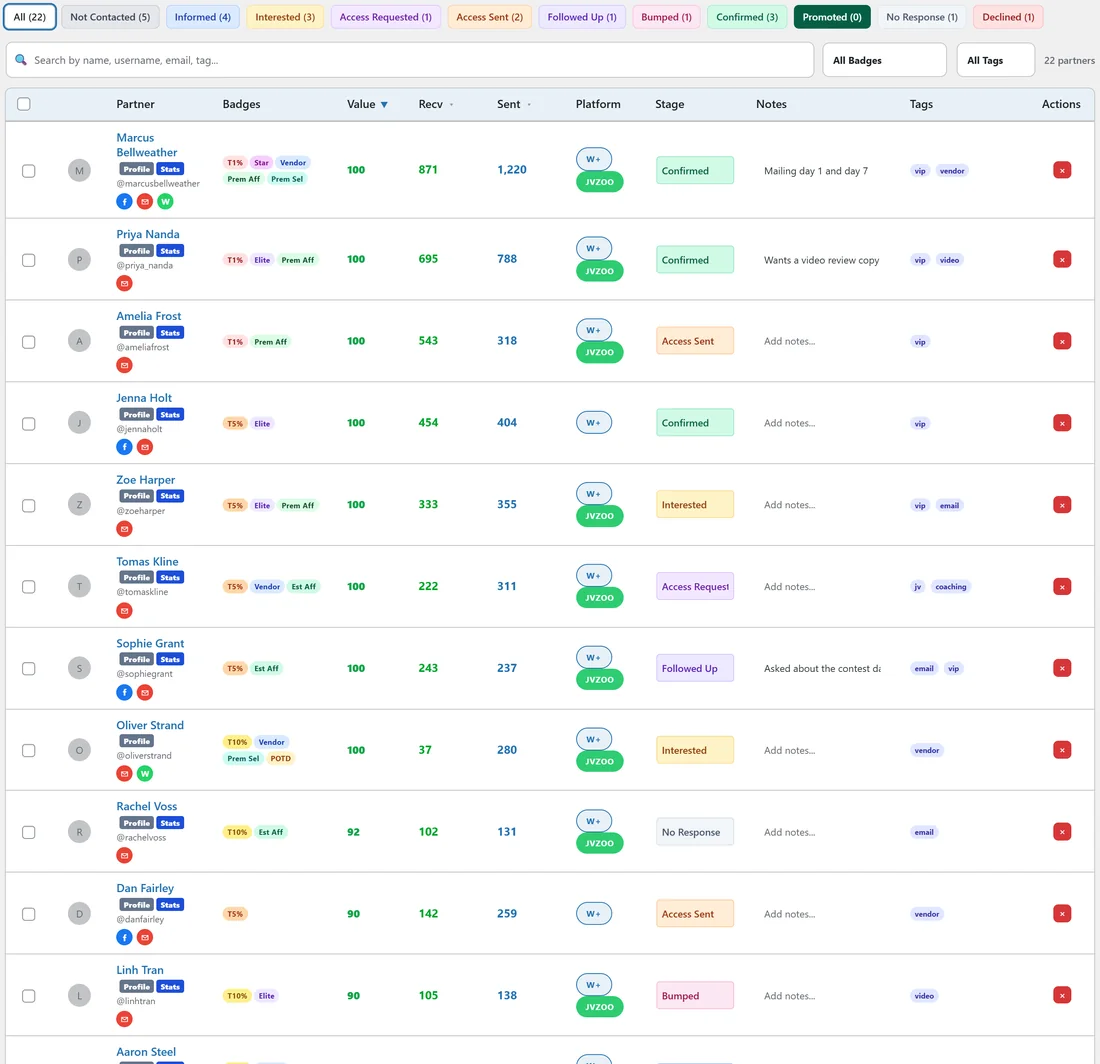
Your own launches have an affiliate pipeline with 11 stages, in this order.
- Not Contacted
- Informed
- Interested
- Access Requested
- Access Sent
- Followed Up
- Bumped
- Confirmed
- Promoted
- No Response
- Declined
The buttons above the table filter by stage and show how many partners are in each.
Adding affiliates:
Under Add Affiliates, click Auto-Suggest Top Partners to see your strongest partners ranked by Value Score, each labelled with a tier such as VIP, and add the ones you want. Or search by name, username or email and add partners one by one. You can also add partners from the Partners list, from a scraped leaderboard, or from the AI Brain.
The pipeline table:
Each row shows the partner with contact icons, their badges, Value, Recv and Sent (sales each way), Platform, Stage, Notes and Tags. Change a stage from the menu and it is saved and logged. Type notes straight into the Notes column. Search and the All Badges and All Tags menus filter the table, and you can tick several partners to change their stage together. A 🔥 NEW label marks partners who were added automatically, for example when their first sale for the launch arrives.
Partners who sell for the launch are moved to Promoted for you when you open Launch Stats. A partner you marked Declined stays Declined.
Message Templates:
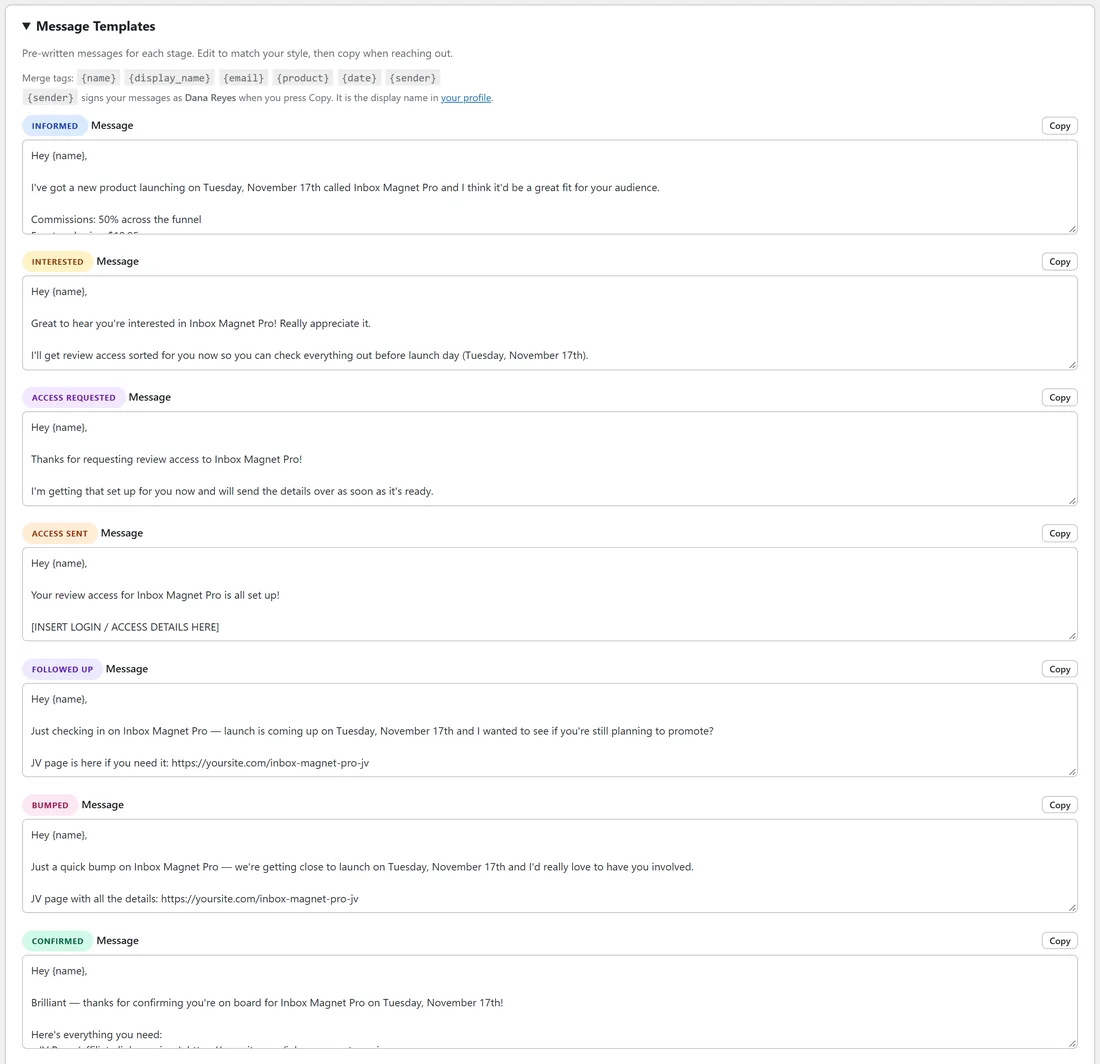
Open Message Templates for a ready-made message for each stage: Informed, Interested, Access Requested, Access Sent, Followed Up, Bumped, Confirmed, Promoted and No Response. They fill in the launch name, date, commission, prizes and JV page from the launch details. Merge tags such as {name}, {display_name}, {email}, {product}, {date} and {sender} are filled in when you copy, and {sender} signs the message with the display name in your WordPress profile.
- Edit any message to match your style.
- Click Save Message Templates. Every edit is kept.
- Click Copy on a stage to copy its message, ready to paste into email or Messenger.
- Regenerate from Launch Details rebuilds the messages after you change the launch details.
Activity Log:
Every stage change, addition and removal is logged with the date, partner and the old and new stage, so you can see your outreach history at a glance.
A real example:
Dana creates Inbox Magnet Pro as My Launch for November 17, sets the commission to 50% across the funnel and the prizes to $2,000 for the top 10. She clicks Auto-Suggest Top Partners, then works the list over two weeks: Marcus and Priya move to Confirmed, Amelia and Dan to Access Sent, Linh to Bumped. For each stage she copies the ready-made message, adjusts the first line and sends it.
Tips:
- Duplicate Launch copies your last launch's details, links and messages into a new one.
- Export PDF on a launch makes a briefing you can send to a JV partner. See Launch Stats, Live Sales Feed And Final Leaderboard.
- Partner launches you promote do not have a pipeline. Link them to the partner instead to see your balance with them.