The calendar shows your own launches, the partner launches you promote, your mailings and your daily tasks in one place. You can see a busy week coming, spot clashes, and plan your mail slots.
Where to find it:
Click the Calendar tab. The buttons at the top switch between Calendar, Schedule (the mailing schedule) and Time Off. PDF Export (60 days) opens a printable schedule of the next 60 days.
The summary cards:
Five cards count the launches this month, My Launches, Affiliate Launches, JV Partner Launches and Mailings Planned.
Views and switches:
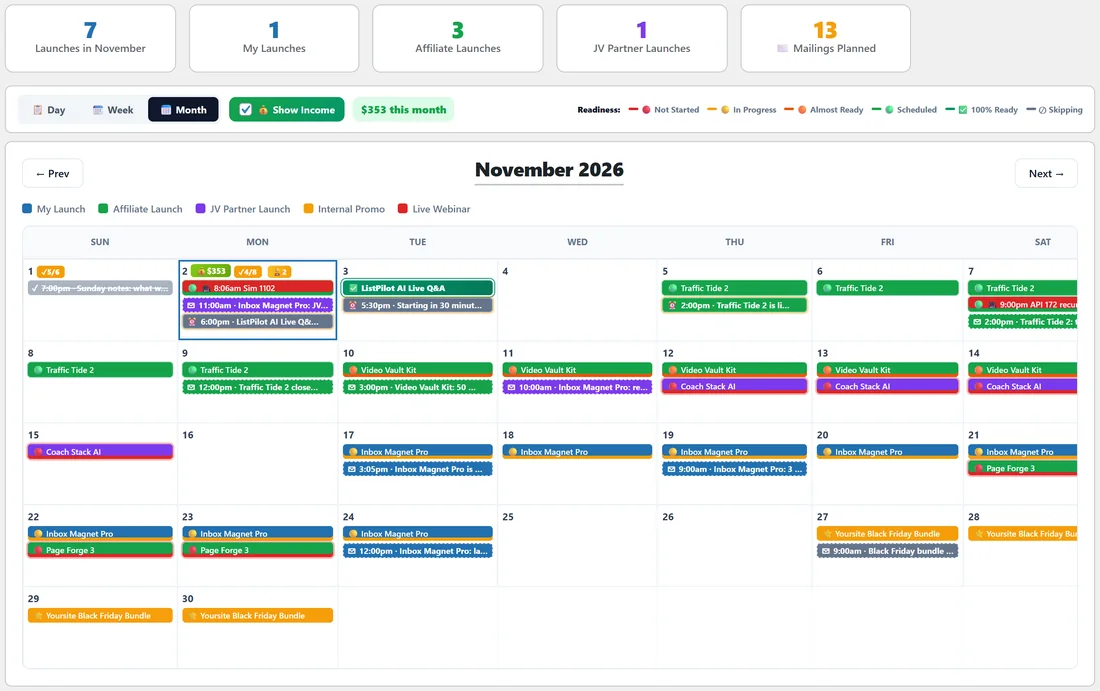
- Day, Week and Month switch the view. Month is the default.
- Show Income turns the daily income chips on and off, with this month's total beside it. See Income Overlay & Revenue Tracking.
- The Readiness key shows the readiness colours. See Launch Readiness.
- Prev and Next move between months or weeks.
What you see:
Launches are bars coloured by type: blue for My Launch, green for Affiliate Launch, purple for JV Partner Launch, amber for Internal Promo and red for Live Webinar. Each bar starts with its readiness emoji. Mailings show as smaller pips with their time and an icon for their status. Today is outlined.
The week view shows each day as a column with fuller cards, including a readiness bar for each launch and the day's tasks.
Adding from the calendar:
Click an empty part of any day to open Add to Calendar, then choose what to add.
- 🚀 Launch: name, type, start and end date, vendor, commission and JV page.
- 🎥 Webinar: name, date, time and link.
- ✉️ Mailing: date, time, type, subject, segment, status, linked launch and notes.
- 📋 Task: an MPA, MIT or task for that day.
Click a launch bar to open the launch, or a mailing pip to edit the mailing.
Your other ResultsAiX plugins:
When ResultsAiX Mailer is on the same site, your broadcasts appear on the calendar at the time they send, with recipients, opens and clicks. When ResultsAiX Webinars is on the same site, your sessions appear as Live Webinar events with registrant and attendee counts.
Share & Embed Calendar:
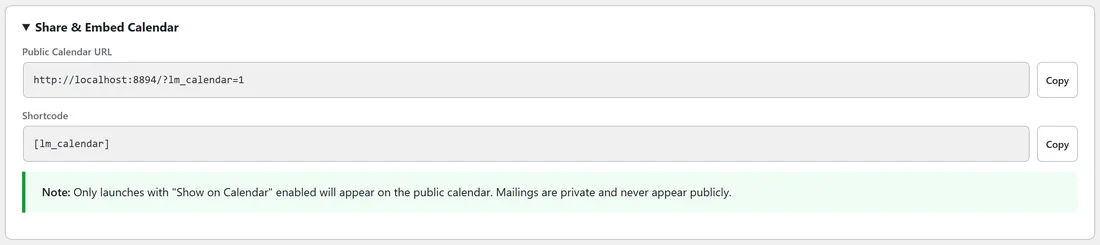
Open Share & Embed Calendar under the grid for the Public Calendar URL and the [lm_calendar] shortcode, each with a Copy button. Only launches with Show on Calendar ticked appear on the public calendar. Mailings are private and never appear.
The upcoming list:
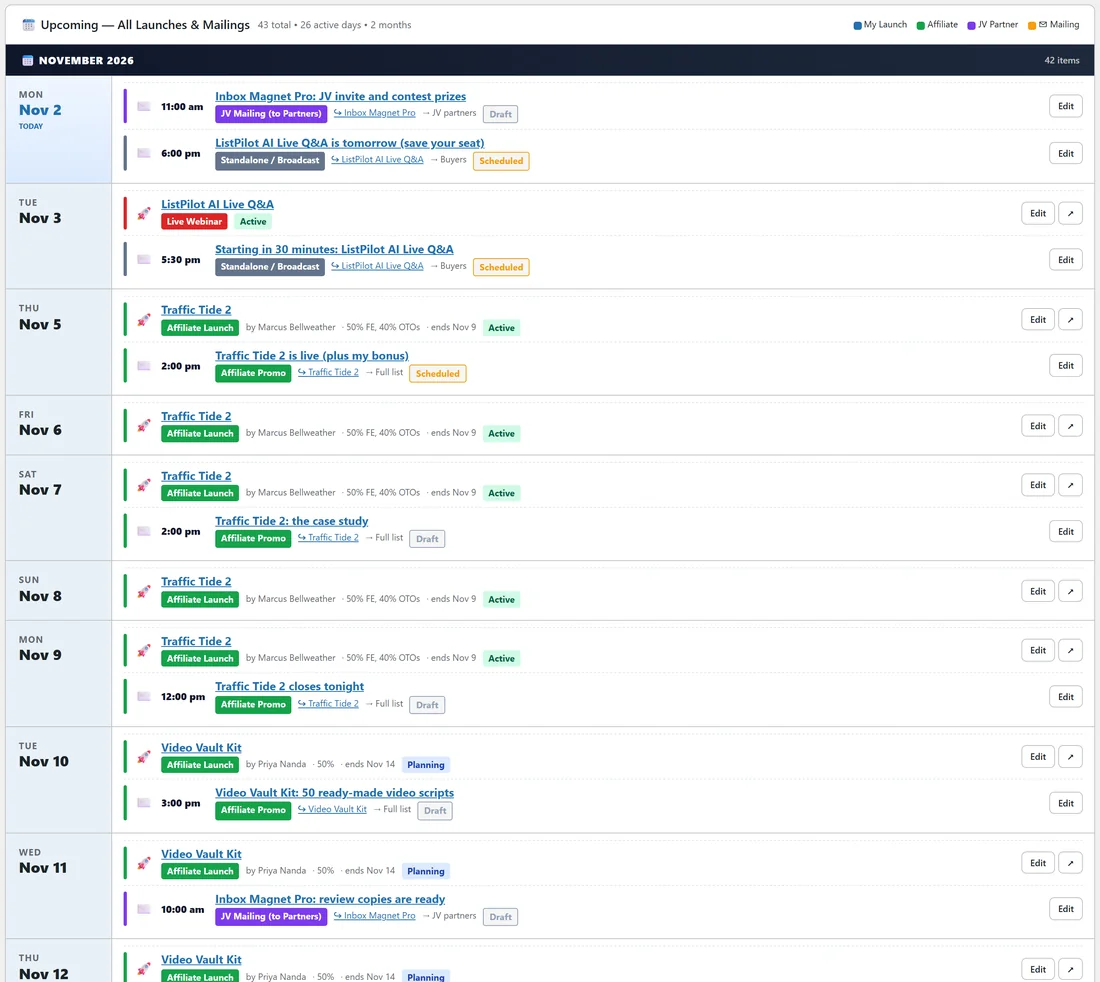
Under the calendar, Upcoming lists every launch and mailing for the coming weeks, grouped by month and day. Each row shows the type, vendor, commission, status and linked launch, with Edit buttons.
A real example:
Looking at November, Dana sees Traffic Tide 2 (green) from the 5th, Video Vault Kit (green) from the 10th and Coach Stack AI (purple) from the 12th, all before her own Inbox Magnet Pro (blue) on the 17th. Video Vault Kit has an orange readiness stripe, so she opens it and finishes her bonus page. She clicks an empty space on the 4th to add a mailing.
Tips:
- Untick Show on Calendar for launches you want to keep off the public calendar.
- Partner launches linked to a partner show your balance with that partner. See Launches & Pipeline.
- Plan days away under Time Off. See Time Off, Plan Your Days Away.