The Data Browser shows the raw rows behind every number in Launch Manager, one source at a time. Use it to check an import, look up a sale, or see exactly what a partner's totals are made of.
Where to find it:
Open the Partners tab and click Data.
The totals:
The cards at the top show W+ Revenue Received, W+ Commissions, W+ Sales Received, W+ Hops, W+ Sent Revenue, W+ Sales Sent, JVZoo Vendor Revenue and JVZoo Affiliate Revenue.
The tables:
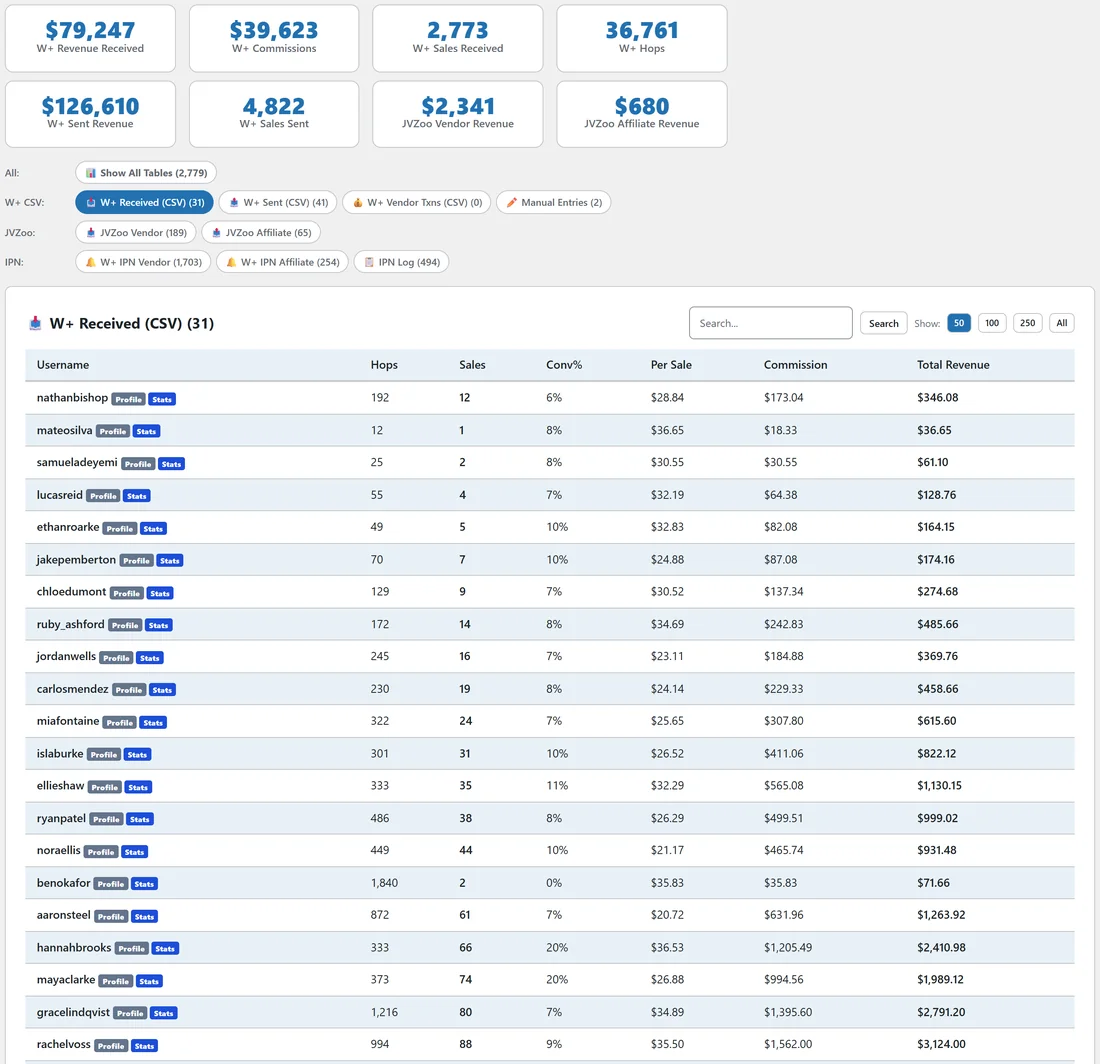
The buttons are grouped by source, each with its row count.
- All: Show All Tables.
- W+ CSV: W+ Received (CSV), W+ Sent (CSV), W+ Vendor Txns (CSV) and Manual Entries.
- JVZoo: JVZoo Vendor and JVZoo Affiliate.
- IPN: W+ IPN Vendor, W+ IPN Affiliate and IPN Log.
Using a table:
- Click a table button.
- Type in Search to filter the rows, then click Search.
- Choose how many rows to show: 50, 100, 250 or All.
- Click a column title to sort.
Usernames have Profile and Stats links to the partner's WarriorPlus pages.
A real example:
After importing her W+ Top Affiliates file, Dana opens Data and clicks W+ Received (CSV). The table shows 31 rows with hops, sales, conversion, per-sale value, commission and total revenue, matching the file she uploaded.
Tips:
- To undo an import, use Import History on the Import page. See Importing Data.
- The IPN Log button here shows the same log as Revenue, IPN Log. See IPN, Real-Time Sales Tracking.
- For a friendlier view of each sale, use Revenue, Sales. See Income Overlay & Revenue Tracking.