A great live show can keep working without you. This makes an automated copy that plays your recording on a schedule, with the real chat from the live show replayed at the moment each message was posted. Your live webinar stays exactly as it is.
What you need:
- A Live webinar with a saved recording. A broadcast from This site saves it when you stop, or set a video on the Content tab.
- A past session with chat.
Where to find it:
Open the Live webinar, then the Chat History tab. The Turn This Live Webinar Into An Automated One panel is there.
Making the copy:
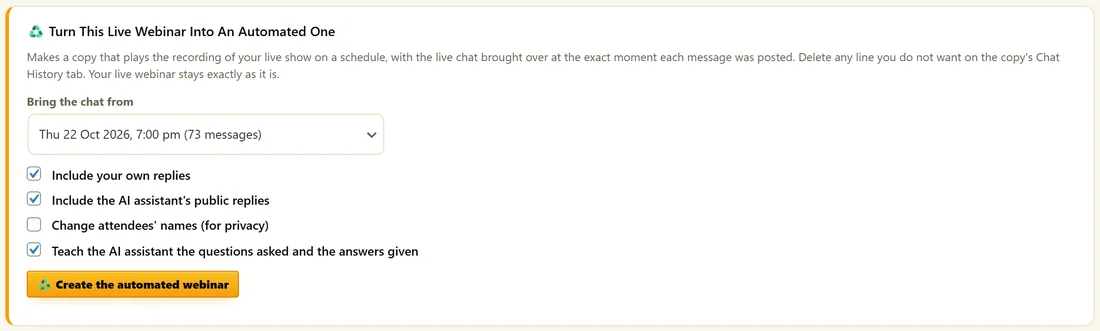
- In Bring the chat from, pick the live session.
- Tick Include your own replies to keep your host answers.
- Tick Include the AI assistant's public replies to keep those.
- Tick Change attendees' names (for privacy) to swap real names for others.
- Tick Teach the AI assistant the questions asked and the answers given.
- Click Create the automated webinar.
What the copy is:
- A Recorded webinar named after the original with (automated) on the end
- It plays the saved recording
- Its schedule is Just in time, a new session every 15 minutes. Change it on its Schedule tab.
- The live chat is brought over as simulated chat lines, each at the moment of the recording it was posted at
- With the last box ticked, its AI assistant knows the questions and answers from the show
Tidying up:
Open the copy's Chat History tab and delete any line you do not want under Simulated Chat. Then check its Schedule, Offer and Emails tabs.
A real example:
Maya's Spring Planting Live Q&A on 22 October had 73 messages and 14 questions. She picks that session, keeps her replies, changes names for privacy and teaches the assistant. The copy plays her recording every 15 minutes, with her live answers appearing at the same moments as on the night.
Choosing the best session:
Pick the live session with the most useful chat: real questions, your clear answers and good energy. The menu shows each session's date and how many messages it had.
Privacy:
Change attendees' names (for privacy) swaps real names for other first names on the copy, so people from the live night are not named in the automated version.
After the copy is made:
- Open the copy from your Webinars screen.
- Set its Schedule: keep Just in time, or choose On demand or Recurring weekly.
- Check the Registration tab and the address.
- Check the Offer tab, especially the reveal minute and countdown.
- Switch on the emails you want.
- Turn on One shared chat for everyone watching if new viewers should see each other.
Teaching the assistant:
With Teach the AI assistant the questions asked and the answers given ticked, the questions from the live show and your answers are added to the copy's assistant knowledge. Turn on the assistant on the copy's AI Assistant tab.
What to do next:
- Scheduling Your Sessions
- The AI Assistant In Your Webinar Chat
- Chat History And The Questions Inbox
Common questions:
Does it change my live webinar?
No. The live webinar stays exactly as it is.
Can I make more than one copy?
Yes. Run it again from another session to make another copy.