The AI assistant sits in your webinar chat and answers attendees, so an automated webinar never leaves a question hanging. It uses only what you give it and passes anything else to you.
What you need:
An AI key on the AI screen. See Connecting An AI Key Is Optional.
Where to find it:
Open the webinar, then the AI Assistant tab.
Turning it on:
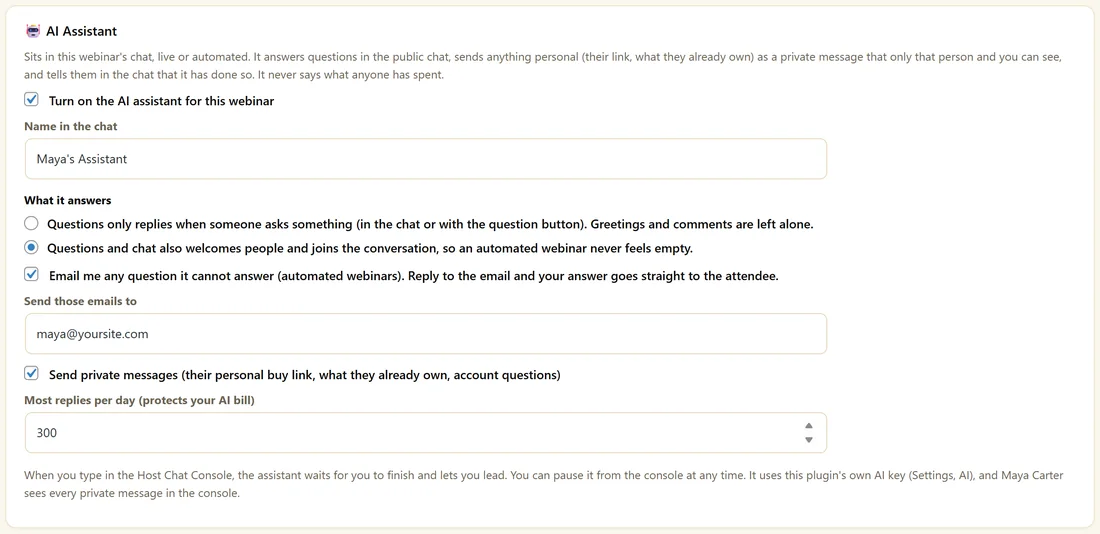
- Tick Turn on the AI assistant for this webinar.
- Set Name in the chat, for example Maya's Assistant.
- Choose What it answers:
- Questions only replies when someone asks something, in the chat or with the question button.
- Questions and chat also welcomes people and joins the conversation.
- Tick Email me any question it cannot answer (automated webinars) and set Send those emails to. Reply to the email and your answer goes straight to the attendee.
- Tick Send private messages for personal things such as their buy link, what they already own and account questions.
- Set Most replies per day to protect your AI bill.
- Click Save.
What it promotes:
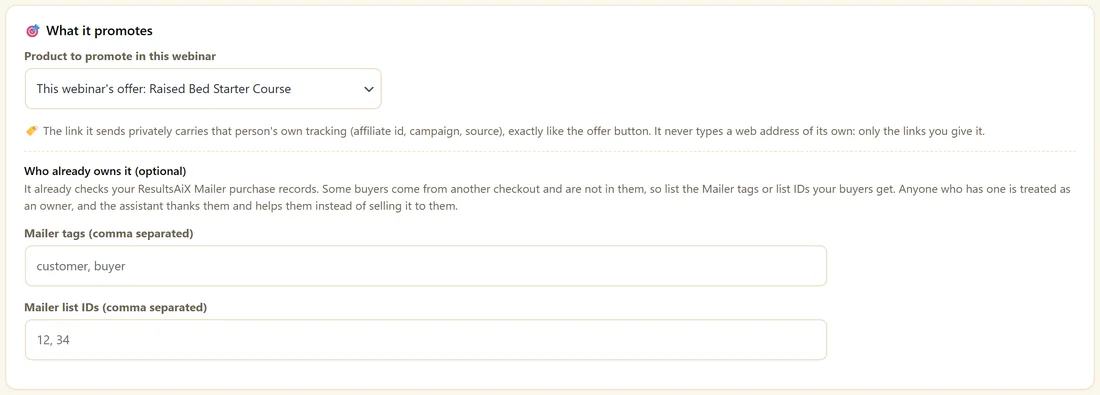
Pick Product to promote in this webinar: this webinar's offer, another product you type in, or nothing. The buy link it sends privately carries that person's own tracking, like the offer button. It only ever sends links you gave it.
Who already owns it:
It checks your ResultsAiX Mailer purchase records. For buyers from another checkout, list the Mailer tags or list IDs your buyers get. Owners are thanked and helped instead of being offered the product again.
What it knows:
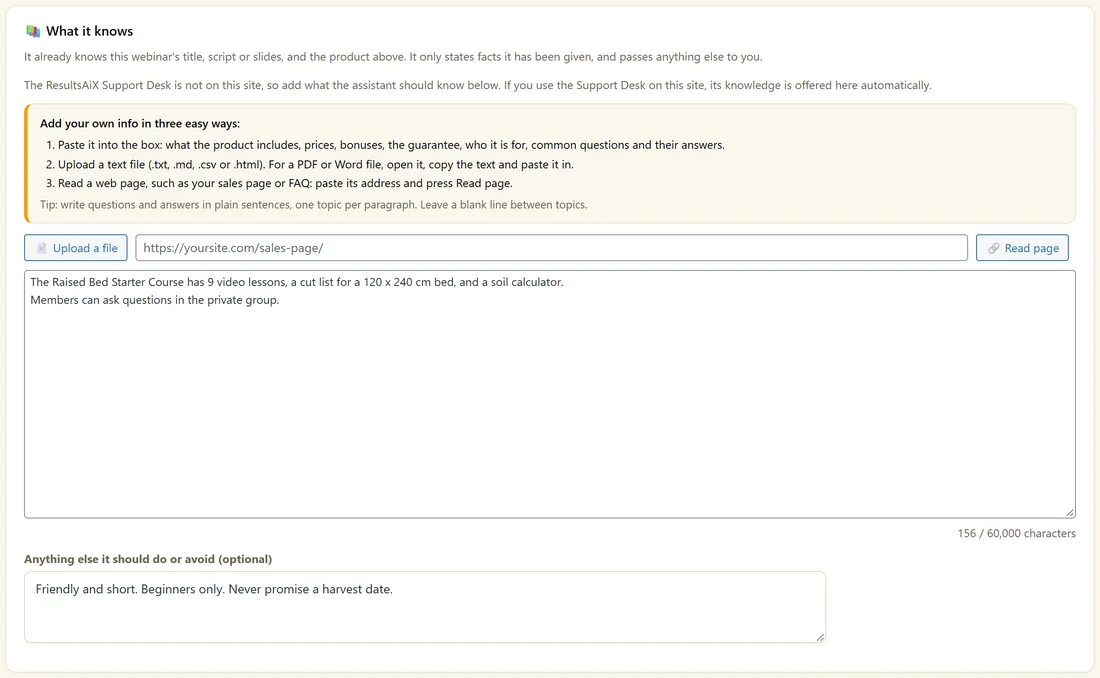
It already knows the webinar title, script or slides and the product. Add more in three ways:
- Paste it into the box: what the product includes, bonuses, who it is for, and common questions with their answers.
- Click Upload a file for a .txt, .md, .csv or .html file.
- Paste a page address and click Read page.
Write questions and answers in plain sentences, one topic per paragraph. Add rules in Anything else it should do or avoid.
Trying it first:
In Try it before your webinar, type a question, choose asked in the chat or asked with the question button, and click Ask. Nothing is posted. You see what it would say.
How it behaves in the room:
- Public answers show in the chat, labelled as the assistant.
- Personal answers go as a private message, and it says in the chat that it has done so.
- It never says what anyone has spent.
- When you type in the Host Chat Console, it waits and lets you lead, and you can pause it there.
A real example:
On Raised Beds Made Simple, Maya's Assistant runs in Questions and chat mode with the course as its product. Its knowledge says the course has 9 video lessons, a cut list and a soil calculator. When Harper asks "Which wood is safe for vegetables?", it answers in the chat. When she asks how to join, it sends her personal course link privately.
Where to see its work:
The Dashboard's AI assistant card counts replies and questions passed to you, and Chat History holds every conversation.
Writing the knowledge:
Write short paragraphs, one topic each, in plain sentences:
- What the product includes
- Who it is for and who it is not for
- How to join and what happens next
- The questions people ask most, each with its answer
The assistant only states facts it has been given. Anything else is passed to you.
Choosing a mode:
- Questions only suits live webinars where you lead the chat.
- Questions and chat suits automated webinars, so the room never feels quiet.
The daily limit:
Most replies per day caps how many replies it sends in a day, which keeps your AI bill steady. 300 is plenty for most webinars.
The question emails:
On automated webinars, with Email me any question it cannot answer ticked, you get an email with the question. Reply to that email, and your answer goes straight to the attendee. The question also waits in Questions For You on the Chat History tab.
Owners and buyers:
When a person already owns the product, the assistant thanks them and helps them instead of selling. It checks your ResultsAiX Mailer purchase records, plus any Mailer tags or list IDs you list.
Testing before going live:
Ask three questions in Try it before your webinar: one the knowledge answers, one about buying, and one it should pass to you. Adjust the knowledge or the rules until each answer is right.
What to do next:
- The Host Chat Console
- Chat History And The Questions Inbox
- Connecting An AI Key Is Optional
Common questions:
Does it post as me?
No. It posts under its own name, labelled as the assistant.
Can I turn it off for one session?
Pause it from the Host Chat Console, or untick it on the AI Assistant tab.