The Chat History tab keeps every conversation your webinar has had, and the questions that still need you. It is also where you set the room chat and your scripted lines.
Where to find it:
Open the webinar, then the Chat History tab.
Questions For You:
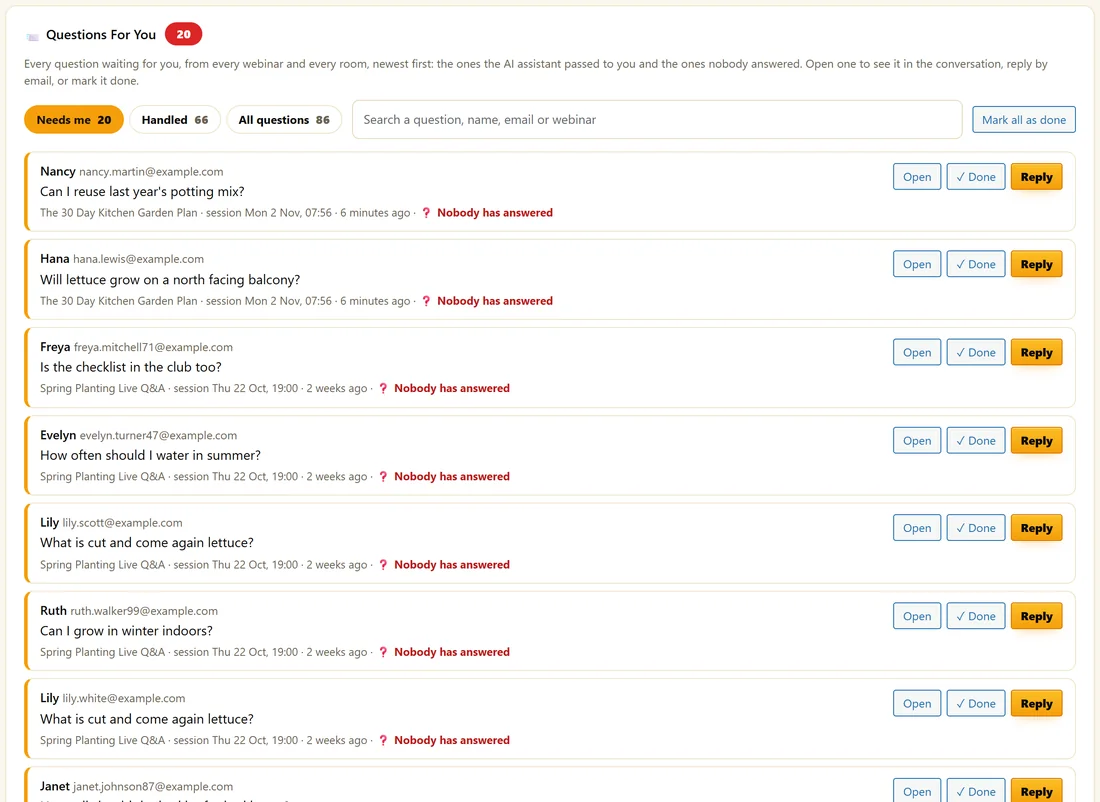
Every question waiting for you, from every webinar and every room, newest first: the ones the AI assistant passed to you and the ones nobody answered.
- Needs me, Handled and All questions filter the list.
- Search finds a question, a name, an email or a webinar.
- Open shows it in its conversation.
- Reply answers by email.
- Done marks it handled. Mark all as done clears the list.
Every Conversation:
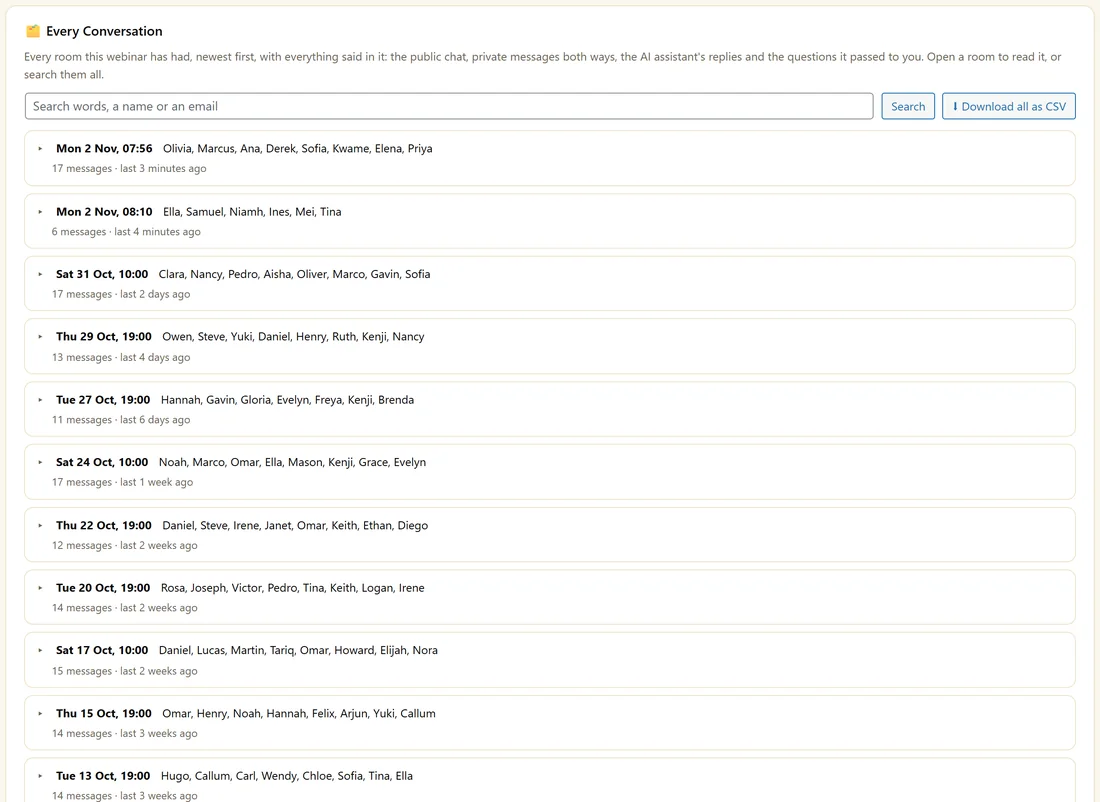
Every room this webinar has had, newest first, with who was in it and how many messages. Open a room to read everything: public chat, private messages both ways, the AI assistant's replies and the questions passed to you. Search looks across all of them by words, name or email, and Download all as CSV saves them.
Room chat on or off:
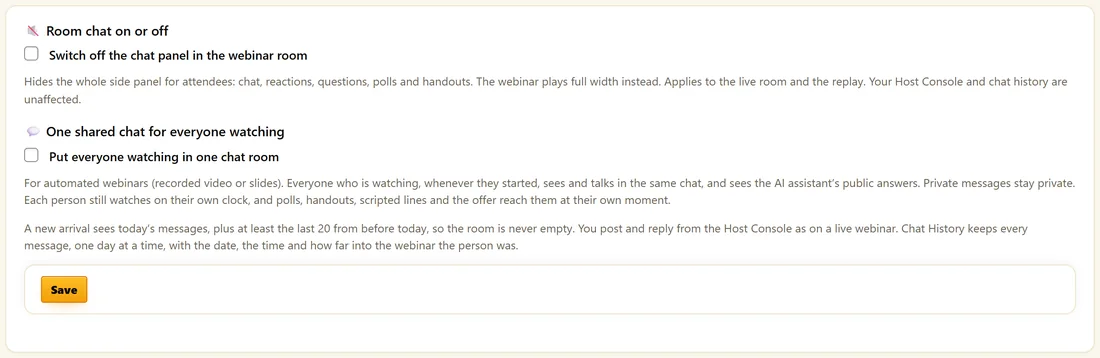
Tick Switch off the chat panel in the webinar room to hide the whole side rail for attendees: chat, reactions, questions, polls and handouts. The webinar plays full width. Your console and history are unaffected.
One shared chat for everyone watching:
For AI Deck and Recorded webinars, tick Put everyone watching in one chat room. Everyone watching, whenever they started, talks in the same chat and sees the AI assistant's public answers. Private messages stay private. Each person still watches on their own clock, and polls, handouts, scripted lines and the offer reach them at their own moment. A new arrival sees today's messages, plus at least the last 20 from before today, so the room is never empty.
Simulated Chat:
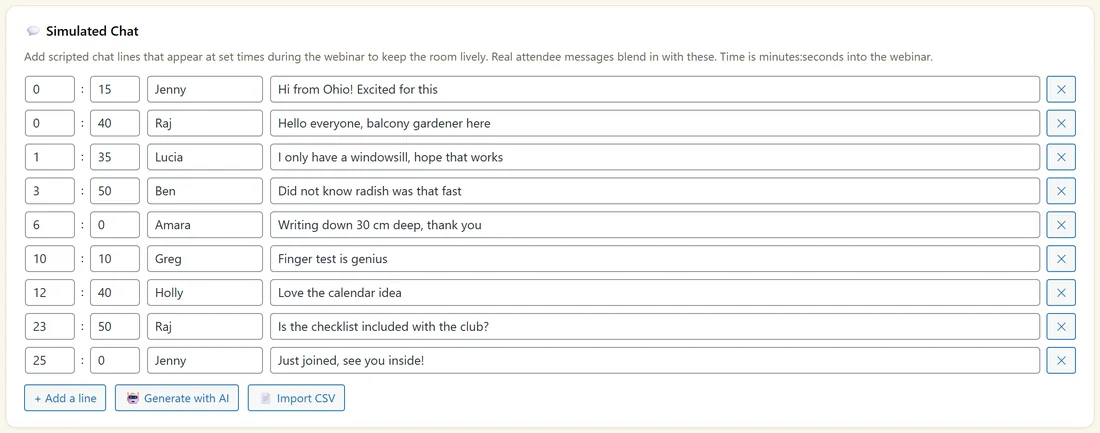
Scripted lines that appear at set times to keep the room lively.
- Click + Add a line.
- Set the minutes and seconds into the webinar, a name and the message.
- Click Save.
Generate with AI writes lines from your slides: greetings early, reactions in the middle and buying interest later. Import CSV loads your own lines.
A real example:
After a week of her Kitchen Garden Plan, Maya opens Questions For You and sees 25 that need her. She replies by email to the ones about north facing balconies and marks the rest done. On Raised Beds Made Simple she turns on one shared chat, so on-demand viewers see each other and the assistant.
Looking for the Host Chat Console?
It is on the Content tab. Open the Host Console takes you there.
Answering questions after a webinar:
- Open Chat History.
- Leave Needs me selected.
- Click Open on a question to read it in its conversation.
- Click Reply to answer by email, or Done when it is handled.
The count of questions that need you also shows on the Webinars menu and on the Dashboard's AI assistant card.
Searching conversations:
Type words, a name or an email in the Every Conversation search and click Search. Results come from every room of this webinar. Download all as CSV saves every message with the room, the time and the moment in the webinar.
Using conversations to improve:
- Read the questions asked at the same moment in several rooms. That part of your webinar needs a clearer line.
- Copy good questions and your answers into the AI assistant's knowledge.
- Turn great comments into simulated chat lines for your automated webinars.
Simulated chat tips:
- A greeting or two in the first minute
- Short reactions after each teaching point
- One or two interested questions near the offer
- Keep names varied and messages short
What to do next:
- The AI Assistant In Your Webinar Chat
- Turning A Live Webinar Into An Automated One
Common questions:
How long is chat kept?
Every message is kept in your database with its room, time and moment in the webinar.
Can I export the chat?
Yes. Download all as CSV under Every Conversation.