ResultsAiX Optimize runs on your WordPress site, but the pages you test do not have to. A plain HTML sales page, another WordPress site or a page made with a page builder can all be split tested, heat mapped, replayed and counted. You add one line of code to the page once, and everything else is done from your dashboard.
Where to find it:
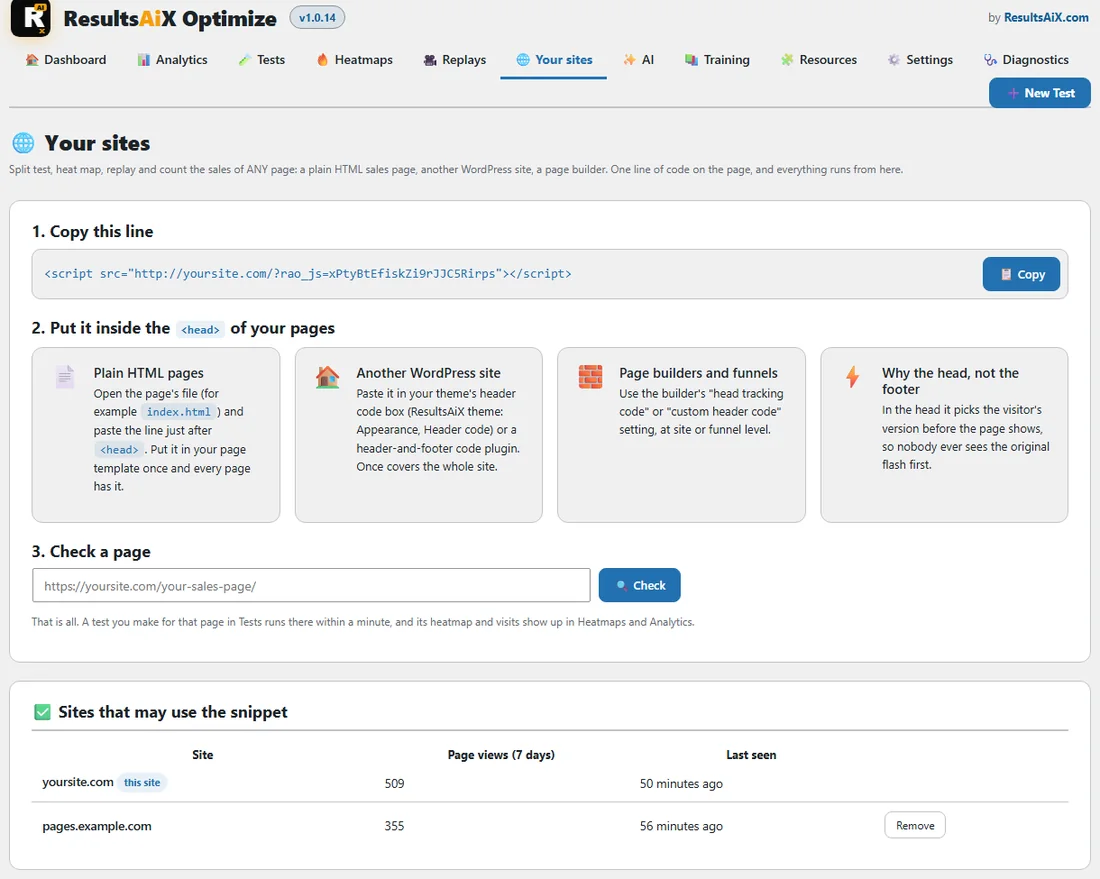
AiX Optimize, Your sites. The WordPress sidebar has a Your sites shortcut too.
What the one line does:
- Shows each visitor their version of any test on that page before the page appears, so nobody sees the original flash first.
- Counts every page view, Buy click, lead and sale for Analytics.
- Collects the heatmap and the session replays for the page.
- Lets the point and click editor and the heatmap viewer open that page from your dashboard.
Step 1: copy the line:
Section 1, Copy this line, holds your own line, with your site address and your key in it. It looks like the line below. Press Copy. <script src="https://yoursite.com/?rao_js=YOUR-KEY"></script>
Step 2: put it in the head of your pages:
- Plain HTML pages: open the page's file, for example index.html, and paste the line just after <head>. Put it in your page template once and every page has it.
- Another WordPress site: paste it in your theme's header code box (in the ResultsAiX theme, Appearance, Header code) or in a header and footer code plugin. Once covers the whole site.
- Page builders and funnels: use the builder's head tracking code or custom header code setting, at site or funnel level.
The head is the right place for it. There it picks the visitor's version before the page shows.
Step 3: check a page:
Under Check a page, paste the address of a page and press Check. Optimize opens the page from your server and tells you what it found. The snippet is on this page: ready to test means all is set. Add the one line below to this page (inside <head>), then check again means the line is not there yet. This page has an Optimize snippet from another site means the page carries a line from a different Optimize site: swap it for yours.
A test you make for that page on the Tests tab runs there within a minute, and its heatmap and visits show up in Heatmaps and Analytics.
Sites that may use the snippet:
Only sites you allow can send visits to Optimize. This table lists this site, the sites you added under Your other sites, each with Remove, and any site marked from a test: a test that points at a page on that site allows the site by itself. Each row shows the page views of the last 7 days and when the site was last seen.
Sites that tried to send visits:
When a page with your line sends a visit from a site that is not on your list, Optimize remembers it here, with the page address and how long ago. Its visits are counted once you allow it. Press Allow for your own sites, or Not mine to clear it from the list.
Settings for your sites:
- Your other sites (one per line): just the domain, for example pages.example.com. example.com also covers www.example.com. Sites your tests point at are allowed automatically.
- What counts as a Buy click: a click on a link whose address contains any of these words, or on a button that says Buy, Order, Add to cart, Checkout, Get access, Join now and the like. One per line. The list starts with the usual checkout addresses, such as checkout, cart, order, buy, paypal.com, stripe.com, jvzoo.com, warriorplus.com, clickbank, thrivecart and samcart.
- Recognise the same visitor across my sites: on by default. When someone clicks from one of your sites to another, for example from a sales page to your checkout or members site, Optimize adds a short visitor code to the link. They keep their version of a test, and the sale is counted to the right page. Only links between your own sites get the code.
Press Save to keep your changes.
Sales from another checkout:
At the bottom, a Sale address and a Secret let a checkout on another server send each sale to Optimize, signed with the secret. For most checkouts the postback address on the Conversions tab is the easier way. See Counting Leads And Sales On Any Checkout (Conversions).
Testing a page on another site:

- Press New Test and paste the page's address into the page box.
- The builder checks the page for your line and shows The snippet is on this page: ready to test.
- Press Save. The point and click editor loads the page from its own site, and every click there comes back to the builder.
- Build your versions, choose the goal and press Save and start.
Visitors to that page are now split, and the report fills in just as it does for a page on this site. Preview a version shows each version in the editor until the test starts, and on the live page once the test is running.
A real example:
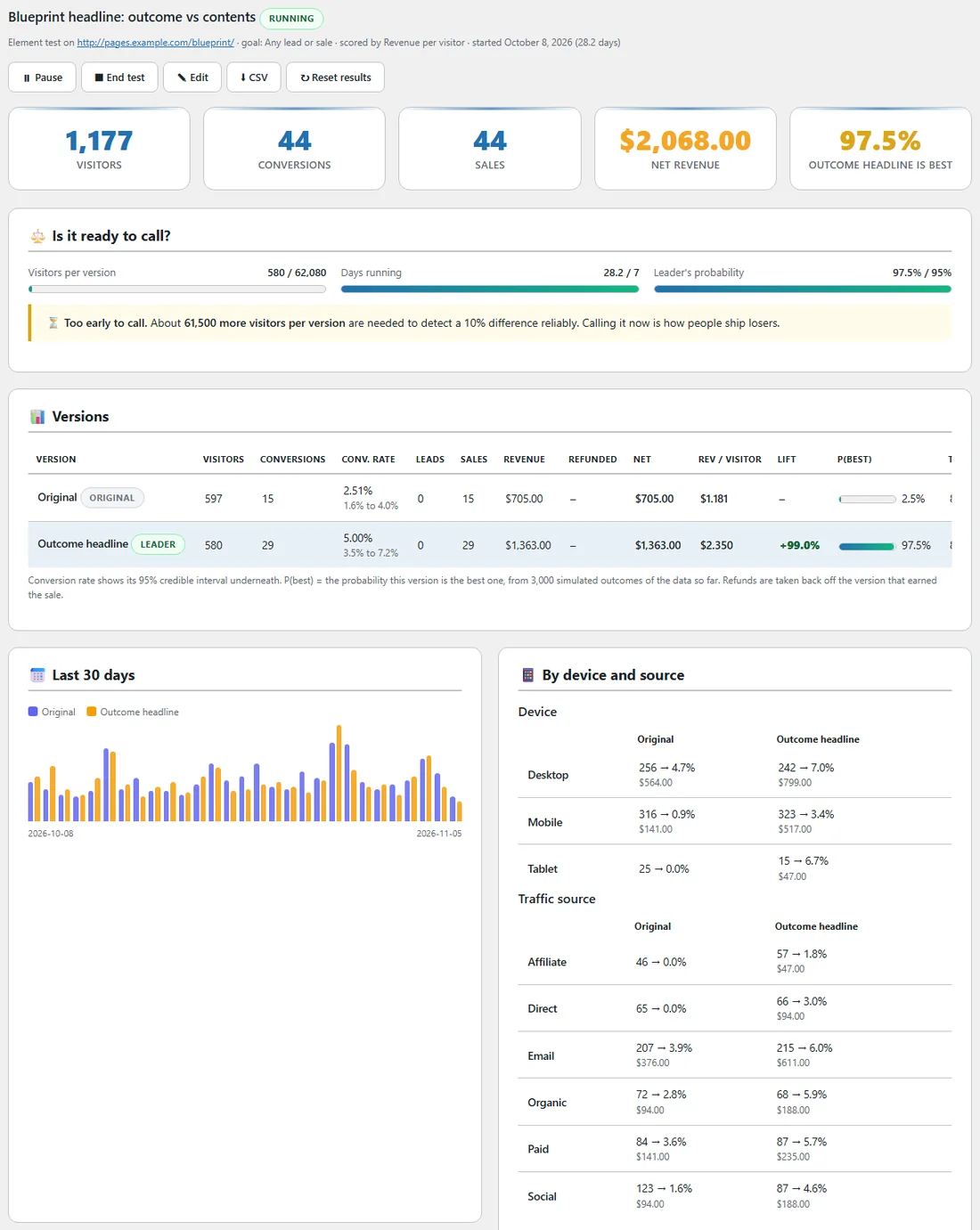
Side Income Lab runs its WordPress site at yoursite.com and keeps its main sales page, The AI Side Income Blueprint, as a plain HTML page at pages.example.com. The owner pasted the line just after <head> in the page template, pressed Check and saw ready to test. She then tested an outcome headline and an orange Buy button against the original. After 1,177 visitors and 44 sales, the report shows the Outcome headline 97.5% likely to be best, with 99% more revenue per visitor, while the page's heatmap and Buy clicks fill in on the Heatmaps and Analytics tabs.
Tips:
- Put the line in a shared header or template, so every page of that site has it at once.
- Use Check a page after a redesign of the other site, to see the line is still in place.
- Keep Recognise the same visitor across my sites on when your checkout or members area lives on a different site from your sales page.