Most questions about split tests, heatmaps and replays have a short answer. Find what you see below and follow the steps. Diagnostics, under AiX Optimize, Diagnostics, shows most of these settings at a glance.
The test shows no visitors:

- Check the test is Running on the Tests tab.
- Visit the page in a private window. You are not counted while logged in as an editor or administrator.
- Check the page in the builder. Picking it with the page picker is the surest way to match it.
- Check Share of visitors in the test and Devices in section 4 of the builder. Visitors outside them see the Original and are not counted.
- In the private window, look at the page source. The body has a class like rao-t39-v78 when you are in a test.
Every visitor sees the same version:
A page cache is handing out one saved copy. Add the tested page's address to your cache plugin's never cache list, and to your CDN's bypass rules. See Caching Plugins, Page Builders And Performance.
Conversions stay at zero:
- Check the goal in section 3 of the builder.
- For Any lead or sale, A sale or A lead / opt-in, open Diagnostics, Family connections, and check the plugin that records your leads or sales shows Detected.
- For Visits a thank-you page (URL), check the text you typed is part of the thank-you page address.
- For Clicks an element (CSS selector), click the element in the editor and copy the selector it shows.
- Only running tests collect conversions, so a paused test stays where it is.
The editor shows a blank page:
Your site may block itself from showing inside a frame, which some security plugins do. Press Open in a tab above the editor. The editor works there, and every click is sent back to the builder. Keep the builder tab open.
The editor asks for Optimize's line:
For a page on another site, the editor shows This page does not have Optimize's line yet when the one line of code is not on the page. Press Copy in that box, paste the line once in the head of that site, and press I added it: check again. The page then loads in the editor. See Using Optimize On Any Page Of Any Site (The One Line Of Code).
A page is not shown inside the dashboard:
Some sites do not allow their pages to be shown inside another page. In the heatmap viewer, press Open on the live page: the heatmap works there the same way. In the editor, press Open in a tab: every click there comes back to the builder.
A change does not show on the page:
- Check you pressed Save in the builder sidebar after Apply change.
- Look at the page with Preview a version, or in a private window while the test runs.
- Colour, hide and link changes find their element by its selector, the line shown under the Text box. If the page was rebuilt since, click the element again in the editor, apply the change and save.
The heatmap says No data yet for this view:
- Pick All devices in the bar. A device may simply have no visits yet.
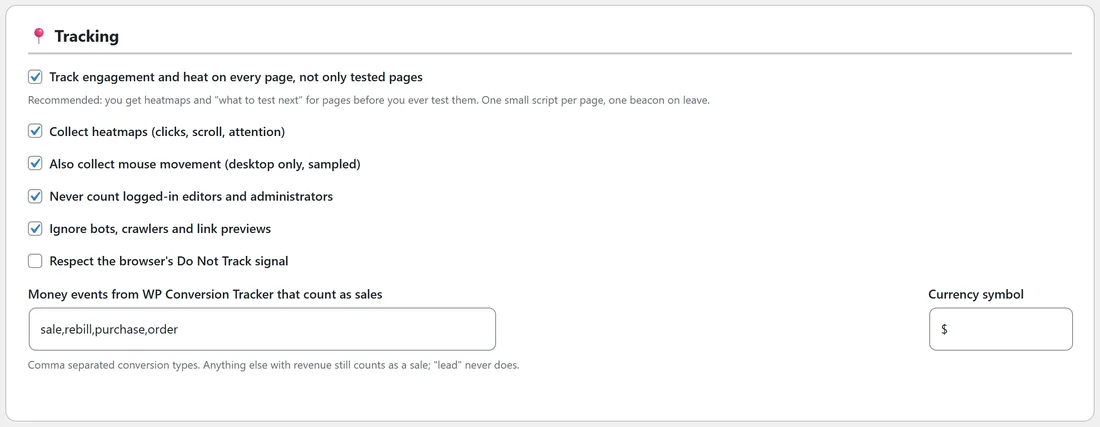
- Check Collect heatmaps (clicks, scroll, attention) and Track engagement and heat on every page, not only tested pages in Settings, Tracking.
- Give the page some visits from a private window. Admin visits and bots are not counted.
- Archive and search pages are not tracked.
- For a page on another site, check it on the Your sites tab with Check a page.
The Replays tab stays empty:
- Check Record session replays is ticked in Settings.
- Visits shorter than Skip sessions shorter than (seconds) are not kept.
- A replay is saved while the visitor is on the page, so a visit needs a few seconds before it shows. Heatmaps and test results are collected for every visit either way.
A page on another site shows no visits:
- Open the Your sites tab and press Check under Check a page with the page's address.
- Look under Sites that tried to send visits. When the site is listed there, press Allow.
- Make sure the line sits inside the page's head, not in the body or footer.
Sales from your checkout do not show:
- On the Conversions tab, press Test it under the postback address. It should say Connected.
- Check the address is saved as the postback, IPN, notification URL or webhook in your checkout.
- Buyers need to reach the checkout through a Buy link on a page with the tracking line, so the link carries their visitor code.
- Latest conversions on the Conversions tab lists each sale as it is counted.
A test is ready but has not been declared:
- Check Declare the winner automatically when the test is ready is ticked in section 4 of the builder.
- Open Diagnostics and check Hourly cron (winners, refunds) shows Scheduled.
- The check runs once an hour on WordPress's scheduled tasks. You can always press Declare the winner on the report.
An AI button shows an error:
- Open the AI tab and press the Test button on your provider's card.
- The error under Recent AI jobs and in Last AI error is your provider's own message, for example a key that has expired or a usage limit.
- Set a Fallback provider (optional) to switch over automatically next time.
The licence screen shows a message:
See Installing The Plugin And Activating Your Licence Key for each message and what to do.
Still stuck?
Open Diagnostics, press Copy Report for Support and send it to support with a line about what you see.