Split tests decide on your server which version each visitor sees, so the plugin has to work alongside caching. This article explains what it does for you, the one setting to check in your cache plugin, and what Optimize adds to your pages.
Where to find it:
AiX Optimize, Diagnostics, the Page cache row. The rest is in your cache plugin or CDN settings.
Page caching:
A page cache saves one copy of a page and hands it to every visitor. That is great for speed, and it would show every visitor the same version of a test. So on a tested page, when a visitor takes part in a test, Optimize:
- sends no-cache headers, and
- sets DONOTCACHEPAGE, the signal WP Rocket, W3 Total Cache, LiteSpeed Cache and most hosting caches respect.
That page is then built fresh for each visitor in the test, and every other page stays cached as before.
Checking your setup:
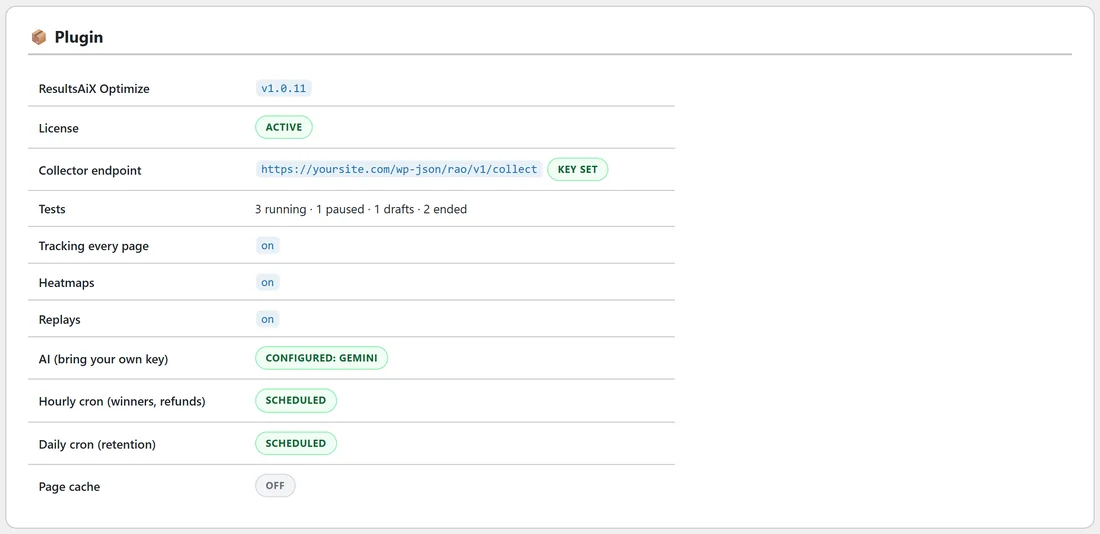
- Open AiX Optimize, Diagnostics. Page cache shows WP_CACHE on when a page cache is active, or off.
- Open the tested page in a private window a few times, or from two browsers.
- When the versions vary, all is well.
- When every visitor sees the same version, add the tested page's address to your cache plugin's never cache list, and to your CDN's bypass rules if you use one.
Pages without a test hold nothing visitor-specific. The visitor id is made and read in the visitor's browser, so a cached copy of the page is right for everyone, and heatmaps, replays and Analytics keep working on cached pages.
Pages on other sites:
A page with the one line of code picks each visitor's version in the browser, from the head of the page, so it works with any cache or CDN on that site. The line itself is cached for 60 seconds, which is why a new test reaches such a page within a minute.
Page builders:
- Element tests work with Elementor, Divi, Beaver Builder, Bricks, the block editor and classic themes. The editor and the changes work on the finished page, whatever built it.
- Text and images are swapped on your server before the page is sent. If a builder draws some text with JavaScript after the page loads, the change is made in the browser instead, behind a short veil of up to 400 milliseconds.
- Page tests hand the challenger page to WordPress at the original address, so the builder loads its own layout, page template and styles.
What Optimize adds to a page:
- One small script, loaded in the footer, on single pages, posts and the home page. Archives and search pages are not tracked.
- Nothing at all until the visitor moves, touches, scrolls the wheel or types (email link checkers send nothing).
- One short message to your own site when the visitor leaves the page, and a heat update every 60 seconds on long visits.
- On a page with a replay, one snapshot of the page, taken 1.5 seconds after it loads, then one small update a minute that carries only the new part and the visit's stats.
- These visitor messages load only Optimize on your server, not every plugin (a small must-use file Optimize adds itself), so busy days stay light.
- On tested pages, the server-side version choice and text swaps, done as the page streams out.
Nothing loads from any other site, and with the default settings logged-in editors and administrators get no tracking script at all.
A real example:
Yoursite Bakery School runs a page cache. Diagnostics shows WP_CACHE on. The owner opens the Free Starter Guide page in three private windows and sees the Original, Plan button and Next weekend, so the cache is leaving the tested page alone. Her blog posts stay cached and still fill their heatmaps.
Tips:
- After starting a test, always check the page once in a private window.
- If you use a CDN with full page caching, add a bypass rule for each tested page while the test runs.
- See Troubleshooting Split Tests, Heatmaps, Replays And The Editor if visitors keep seeing one version.