The Builder writes any shortcode for you, so there is nothing to remember. Pick options, watch the shortcode change, see a live preview, then copy it with one click.
Where to find it:
Open AiX Search, then Builder.
Ready made favourites:
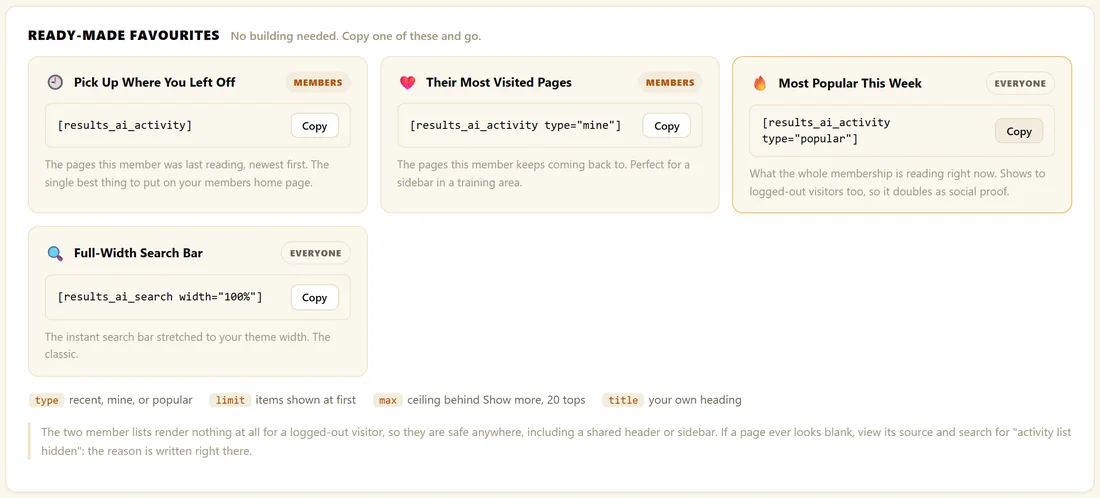
At the top are four shortcodes you can copy straight away, each marked with who sees it:
- Pick Up Where You Left Off: [results_ai_activity]
- Their Most Visited Pages: [results_ai_activity type="mine"]
- Most Popular This Week: [results_ai_activity type="popular"]
- Full-Width Search Bar: [results_ai_search width="100%"]
Build your own:
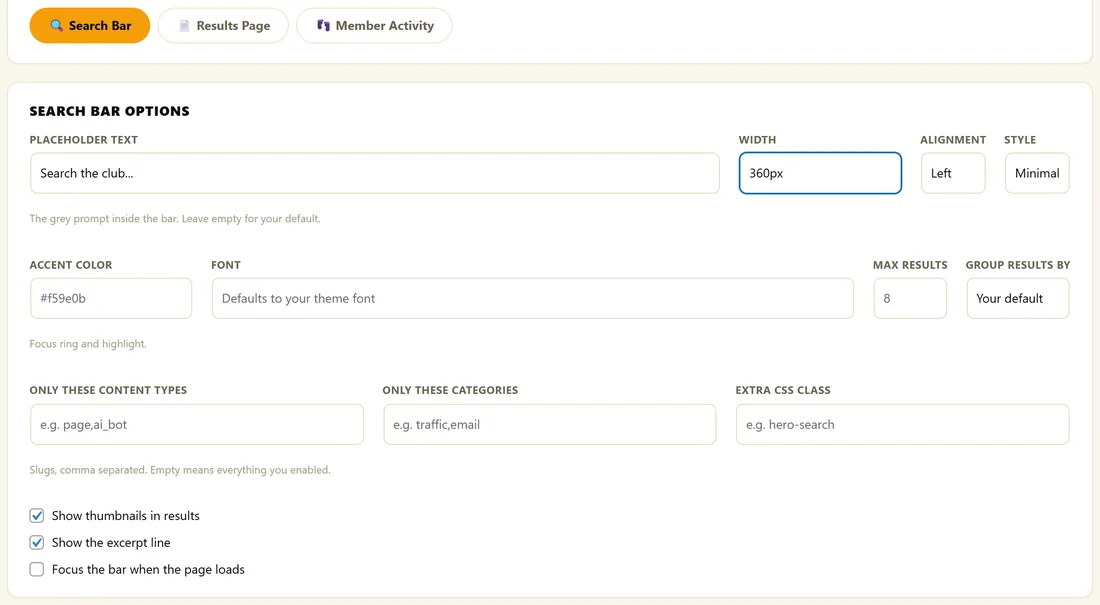
Choose what to build with the three buttons under Build Your Own: Search Bar, Results Page or Member Activity. Then fill in only the options you want.
Search Bar options:
- Placeholder Text, Width, Alignment and Style
- Accent Color and Font
- Max Results and Group Results By
- Only These Content Types and Only These Categories, as slugs separated by commas
- Extra CSS Class
- Show thumbnails in results, Show the excerpt line and Focus the bar when the page loads
Results Page options:
- Width: leave empty for the 720px reading column, or type 100% for the full theme width
Member Activity lists:
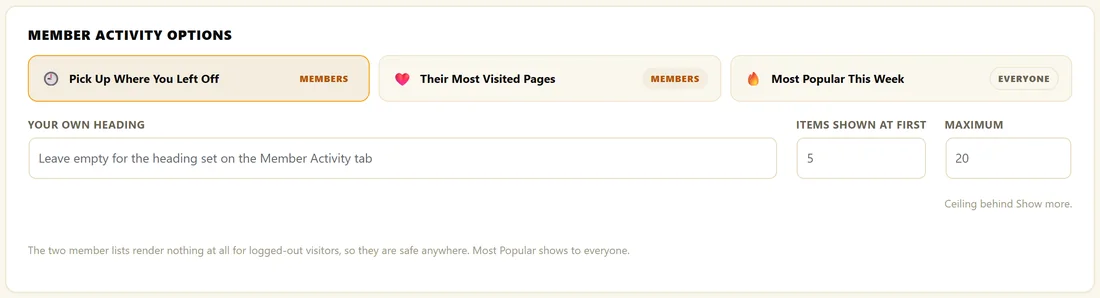
- Pick the list: Pick Up Where You Left Off, Their Most Visited Pages or Most Popular This Week
- Your Own Heading: leave empty to use the heading set on the Member Activity tab
- Items Shown At First and Maximum, up to 20
Your shortcode:

The shortcode appears in the Your Shortcode box and updates as you change options. Only the options you changed are included, so it stays short. Click Copy and paste it into any page, post or widget.
Save your favourites:

- Type a name into the box under the shortcode, for example Header bar.
- Click Save This Shortcode.
- It appears under Saved Shortcodes, with Load, Copy and Delete buttons.
Click Load to bring a saved build back into the builder, change it and save it again.
Live preview:
The Live Preview box shows your real search bar, restyled as you change options, and the real activity lists for the list you chose. The results page is a whole page, so paste its shortcode onto a page to see it in full.
A real example:
The owner of The Home Bakery Club chose Search Bar, typed Search the club... as the placeholder, set Width to 360px and Style to Minimal, and got:
- [results_ai_search placeholder="Search the club..." width="360px" style="minimal"]
They saved it as Header bar. They also saved Recipes only, a bar limited to posts and grouped by category.
Tips:
- See Shortcode Options Explained for what each option does.
- See Pick Up Where You Left Off Lists for where to place the activity lists.