The Staff app panel in Settings is where the Windows staff app is shared with your team, from your own server.
Where to find it:
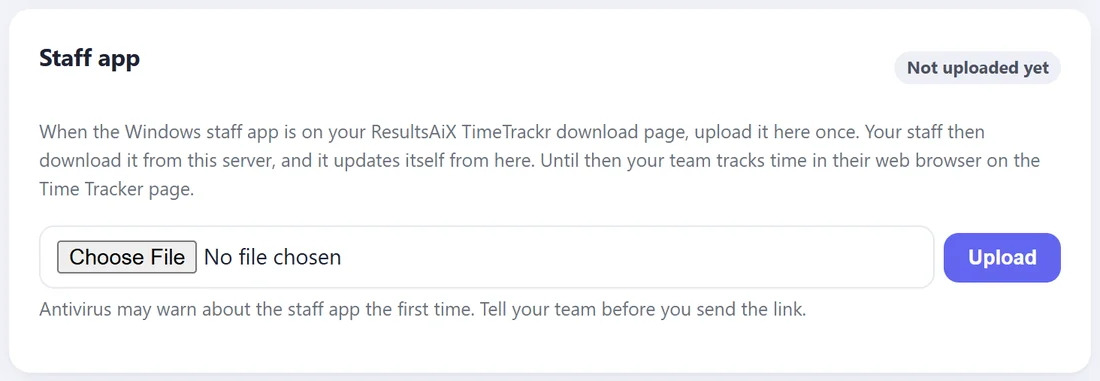
Settings, the Staff app panel. Owners and admins only.
Right now:
Your team tracks time in their web browser, on the Time Tracker page. Nothing needs installing. See For Your Team: Tracking Your Time In The Browser.
When the staff app is on your download page:
- Download the installer from the ResultsAiX TimeTrackr page in the members area.
- In the Staff app panel, choose the file and press Upload.
- The panel shows Ready to share and a download link on your own address, ending in /download/agent.
- Send that link to your team, with each person's staff app token from their Edit page.
When a newer staff app comes out, upload it the same way. Your team's apps update themselves from your server.
Good to know:
Some antivirus programs warn about any new monitoring app. Tell your team before you send the link.