This page is for your staff. Send them the link.
TimeTrackr runs in your web browser. Nothing needs installing. Chrome and Edge work best.
Start your day:
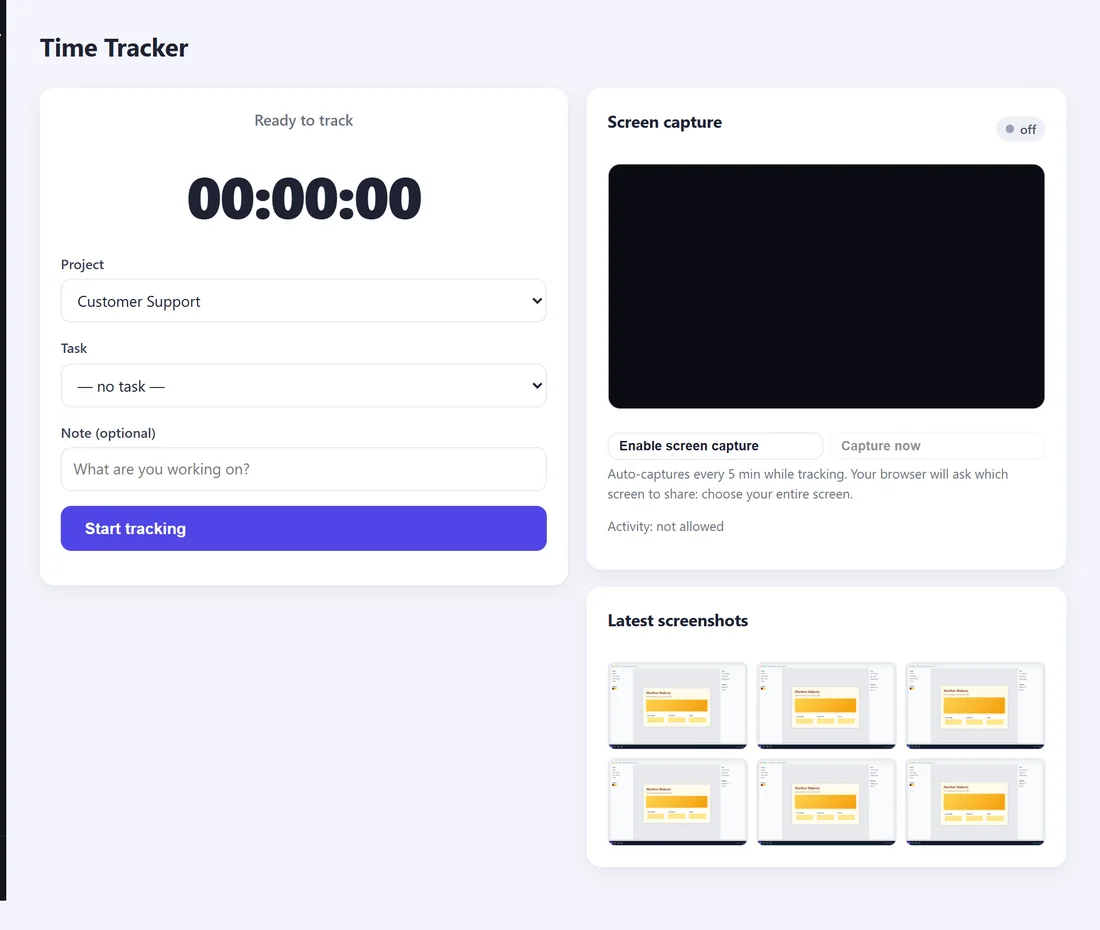
- Sign in. The Time Tracker opens.
- Choose your Project, and a Task if there is one.
- Add a Note if you like, for example Menu cards, second pass.
- Press Start tracking. The clock starts.
Turn on screenshots:
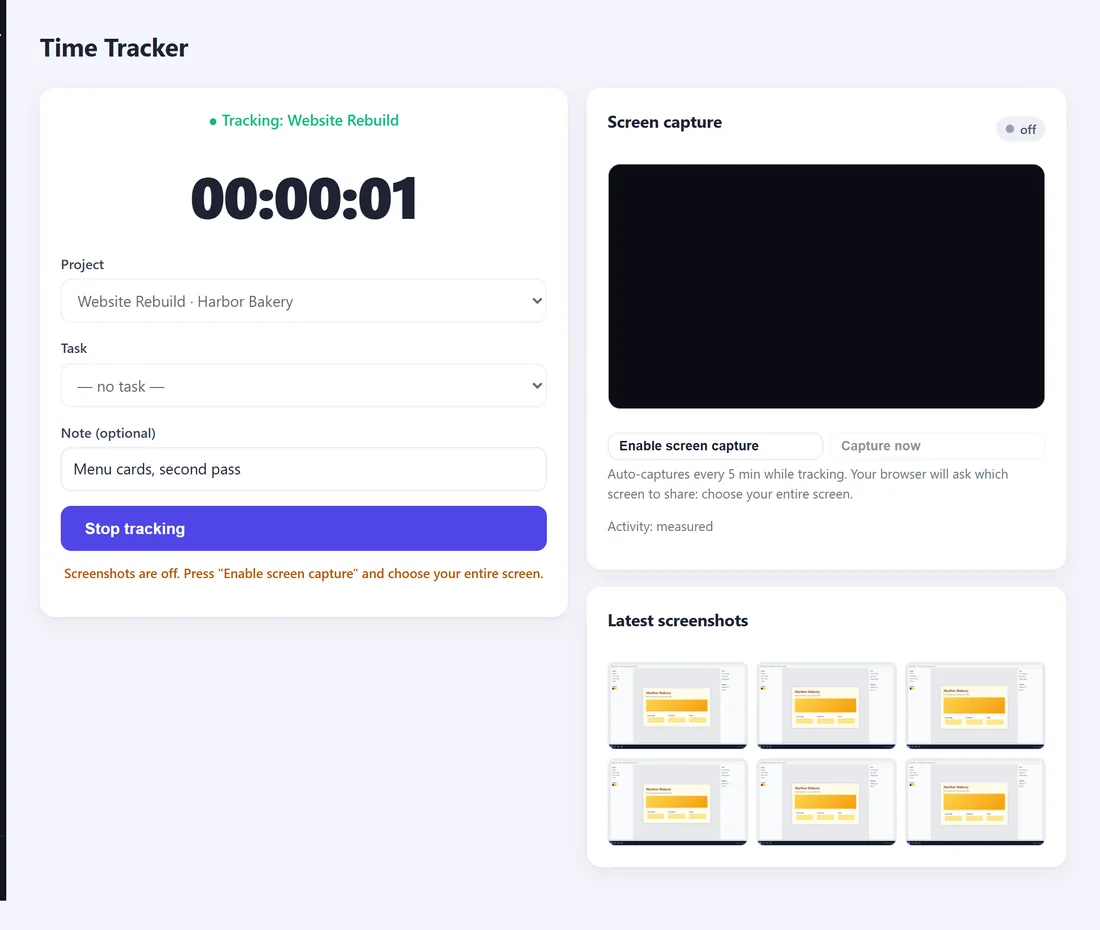
If your employer uses screenshots, the line under the button says Screenshots are off.
- Press Enable screen capture.
- Your browser asks what to share. Choose your entire screen and press Share.
- The Screen capture panel shows live, and the line under the button says Screenshots are on.
Screenshots are then taken every few minutes while your timer runs. Your latest ones appear on the page.
In Chrome and Edge, the browser may also ask once to know when you are using the computer. Allow it: that is how your activity is measured, in any program, not just this tab. In other browsers, activity is shown as not measured.
While you work:
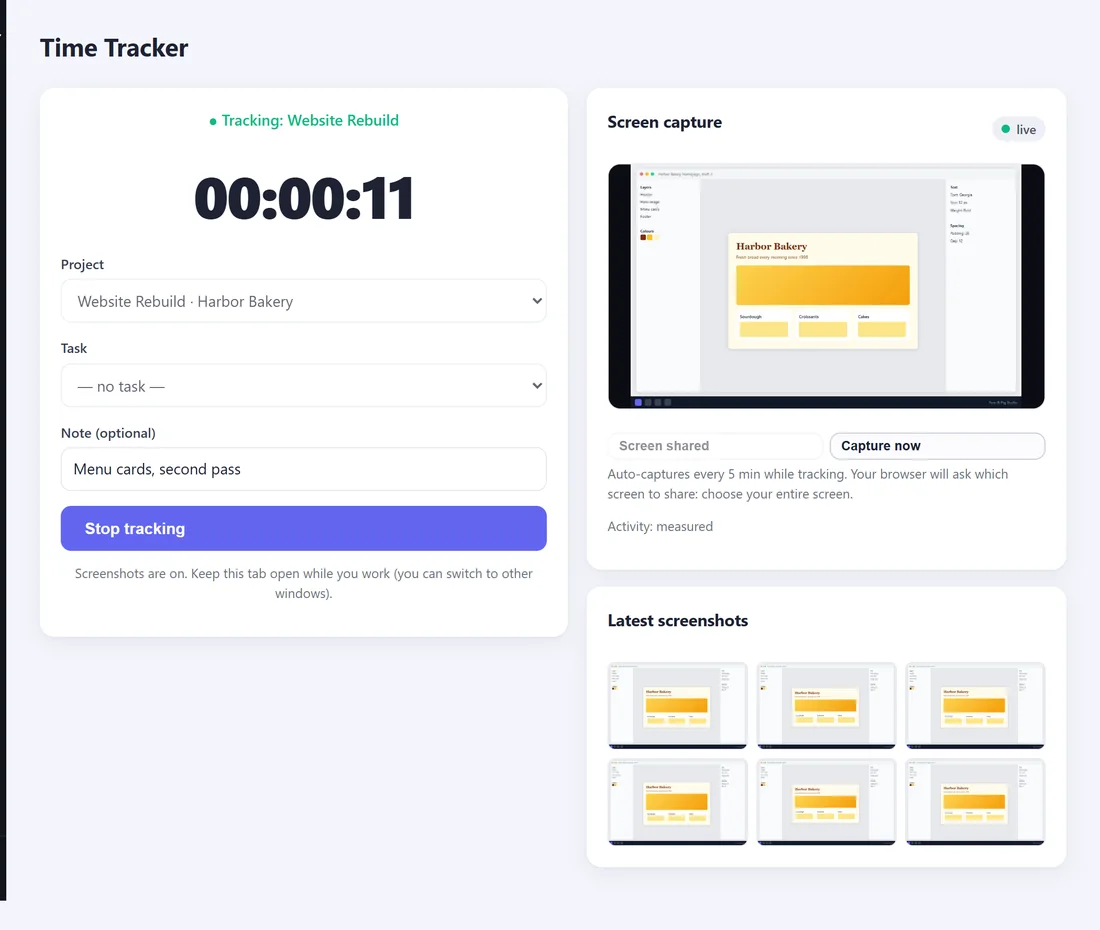
- Keep the TimeTrackr tab open. You can switch to other windows and programs as normal.
- If you close the tab or stop sharing, screenshots stop. Open the Time Tracker again and press Enable screen capture.
- Capture now takes a screenshot straight away.
Finish:
Press Stop tracking. TimeTrackr takes one last screenshot and saves your time.
Taking a break:
Press Stop tracking when you take a break, and Start tracking when you come back.
Forgot to start the timer?
Open My Timesheet, fill in Add time manually and press Add entry. It is marked added by hand. Tell your manager what it was for in the Note.