Settings is where owners and admins decide how TimeTrackr works for everyone. Managers and staff do not see it.
Where to find it:
Settings in the menu. Change anything in the first panel, then press Save settings at the bottom of it.
Branding:
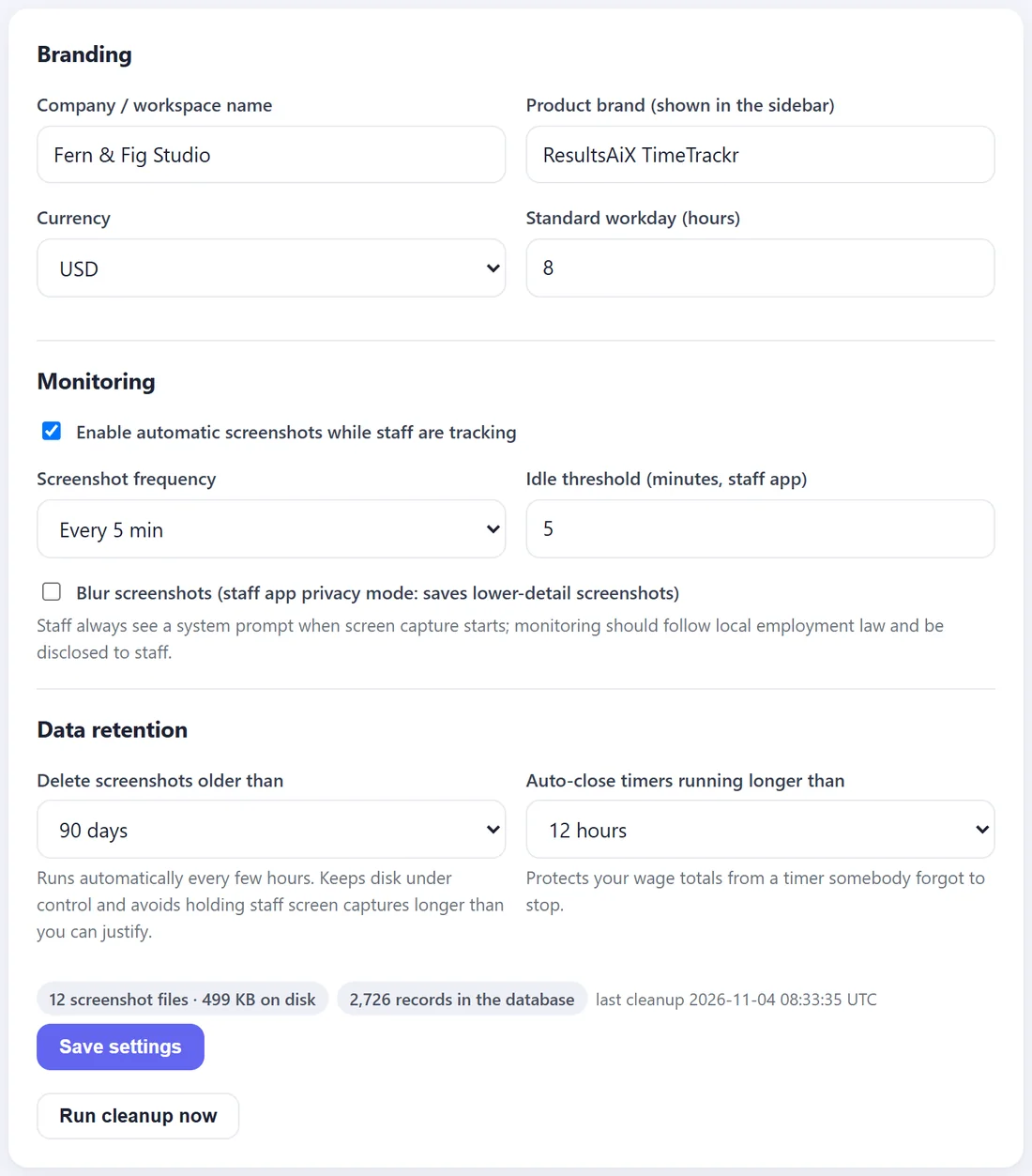
- Company / workspace name. Shown to your team when they sign in.
- Product brand (shown in the sidebar). The name at the top of the menu. Put your own company name here if you like.
- Currency. USD, EUR, GBP, AUD or CAD, used for rates and wages everywhere.
- Standard workday (hours). A note of your usual working day, for your reference. It does not change any totals.
Monitoring:
- Enable automatic screenshots while staff are tracking. Untick it to track hours only.
- Screenshot frequency. Every 1, 3, 5, 10 or 15 minutes. Every 5 minutes suits most teams.
- Idle threshold (minutes, staff app). How long without keyboard or mouse before the Windows staff app pauses the timer.
- Blur screenshots (staff app privacy mode). The Windows staff app then saves lower-detail screenshots: enough to see someone was working, not enough to read their screen.
Tell your team before monitoring starts. In most places this is a legal requirement, and in many you need their agreement in writing.
The other panels:
- Data retention. See Data Retention And Storage.
- Staff app. See The Staff App Panel.
- Licence. See Adding And Managing Your Licence Key.
- Software update. See Updating TimeTrackr.