The Screenshots page shows the pictures taken while your team was tracking. Owners, admins and managers see everyone; staff see their own under My Screenshots.
Where to find it:
Screenshots in the menu.
Choosing a day:
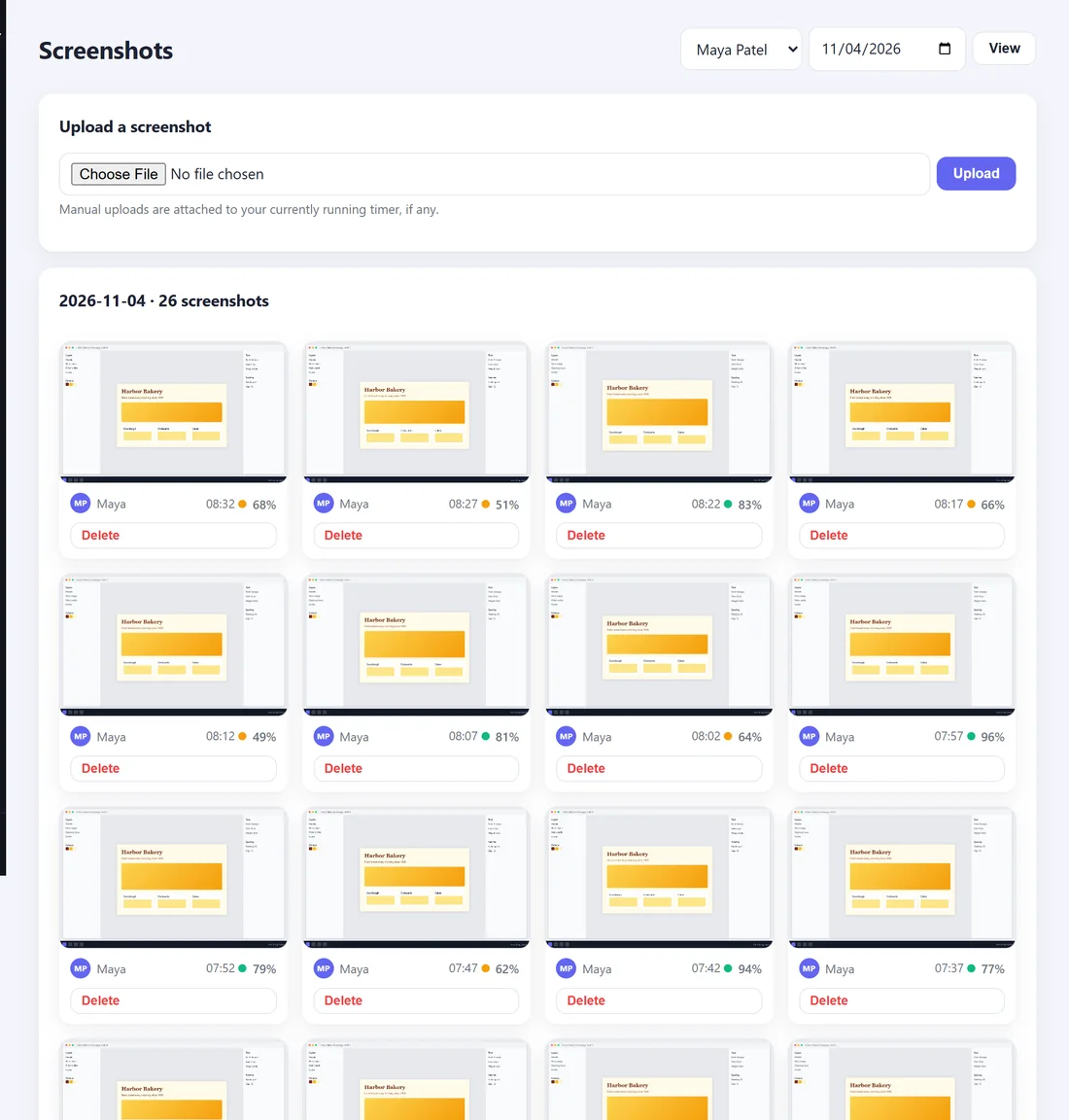
At the top right, choose All staff or one person, choose a day, and press View. The heading shows the day and how many screenshots were taken.
Each screenshot shows:
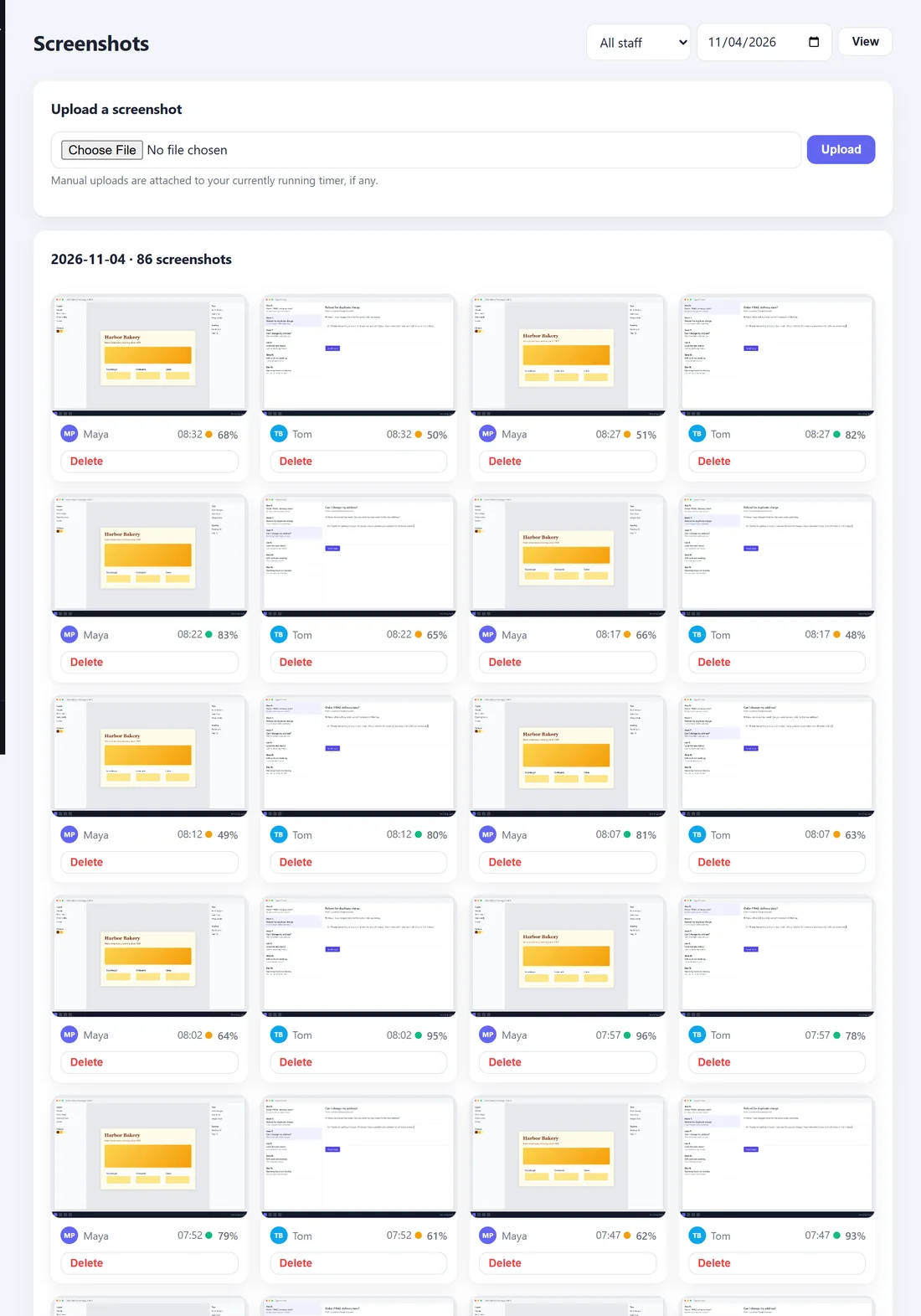
- The person.
- The time it was taken.
- The activity level, coloured green (70% or more), amber (40% to 69%) or red (below 40%).
- An uploaded tag if the person uploaded the picture themselves, rather than it being taken automatically.
Click a picture to open it full size in a new tab.
Deleting a screenshot:
Owners, admins and managers see a Delete button under each picture. It removes the picture for good and is recorded in the Audit log.
Upload a screenshot:
The Upload a screenshot panel lets anyone add a picture by hand (JPG, PNG, WebP or GIF). It is attached to their running timer, if one is running, and is tagged uploaded.
What activity means:
Activity shows how much the person was using their computer between screenshots. Reading, thinking and phone calls look quiet, so treat a low number as a reason to ask a question, never as proof of anything.
How long screenshots are kept:
TimeTrackr deletes screenshots older than 90 days by itself, unless you change it. See Data Retention And Storage.