Your AI assistant answers chats when you are away, writes the opening line for a Moment you left without words, and screens messages for spam and abuse. It uses your own AI key, so you pay the provider directly at their price and nothing is marked up. One key is enough. Without a key, chat still works person to person.
Where to find it:
WordPress menu, ResultsAiX Pulse, ✨ AI Assistant. The tiles at the top show what it is Working with, Calls, last 30 days, Estimated cost this month, your Monthly budget and Errors, last 30 days. The screen has five steps and one Save AI Assistant button.
Step 1: Connect A Key:
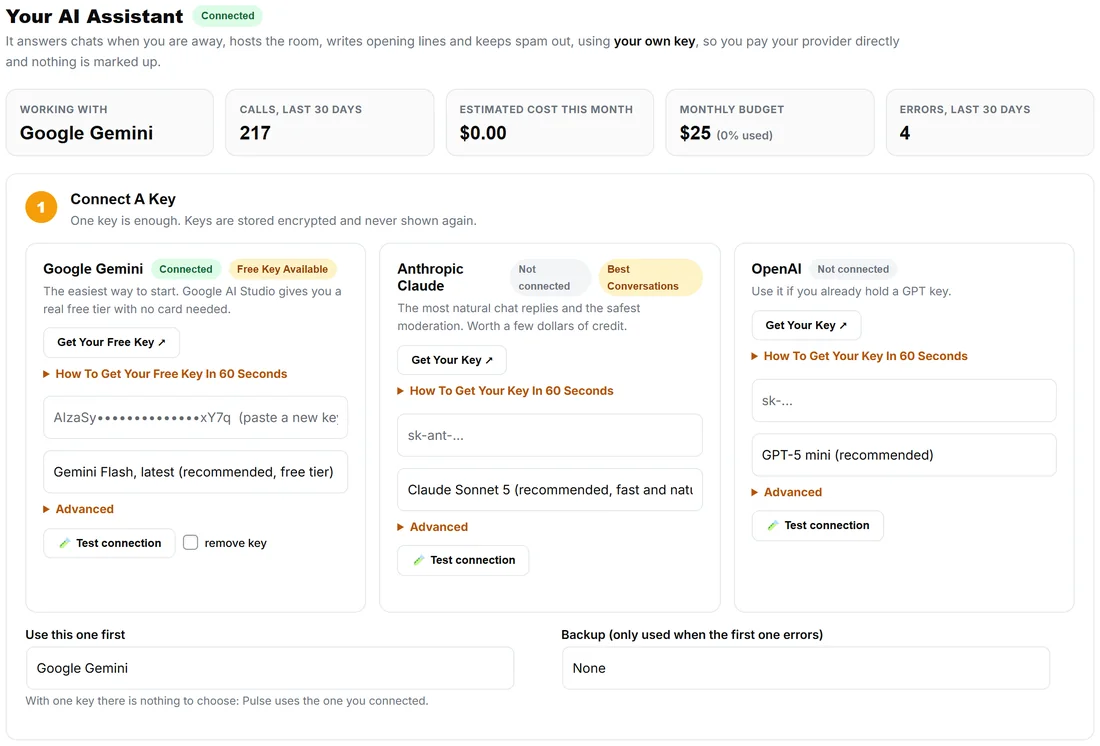
There is a card for Google Gemini (Free Key Available), Anthropic Claude (Best Conversations) and OpenAI.
- Press Get Your Key (Get Your Free Key on Gemini), or open How To Get Your Key In 60 Seconds for the exact steps.
- Paste the key into the card. Keys are stored encrypted and are never shown again; the box shows only the first and last few characters.
- Pick the model. The first one in each list is recommended: Gemini Flash, latest (free tier); Claude Sonnet 5; GPT-5 mini.
- Press 🧪 Test connection. It makes one real call and tells you in plain words if anything is wrong.
- Use this one first picks your main provider. Backup (only used when the first one errors) picks a second one if you have two keys.
To change a key, paste a new one. To remove one, tick remove key and save.
Your own gateway (optional):
Each card has Advanced with a Custom API address. Leave it empty and Pulse talks to the provider directly. If your company sends AI requests through its own gateway or proxy, paste that address there. Your key and Test connection work the same way, and the card shows Through your own address. A developer can also set one address for every ResultsAiX plugin in wp-config.php.
Step 2: Teach It Your Business:
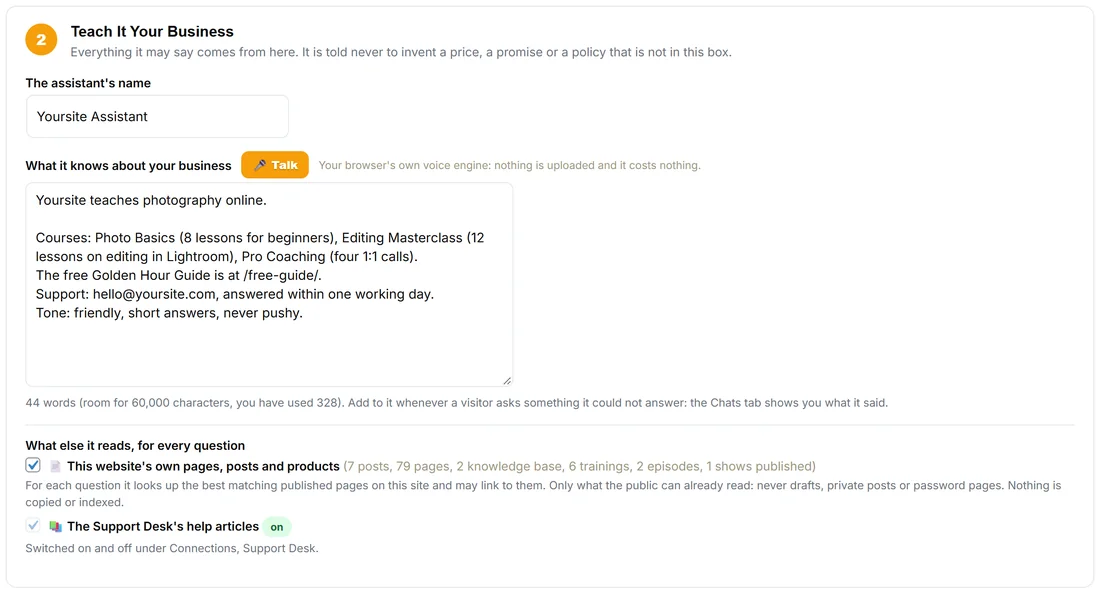
- The assistant's name: the name visitors see on its replies.
- What it knows about your business: everything it may say. Who you are, what you sell, prices, where to buy, support hours, the tone you want, common questions and their answers. Type it, or press 🎤 Talk and say it: your browser's own voice engine, nothing is uploaded and it costs nothing. There is room for 60,000 characters, and the line under the box counts your words.
It is told never to invent a price, a promise or a policy that is not in this box.
What else it reads, for every question:
- This website's own pages, posts and products: on by default. For each question it looks up the best matching published pages on this site and may link to them. Only what the public can already read: never drafts, private posts or password pages. Nothing is copied or indexed.
- The Support Desk's help articles: on when the ResultsAiX Support Desk with a knowledge base is on this site. It is switched on and off under Connections, Support Desk.
The box you typed always comes first; the pages and articles add detail for that one question.
Steps 3 to 5: where it works, safety and budget:
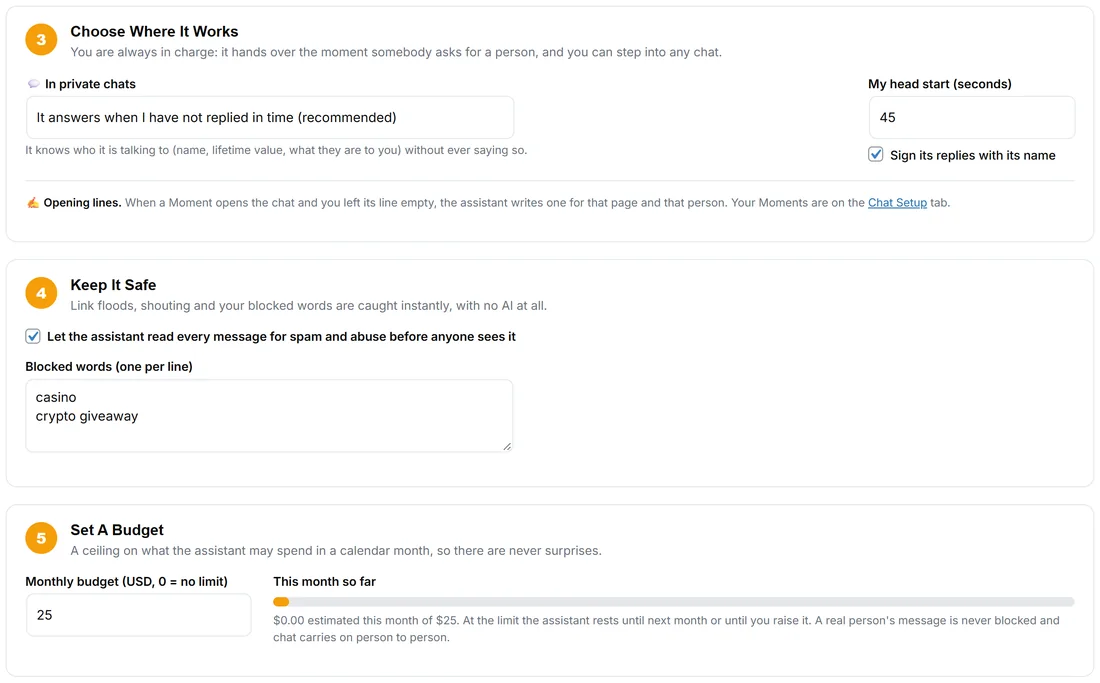
In private chats, pick one:
- It answers when I have not replied in time (recommended): you get My head start (seconds) to answer first, 45 unless you change it (10 to 900).
- It answers first, straight away, and I step in when I like.
- Off: private chats are mine only.
Sign its replies with its name adds its name to each reply. It knows who it is talking to (name, lifetime value, what they are to you) without ever saying so. It hands over the moment somebody asks for a person, and the chat is marked wants you.
Opening lines: when a Moment opens the chat and you left its line empty, the assistant writes one for that page and that person.
Keep It Safe: Let the assistant read every message for spam and abuse before anyone sees it, and Blocked words (one per line). Link floods, shouting and your blocked words are caught instantly with no AI at all.
Set A Budget: Monthly budget (USD, 0 = no limit), 25 unless you change it. The bar shows this month so far. At the limit the assistant rests until next month or until you raise it, and chat carries on person to person.
A real example:
Sam pastes a free Gemini key, tests it and saves. Under Teach It Your Business Sam names it Yoursite Assistant and types the three courses, where the free guide is, the support email and "friendly, short answers, never pushy". In private chats Sam picks It answers when I have not replied in time with a 45 second head start. That evening a visitor asks whether lessons have subtitles; after 45 seconds the assistant answers from the box, and Sam reads it on the Chats tab under Assistant replies.
Tips:
- Add to the box whenever a visitor asks something it could not answer. The Chats tab shows you what it said.
- See what it costs on the Dashboard and under Usage And Cost. See AI Usage and Cost: What the Assistant Spent.