A chat is a conversation with somebody who is interested right now. Email capture makes sure you can follow up, even when they leave before you reply. The visitor types their first name and email inside the chat window, and the chat, the lead and the person's timeline all carry it.
Where to find it:
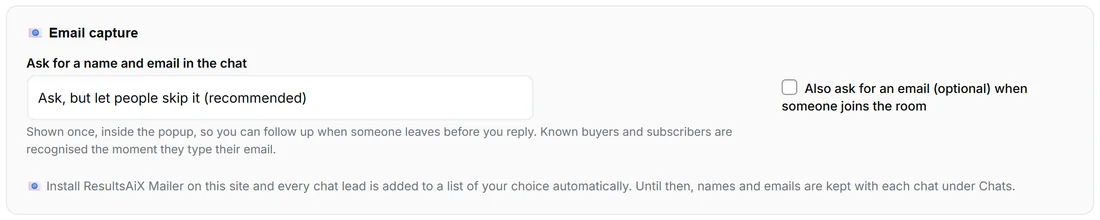
🗨️ Chat Setup, inside the Visitor Chat card, the box 📧 Email capture.
The three settings:
Ask for a name and email in the chat:
- Ask, but let people skip it (recommended): a short form at the top of the chat, shown once, with Skip for now.
- Require it before the first message: they leave a first name and email before their first message is sent.
- Never ask: a plain anonymous chat.
Press Save Chat Setup after changing it.
What the visitor sees:
"Leave your name and email so Sam can reply even if you step away", with First name, Email address and Save. Your own name is used in the line.
What you see when they leave it:
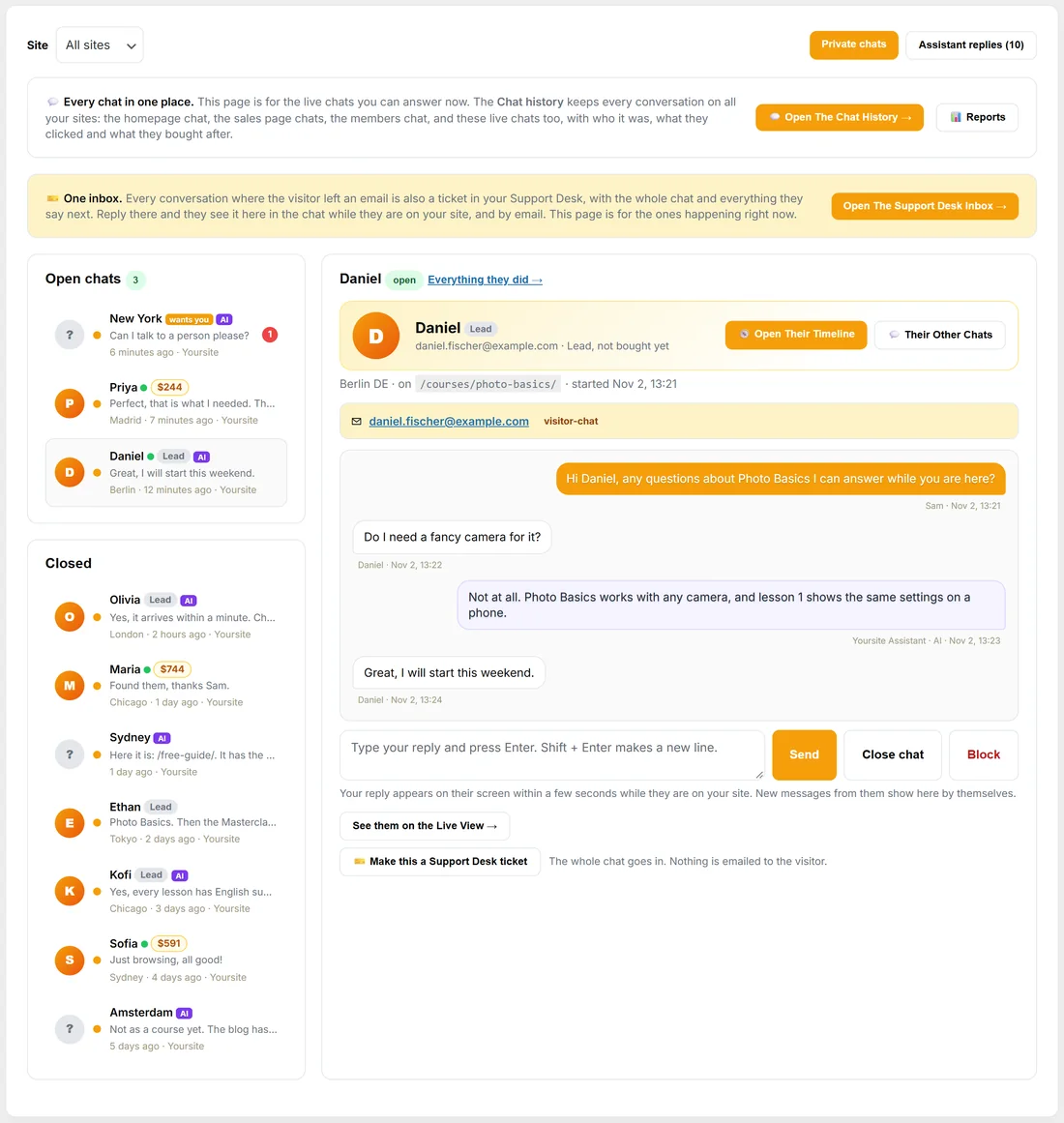
- The chat shows a Lead badge and their email under their name on the Chats page.
- Somebody you already know is recognised the moment they type their email: the chat header on your side fills in with their name, lifetime value and what they own.
- They count as a lead on the People tab, and their timeline shows the chat.
With the ResultsAiX Mailer:
With the ResultsAiX Mailer on this site, the box adds Add every chat lead to this ResultsAiX Mailer list (with Mailer connected beside it) and Tag them with (visitor-chat unless you change it).
- Pick the list, or Do not add to a list.
- Type the tag you want.
- Press Save Chat Setup.
It is a real opt-in: the list's own welcome email and double opt-in setting apply. The chat on the Chats page then shows Added to the list and the tag, with open in Mailer.
Without the Mailer, the name and email are still kept with each chat under Chats, and the box says so. Install the Mailer and the list picker appears here by itself.
With WP Sync:
With WP Sync on this site, every lead captured in a chat can go to any autoresponder or CRM it connects to. In WP Sync open the Bridge Builder, pick ResultsAiX Pulse as the source and Every Pulse lead (or only chat leads), then pick where they go. Each lead carries the site, the page, the city and country. Connections, WP Sync shows the steps.
Also ask for an email when someone joins the room:
This tick box belongs to the open room. The room is retired, so it has no effect on private chats.
A real example:
Daniel from Berlin is reading the Photo Basics page when a Moment opens the chat. He fills in Daniel and daniel.fischer@example.com, then asks if he needs a fancy camera. Sam's Chats page shows Daniel with a Lead badge and his email. With the Mailer connected and the Free Guide list picked, Daniel is added to that list with the tag visitor-chat, and gets the list's welcome email.
Tips:
- Ask (the default) catches most emails without stopping anybody who just has a quick question.
- Use a tag per site or per offer, so you can write to chat leads later.