A visit from Google never says what the person typed into Google. Google keeps the words to itself, for every analytics tool. Google Search Console has them, as totals per search and per page. Connect it once and the Stats tab shows the searches that brought people to your site, right next to the visits, sales and revenue Pulse saw.
It is free and takes about ten minutes. You need a Search Console property for your site already, and you need to be an Owner of it.
Where to find it:
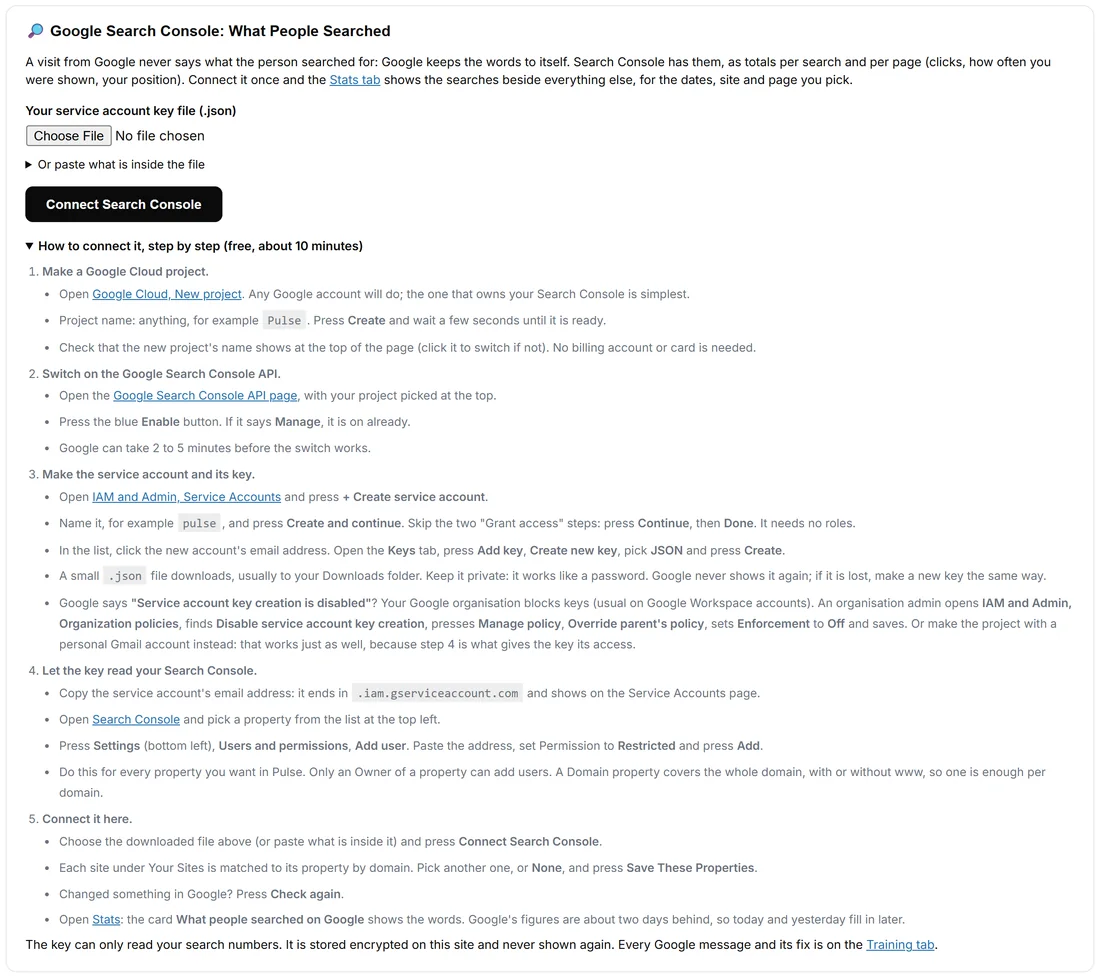
WordPress menu, ResultsAiX Pulse, 🔌 Connections, the card 🔎 Google Search Console: What People Searched. The same steps are on the card under How to connect it, step by step (free, about 10 minutes).
Step 1: make a Google Cloud project:
- Open Google Cloud and choose New project. Any Google account will do; the one that owns your Search Console is simplest.
- Project name: anything, for example Pulse. Press Create and wait a few seconds until it is ready.
- Check that the new project's name shows at the top of the page (click it to switch if not). No billing account or card is needed.
Step 2: switch on the Google Search Console API:
- Open the Google Search Console API page in Google Cloud, with your project picked at the top.
- Press the blue Enable button. If it says Manage, it is on already.
- Google can take 2 to 5 minutes before the switch works.
Step 3: make the service account and its key:
- Open IAM and Admin, Service Accounts and press + Create service account.
- Name it, for example pulse, and press Create and continue.
- The two "Grant access" steps are not needed: press Continue, then Done. It needs no roles.
- In the list, click the new account's email address (it contains iam.gserviceaccount).
- Open the Keys tab, press Add key, Create new key, pick JSON and press Create.
- A small .json file downloads, usually to your Downloads folder. Keep it private: it works like a password. Google shows it only once; if it is lost, make a new key the same way.
If Google says "Service account key creation is disabled", your Google organisation keeps keys switched off, which is usual on Google Workspace accounts. An organisation admin opens IAM and Admin, Organization policies, finds Disable service account key creation, presses Manage policy, Override parent's policy, sets Enforcement to Off and saves. Then make the key again. Or make the project with a personal Gmail account instead: that works just as well, because step 4 is what gives the key its access.
Step 4: let the key read your Search Console:
- Copy the service account's email address from the Service Accounts page. Once connected, Pulse also shows it on the Connections card with a Copy button.
- Open Search Console and pick a property from the list at the top left.
- Press Settings (bottom left), Users and permissions, Add user.
- Paste the address, set Permission to Restricted and press Add.
- Do this for every property you want in Pulse. Only an Owner of a property can add users. A Domain property covers the whole domain, with or without www, so one is enough per domain.
Step 5: connect it in Pulse:
- Open Connections and scroll to Google Search Console.
- Under Your service account key file (.json), choose the downloaded file. Or open Or paste what is inside the file and paste it there.
- Press Connect Search Console. Pulse says how many properties the key can read.
- Each site under Your Sites is matched to its property by domain. Pick another one, or None to leave a site out, and press Save These Properties.
- Changed something in Google later? Press Check again.
What you see on Stats:

- The card 🔎 What people searched on Google: clicks from Google, times you were shown, click rate and average position, each against the period before.
- Searches: every search with its clicks, times shown, click rate and position. A green ▲ beside a position means you moved up.
- Pages: which pages Google sent people to. With the Organic Search channel picked, each page also shows Pulse's own visits, sales and revenue from search. Click a page to filter the whole report by it.
- Searches by page: which search led to which page.
- It follows the dates, the site and the Page filter you picked.
How Google's numbers work:
- Google publishes its figures about two days late, so today and yesterday fill in later. Pick 7 or 30 days to see the latest it has.
- Google leaves out rare searches to protect people's privacy, so the searches add up to less than the total clicks.
- Google gives totals per search and per page, never people.
If Google answers with a message:
Every message shows on the Connections card in plain words, with Google's own words under Recent problems.
- "The Google Search Console API is not switched on": do step 2 in the same project as the key. The card has a button straight to it. Wait 2 to 5 minutes, then press Check again.
- "This key cannot see any Search Console property yet": do step 4 for that property, with the exact address shown on the card.
- "That JSON file is not a service account key": the file came from Credentials, OAuth client. Make the key under Service Accounts, Keys (step 3).
- "Choose the JSON key file": Connect was pressed before a file was chosen.
- Too many requests: Google's limit for the hour. Wait, then press Check again.
A real example:
Yoursite has a Domain property for yoursite.com in Search Console. The owner makes a project called Pulse, switches on the API, makes a service account called pulse with a JSON key, adds its address as a Restricted user and uploads the key in Pulse. Pulse says it can read 1 property and matches yoursite.com, shop.yoursite.com and members.yoursite.com to it. Two days later, Stats shows that "golden hour portrait settings" brought 140 clicks to the golden hour blog post, and that the post sent 9 people on to the free guide.
Your key is safe:
The key can only read your search numbers. It is stored encrypted on your site and never shown again. Disconnect and delete the key on the card removes it from Pulse; to stop it everywhere, delete the key in Google Cloud too.
Tips:
- Ad keywords from Google Ads come from your ad links, not from Search Console. See Ad Keywords: Which Ad Keyword Brought Each Visitor.
- Explain this period and tell me what to do on Stats reads the Google searches too, and mentions them when they say something useful.