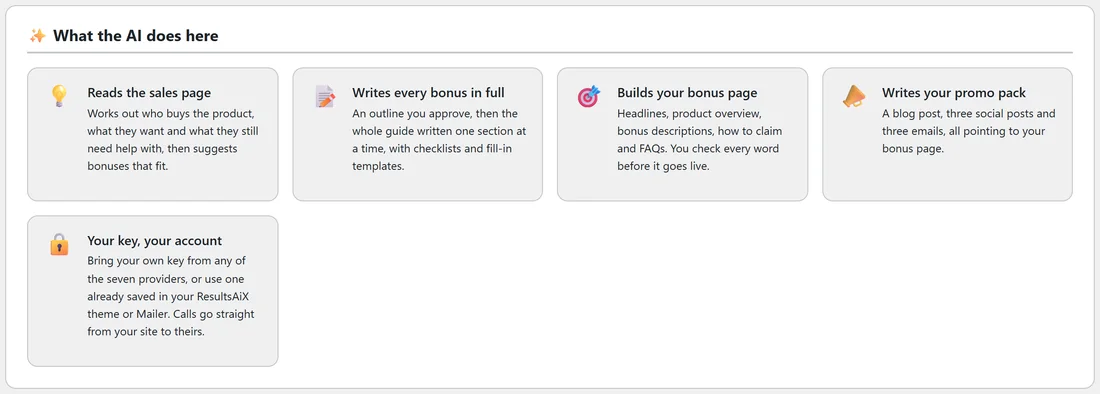
Bonus Builder uses your own AI account for all the writing and images. Your key is saved in your WordPress database, and every request goes straight from your site to the provider. One key is enough.
Where to find it:
Open Bonus Builder and click the AI tab. The top card, What the AI does here, sums up the jobs the AI does. Below it is AI configuration, then Your AI providers, then Images and AI costs.
AI configuration:
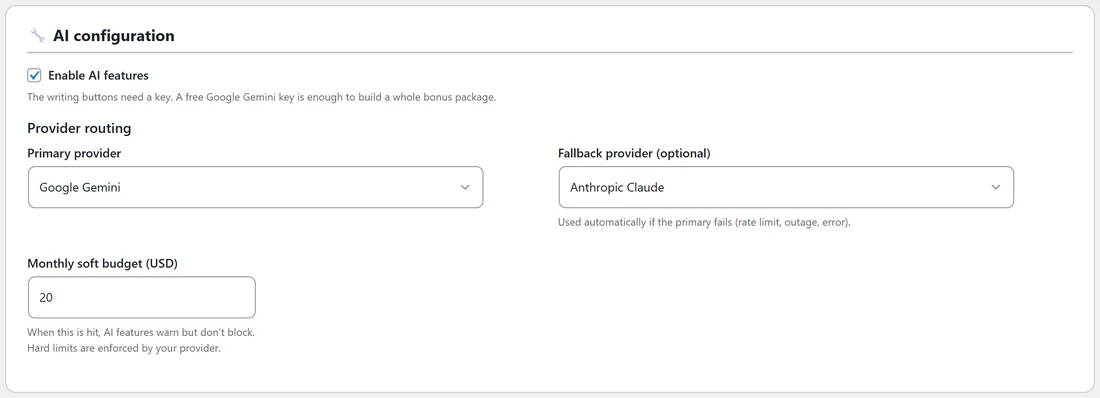
- Enable AI features. Leave this ticked. The writing buttons need it, and a key.
- Primary provider. The provider that does the writing. Auto (first provider with a key) uses the first card that has a key.
- Fallback provider (optional). Used automatically if the primary has a problem, such as a rate limit or an outage. Pick a second provider with its own key.
- Monthly soft budget (USD). Type an amount to get a heads-up on the AI tab when your spend for the last 30 days reaches it. The AI keeps working. Leave it empty to switch it off.
Adding a key:
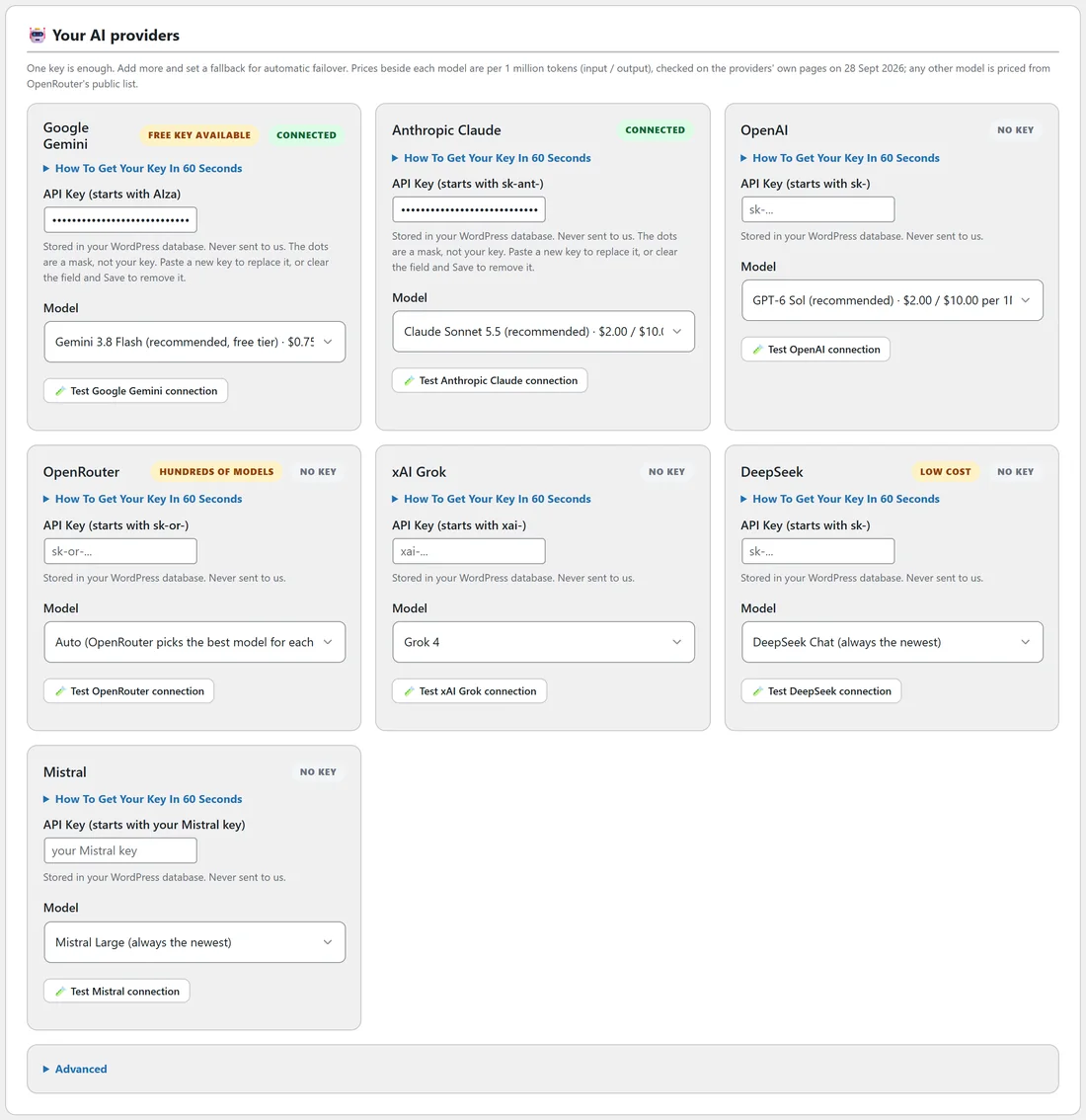
- Find the card for your provider under Your AI providers.
- Click How To Get Your Key In 60 Seconds for the steps on that provider's site.
- Paste the key into API Key.
- Click Save AI settings at the bottom of the Images card.
- The card now shows Connected. Click the Test button on the card, for example Test Google Gemini connection, to check it.
When you paste a key while the primary provider has no key, that provider becomes the primary for you.
Choosing a model:
Each card has a Model list. The first group, Recommended, has the models picked for this plugin, with the price per 1 million tokens beside each (input and output). Once a key is saved, a second group lists every model on your account, live from the provider. New models show up there the day the provider releases them.
A good setup:
Google Gemini as the primary, with its recommended model, and a second provider as the fallback. Sam uses Google Gemini first and Anthropic Claude as the fallback.
Changing or removing a key:
The dots in a saved key box are a mask, not your key. Paste a new key over them to replace it, or clear the box and save to remove it.
Next, see the article for your provider: Connecting Google Gemini, Connecting Anthropic Claude, Connecting OpenAI, or Connecting OpenRouter, xAI Grok, DeepSeek And Mistral.