An OpenAI key does two jobs in Bonus Builder: it can write your bonuses, pages and emails, and it can make AI images with gpt-image-2.
Getting your key:
- Open platform.openai.com/api-keys and sign in.
- Add credit under Billing if you have none.
- Click Create new secret key and copy it. It starts with sk-.
Adding it to Bonus Builder:
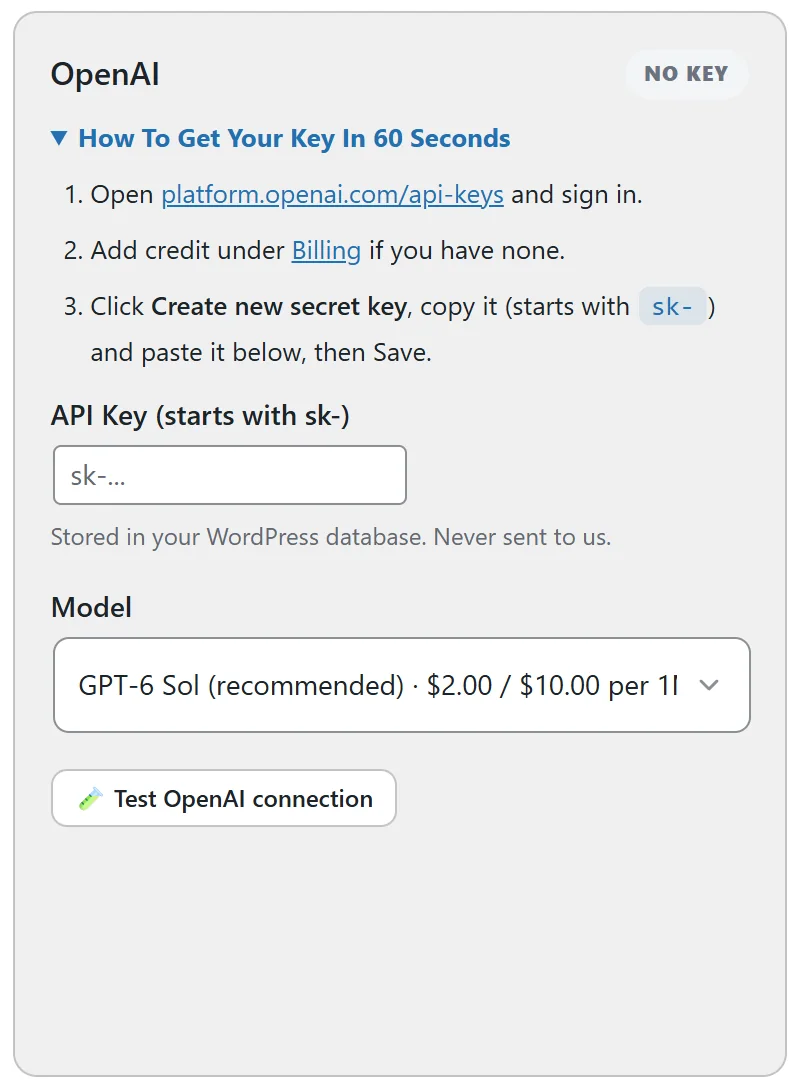
- Open Bonus Builder, then the AI tab.
- In the OpenAI card, paste the key into API Key (starts with sk-).
- Click Save AI settings.
- Click Test OpenAI connection.
Choosing a model:
- GPT-6 Sol (recommended).
- GPT-6 Luna (fastest, cheapest).
- GPT-6 Astra (best quality).
- GPT-5.6 Terra.
Once the key is saved, every chat model on your OpenAI account is listed too.
Images with OpenAI:
On the same tab, under Images, you can pick OpenAI gpt-image-2 as the Image AI and set OpenAI image quality to Low, Medium (recommended) or High. The price per image shows beside each choice.