Before you launch, you want to see exactly what a buyer goes through: the account, the login email, the level, the drip, the welcome sequence. The sandbox switch lets a marketplace test purchase do all of that for real, without anyone paying and without it ever counting as money.
Normally a test purchase is acknowledged and nothing else happens, so your member list never fills up with dummies. The sandbox is the deliberate exception, for the hour you spend checking your setup.
Where to find it:

Open AiX Membership, then the Integrations tab. In the Marketplaces box, under the table, is the box Let test purchases enrol members (sandbox), followed by Save marketplace settings.
Which test purchases it covers:
- Warrior Plus test IPNs.
- ThriveCart test mode orders.
- Lemon Squeezy test mode orders and subscriptions.
- Gumroad test purchases.
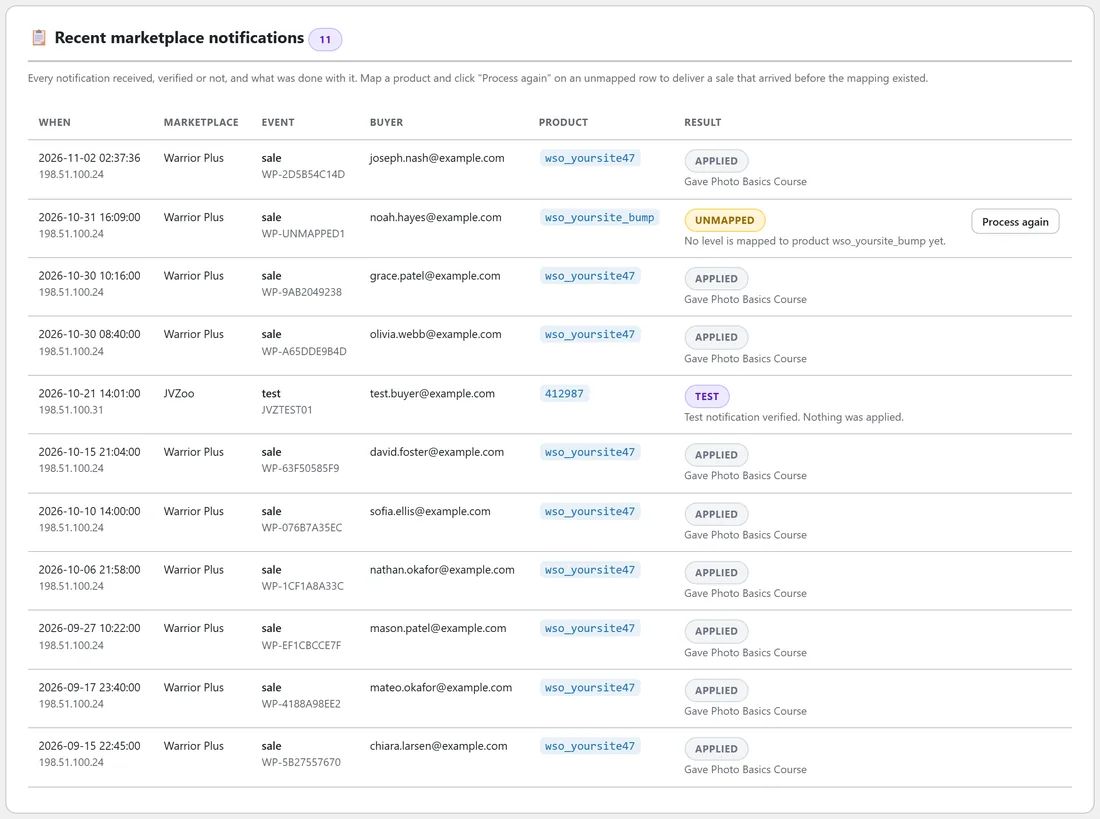
JVZoo and ClickBank tests, Ko-fi's Send Single Donation Test and PayPal sandbox pings still arrive as tests: they prove the connection works and show in the log, and nothing is created.
Running a test sale step by step:
- Set up the marketplace or cart first: key saved, notification URL pasted, product mapped. See Selling On JVZoo, Warrior Plus, ClickBank And PayPal.
- On the Integrations tab, tick Let test purchases enrol members (sandbox) and press Save marketplace settings. While it is on, the box turns yellow and reads "Sandbox is ON. Switch it off before you launch."
- Make a test purchase from the marketplace with an email address you can read.
- Check Recent marketplace notifications at the bottom of the tab. The row's note starts with SANDBOX TEST PURCHASE (not booked as revenue).
- Open your inbox and follow the set-your-password email, then log in as the buyer and walk through the members area.
- Remove the test accounts and switch the sandbox off (below).
What a test purchase does:
- Creates the account, or uses an existing one with that email.
- Gives the levels mapped to that product.
- Sends the login email, when Email login details to buyers who did not have an account here yet is ticked.
- Runs your level actions and AI Mailer list enrolment exactly like a real sale.
- Is never booked as revenue: no order, no receipt and no revenue figure anywhere.
You can fire the same test again with the same receipt while you watch. A sandbox test is never treated as a duplicate.
Nobody can invent members:
Only a test purchase that passes the marketplace's real check gets through. For Warrior Plus that means it carries your real security key. Without that rule, anybody who found your notification address could create members by pretending to test. A test that fails the check stays a ping, and the log says "Sandbox is on, but this ping carried no valid security key, so nothing was created."
Cleaning up afterwards:
Every account the sandbox creates is tagged as a test account and shows a test badge on the Members tab, in the One row per membership view. Back on the Integrations tab, a line lists the test accounts and offers Delete all test accounts.
- Press Delete all test accounts.
- Confirm in the box that asks Delete all test accounts?
Their memberships and timeline go with them. An existing account that tested with its own email is never tagged, so a real person cannot be swept up, and administrators are never removed.
Switching it off:
Untick Let test purchases enrol members (sandbox) and press Save marketplace settings before you launch. Real sales work the same whether it is on or off, but leaving it off keeps test pings from creating accounts.
Testing Stripe instead:
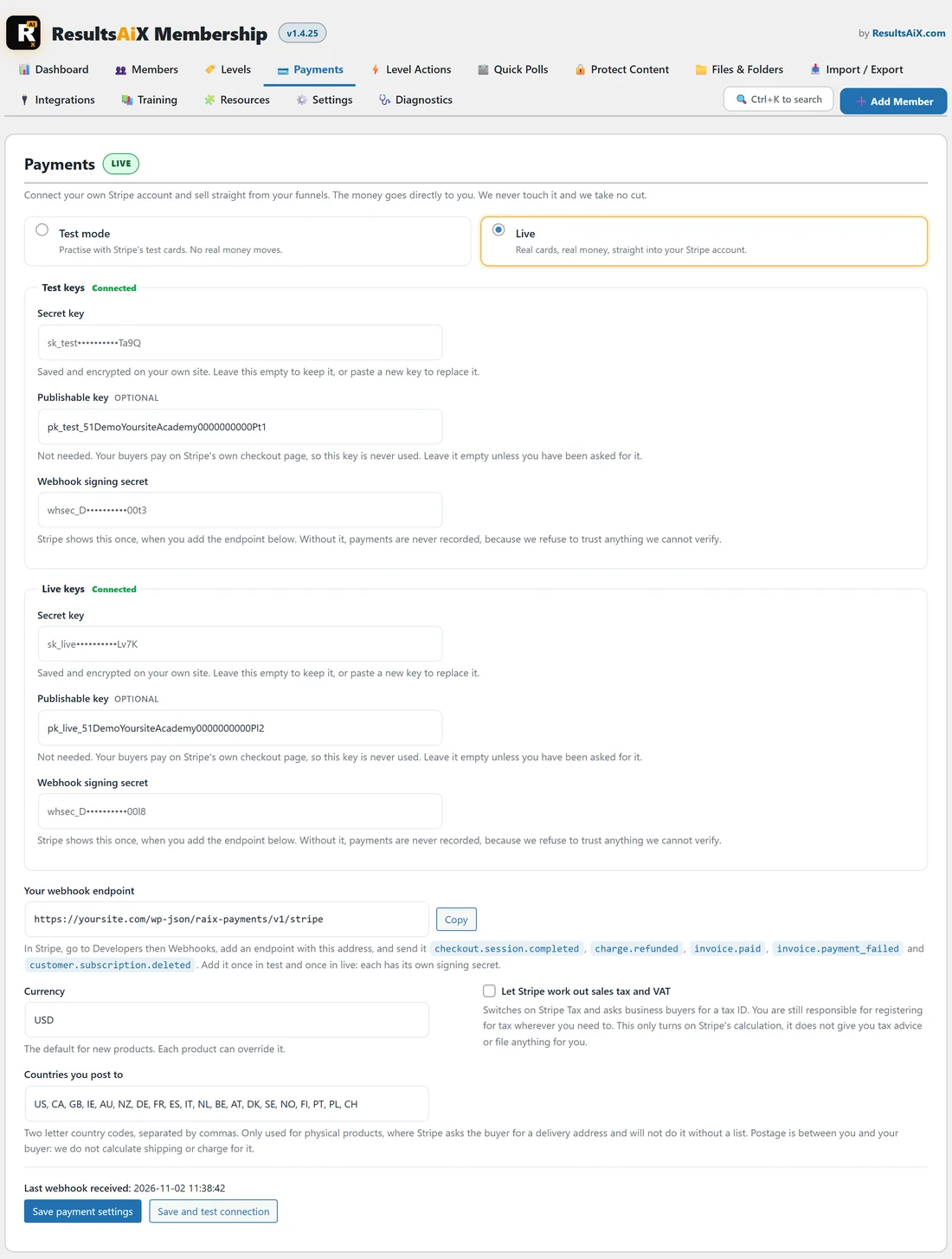
The sandbox is for marketplaces. For your own Stripe checkout, use Stripe's test mode: on the Payments tab choose Test mode, save your test keys, and buy a level with Stripe's test card 4242 4242 4242 4242. Test orders are listed with (test) next to their status and are never counted as money anywhere. See Charging For Membership: Connecting Your Own Stripe Account.
A real example:
Yoursite Academy is about to launch the Photo Basics Course on Warrior Plus.
- The owner maps wso_yoursite47 to Photo Basics Course and turns the sandbox on.
- A Warrior Plus test purchase with a spare inbox creates the account, gives Photo Basics Course, and the set-your-password email arrives.
- Logged in as the test buyer, the owner sees Lesson 1 open and Lesson 2 locked until day 7, exactly as planned.
- The test buyer appears in AI Mailer on the Course Buyers list.
- The owner presses Delete all test accounts and switches the sandbox off. Launch day only sees real buyers.
Tips:
- Test with a mapping that gives the same levels your real buyers will get, so the level actions you see are the real ones.
- Check the member's timeline in their side panel during the test: every step is written there.
- If a test shows as Unmapped, the product code in the mapping does not match the one the marketplace sent. Copy the code from the log row, fix the mapping, and press Process again.
Related guides: Selling On JVZoo, Warrior Plus, ClickBank And PayPal, Selling On ThriveCart, Lemon Squeezy, Gumroad And Ko-fi, Charging For Membership: Connecting Your Own Stripe Account.