The AI Helper is a chat panel on every screen of ResultsAiX Membership. It reads this site's real membership numbers, so a question like "how many members joined this week and how many did we lose?" comes back with the figures, not with directions for finding them.
It also knows every tab and setting, so "how do I connect JVZoo?" gets the exact clicks. And it can build things for you, one click at a time, always waiting for your say so.
Where to find it:

Once a key is in place, an AI Helper button sits in the bottom right corner of every screen of the plugin. Click it to open the panel. The keys and options live on the Settings tab, in the AI Helper card.
Connecting a key:
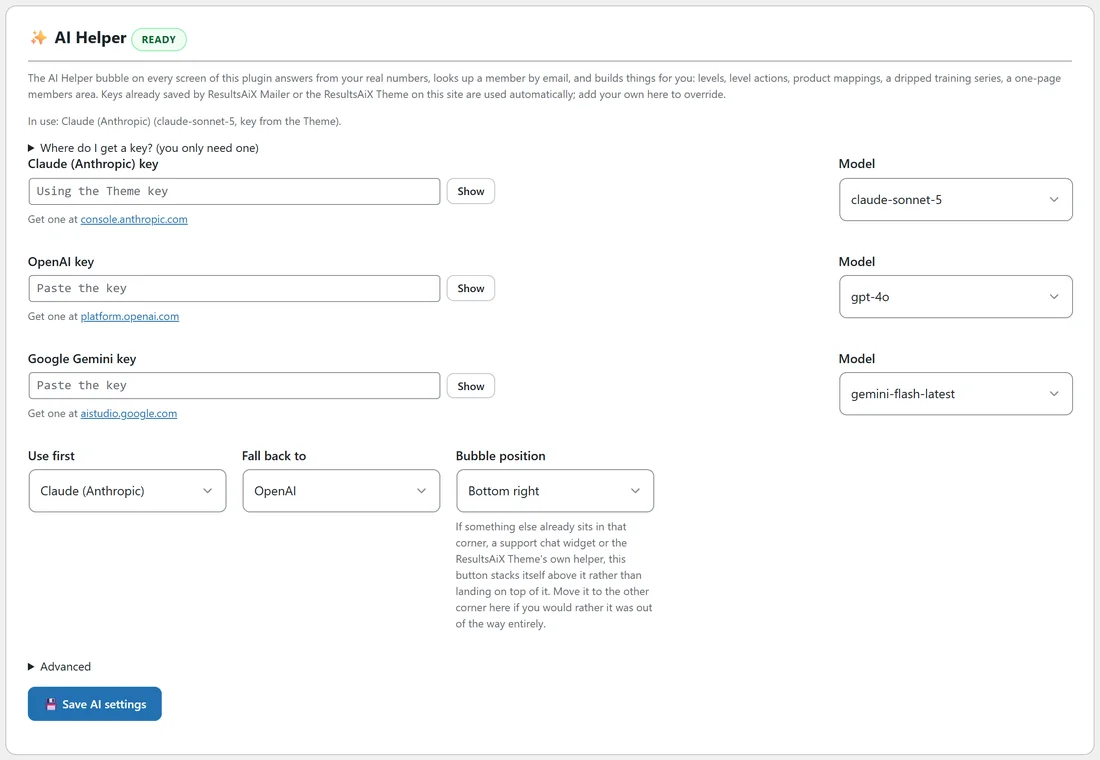
- Open the Settings tab and scroll to AI Helper.
- Open Where do I get a key? (you only need one) for step by step help with each provider.
- Paste one key into Claude (Anthropic) key, OpenAI key or Google Gemini key. Show reveals what you typed.
- Pick a Model for that provider. The menus list current models for each one.
- Set Use first and Fall back to. The helper asks your first choice, and the second one if the first is busy.
- Choose Bubble position: Bottom right or Bottom left.
- Press Save AI settings.
The key is yours, from the AI company, and nothing is sent anywhere until you ask a question. When you do, only the part of your data needed to answer goes to the company you chose.
If ResultsAiX Mailer or the ResultsAiX Theme already holds a key on this site, the helper uses it automatically. The key box then reads "Using the Theme key" or "Using the AI Mailer key", and the In use line names the provider, the model and where the key came from. Paste your own key to override it.
The badge beside AI Helper reads Ready when a key is available, and No key yet when none is.
The rest of the card:
- If a provider retires the model you saved, the helper uses its current replacement, and the In use line says which model is standing in.
- Bubble position: if a support chat widget or the ResultsAiX Theme's own helper already sits in that corner, the button stacks itself above it.
- Advanced holds a Custom API address for each provider. Leave it empty to connect directly; fill it in only if you send AI requests through your own gateway.
- A saved key shows key saved with a remove it box, so you can take it away again.
Asking questions:
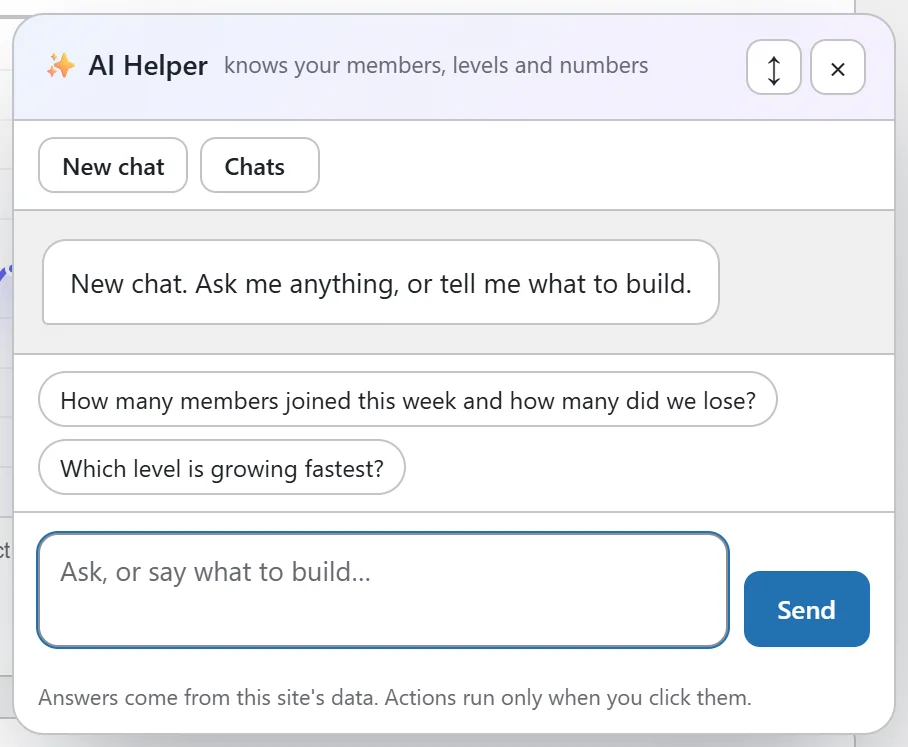
Click AI Helper, type into Ask, or say what to build, and press Send. Each screen offers a few ready made questions as buttons. On the Dashboard they are "How many members joined this week and how many did we lose?" and "Which level is growing fastest?". On the Members tab you can paste an email and ask what the site knows about that member.
New chat starts a clean conversation, and Chats lists your earlier ones. Chats are saved per administrator, the last 30 are kept, and each administrator can ask up to 40 questions an hour. The line at the bottom of the panel says it plainly: answers come from this site's data, and actions run only when you click them.
Things it can build:
When an answer includes something to build, a button appears under it, such as Create the level, Add the rule, Map the product, Protect the pages, Build the series or Build the members area.
- A level, with a name, description and expiry.
- A level action, for example "Cancel Pro 7 days after someone loses Trial".
- A marketplace product mapping, for example "Map Warrior Plus product wso_abc123 to the Gold level".
- Protection for a set of pages, with a drip if you ask for one.
- A training series: a level, one protected lesson page per lesson with drip between them, and an index page listing every lesson and the day each one opens. The lessons are then written one at a time while a progress bar fills. On the ResultsAiX Theme the index page uses the members dashboard layout.
- A one page members area: a level, a protected page with an optional download button and the member's account table, and, for a free area, a join page with the registration form. Members land on the page after logging in.
Nothing happens until you click the button. A series or a members area asks once more, with a summary of what will be created, before it starts. A lesson that fails to write shows a Retry button, so you never start the series again.
A worked example:
On the Levels tab, Yoursite Academy's owner asks: "Build a 6 month training series on landscape photography, one lesson a month, for beginners."
- The helper replies with six lesson titles and a short outline for each, and a Build the series button.
- Click it. A box asks Build this series? and says it creates the level, six protected lesson pages with drip and an index page.
- Press Build it. The level and pages are made, then each lesson is written while the bar fills.
- Open the index page from the link in the panel, check the lessons, and edit any of them like a normal WordPress page.
- Ask next: "Add the new series to the All Access Bundle" and follow its directions on the bundle's edit screen.
Tips:
- Ask with real names: level names, product codes and emails match better than descriptions.
- Read what a build will create before you press the button, then check the result on the Levels and Protect Content tabs.
- Every lesson it writes is a normal page. Edit, shorten or add your own videos afterwards.
Related: Levels: Your Access Groups, Level Actions And Bundles, Drip Content: Releasing A Course Over Time, and Settings, Appearance And Diagnostics.