Once a level is paid, things happen to it over the months: renewals, a card that expires, a member who wants to change their card, a refund you give, a subscription that ends. ResultsAiX Membership listens to Stripe for every one of these and updates the member's access by itself, and it writes every change down so you can see what happened and when.
This guide walks through each event and what you see on screen.
Where to find it:
- AiX Membership, Payments tab, Orders: every sale, renewal and refund with its status.
- AiX Membership, Payments tab, What the daily check changed: every change the daily check made.
- The member's side panel, opened with the eye button on the Members tab: their memberships, their orders and their timeline.
- The member's own account page with [raxm_account]: their billing link.
Access comes from Stripe, not from the browser:
A member is given their level when Stripe's webhook confirms the payment. Reaching the thank you page grants nothing on its own. So a buyer who closes the tab the second after paying still gets their membership, and nobody can get a level by typing in the return address.
Renewals:
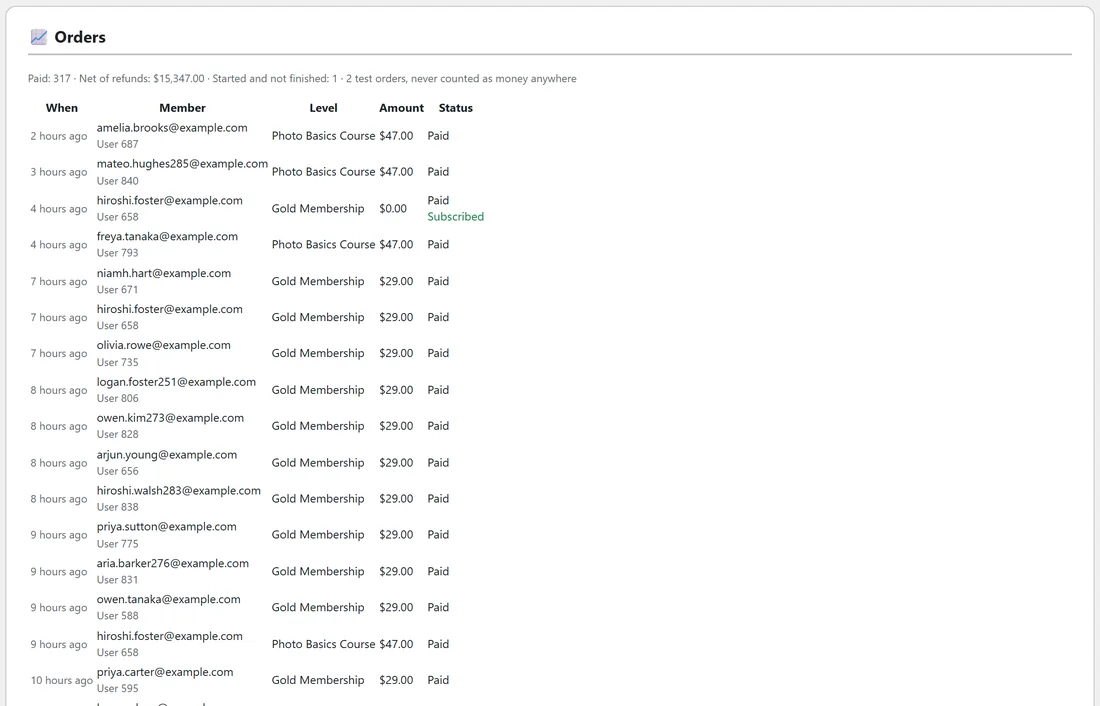
Each month or year, Stripe charges the card and tells your site. The renewal is added to the Orders list as its own row, the subscription stays marked Subscribed, and the member's access carries on. If a daily check had taken access away by mistake, a paid renewal puts it back.
The first payment of a subscription is recorded once, at checkout, and the first invoice is not counted a second time, so your figures never double.
A failed renewal keeps access:
Cards expire and get replaced all the time. When a renewal payment fails:
- The order shows Card failing, access kept on the Payments tab.
- The member gets an email titled A payment did not go through. It says nothing has been cancelled, they still have full access, and gives a link to update their card.
- Stripe tries the card again over the following days.
- Their access is not touched. Only a subscription that actually ends takes it away.
When the card works again, the next renewal clears the failing status by itself.
The member's own billing page:
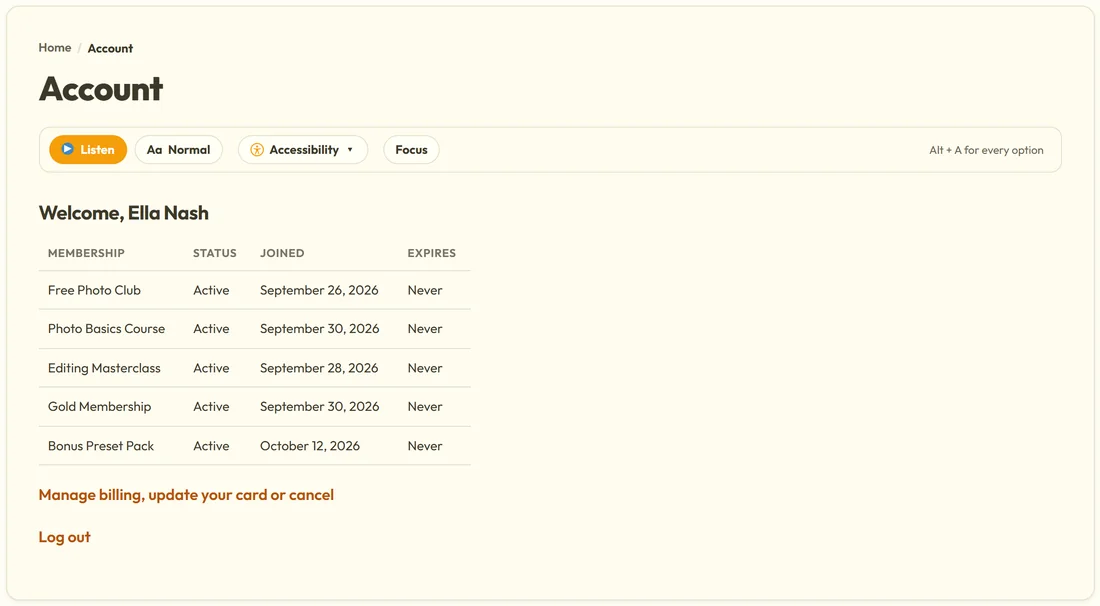
Members with a subscription can update their card, see their invoices or cancel on Stripe's own billing page. They reach it from three places:
- The receipt page after they pay, with Manage your membership, update your card or cancel.
- The card failed email.
- Their account page, where [raxm_account] shows Manage billing, update your card or cancel whenever they have a live subscription. If their last payment failed, a line above it says so and asks them to update their card.
Each link is signed for that member and opens a fresh Stripe billing session when clicked, so a card change never has to become a support ticket. Free members and one off buyers see no billing link, and a site without Stripe connected shows nothing new at all.
When a subscription ends:
When Stripe cancels a subscription, because the member cancelled on their billing page, you cancelled it in the Stripe dashboard, or Stripe gave up on the card, the plugin sets that membership to cancelled. The order shows Subscription ended, and the member's timeline says why access ended.
The membership row is kept, so the history stays. If they buy the level again later, the same membership becomes active again.
Cancelling or pausing from your own screens:
On the Members tab, in the One row per membership view, Cancel on a membership pauses that member's access and keeps the history, and Put back restores it. The side panel has the same Cancel and Remove buttons. These change access on your site only. To stop the billing too, cancel the subscription in Stripe or let the member do it on their billing page. See Managing Members.
Refunds:
Refund in Stripe as you normally would, and it arrives here by itself:
- The refund is written as its own row on the Orders list, shown in red with a minus sign. The original sale is never edited.
- A full refund sets the membership it paid for to cancelled, and the member's timeline says the payment was refunded in full.
- A partial refund is recorded but does not change access, because a partial refund is usually a goodwill gesture.
Deleting a member's account:
If you delete a member's WordPress user, the plugin cancels their live Stripe subscription first, so nobody is billed for an account that no longer exists. If it cannot reach Stripe to do that, it writes a clear line in the log on the Payments tab so you can cancel it in Stripe by hand.
What you see in the side panel:
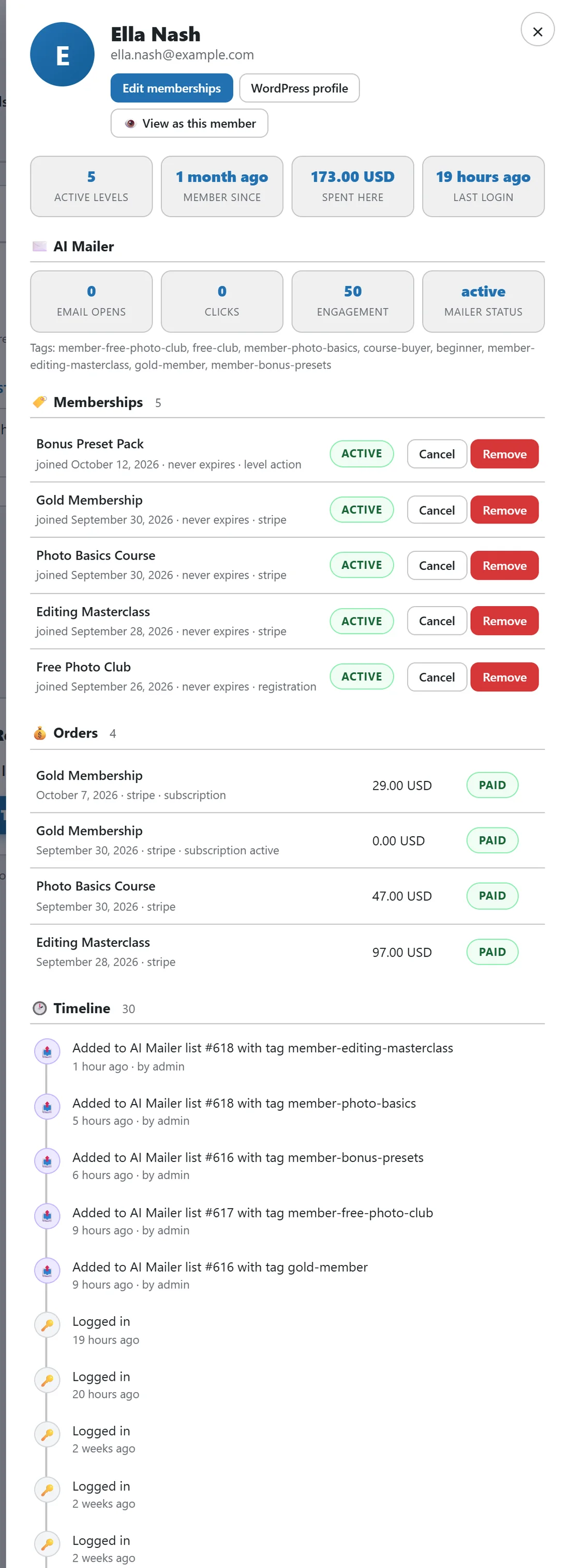
Open any member with the eye button on the Members tab. The side panel shows their memberships with status and source, their orders with amount and status (paid, refunded, subscription active), and a timeline that includes every purchase, renewal, refund and ended subscription with its date.
An example from Yoursite Academy:
Ella Nash joined Gold Membership with a seven day free trial. Her orders show the trial start, then a paid renewal each month, and the subscription is marked active. Her account page shows the Manage billing, update your card or cancel link.
Another Gold member's card expired. The Payments tab showed Card failing, access kept, she received the email, updated her card on the billing page two days later, and the next renewal went through. She never lost access.
A Photo Basics buyer asked for a full refund in the first week. Yoursite Academy refunded it in Stripe. The refund appeared in red on the Orders list and her Photo Basics membership changed to cancelled, while her Free Photo Club membership stayed active.
Tips:
- Make sure the five webhook events are added in Stripe, in both modes. Every event in this guide depends on them. See Charging For Membership: Connecting Your Own Stripe Account.
- Put [raxm_account] or [raxm_profile] on a page in your menu, so members can always find their billing link.
- For anything that slipped through while your site was down, the daily check catches it. See Orders And The Daily Check That Keeps Them Honest.