A level is a named group, such as Free Photo Club or Gold Membership. You protect content for levels, and members hold levels. When a member holds several, they can open everything any of their levels opens.
Most sites need only a handful: a free tier, one level per product you sell, and perhaps a bundle. There is no limit on how many you create.
Where to find it:
AiX Membership, then the Levels tab. Click Add level to make a new one, or Edit on any row to change it. The Levels entry in the WordPress admin menu under AiX Membership opens the same tab.
The Levels list:
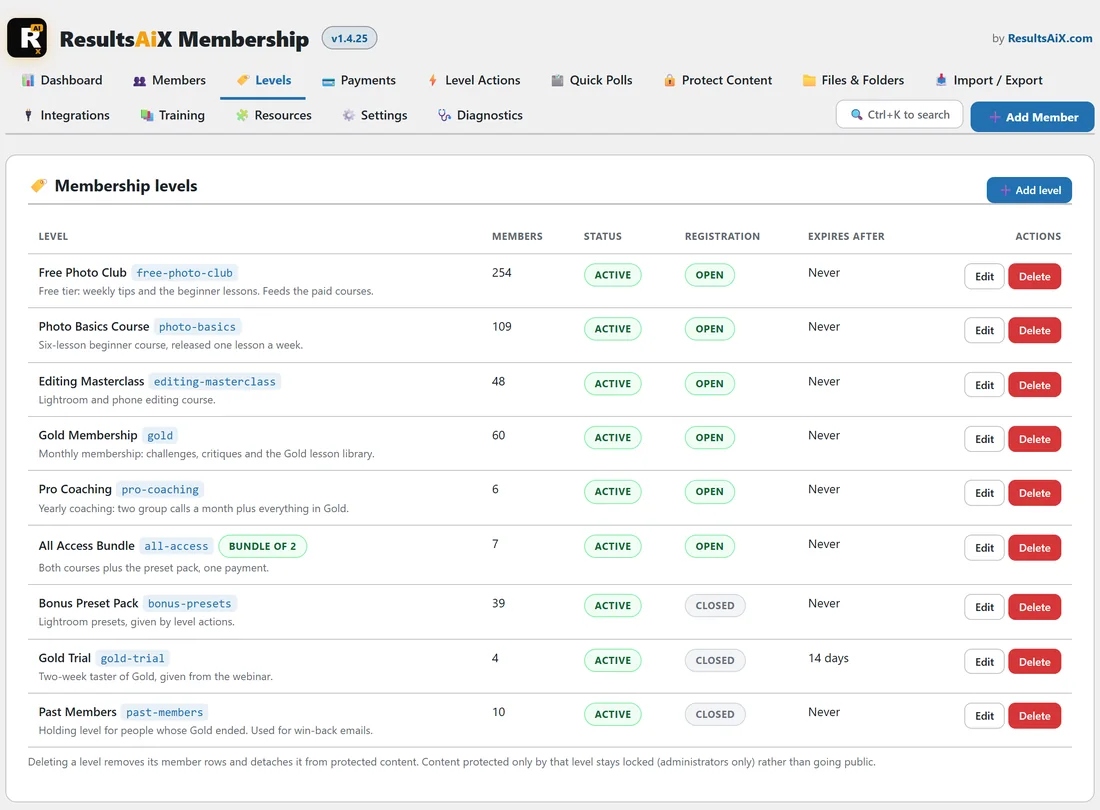
Each row shows the following.
- Level: the name, the slug, and a short line from the description. A level that opens other levels carries a Bundle of badge, and an imported level carries a WLM or PMPro badge.
- Members: how many members hold the level.
- Status: active or inactive.
- Registration: Open when people can sign themselves up, Closed when they cannot.
- Expires after: the number of days a new membership lasts, or Never.
- Actions: Edit and Delete.
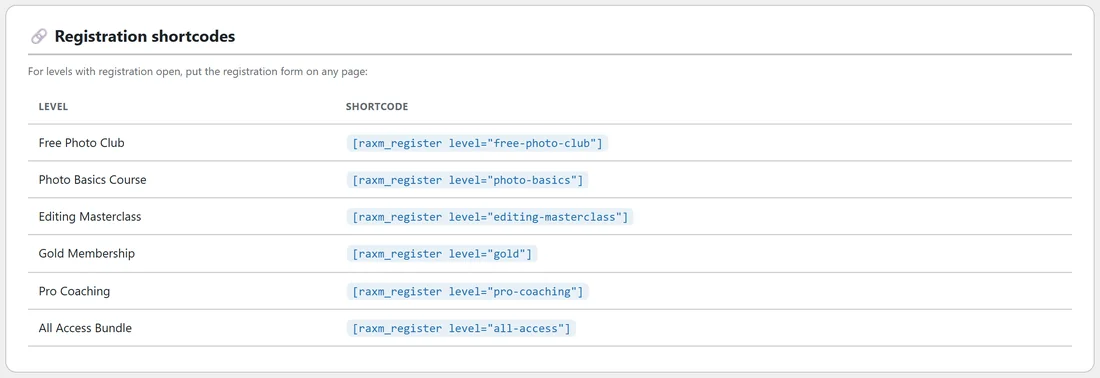
Under the list, Registration shortcodes shows the ready-made [raxm_register] shortcode for every level with registration open, so you can copy it straight onto a page.
Creating a level, step by step:
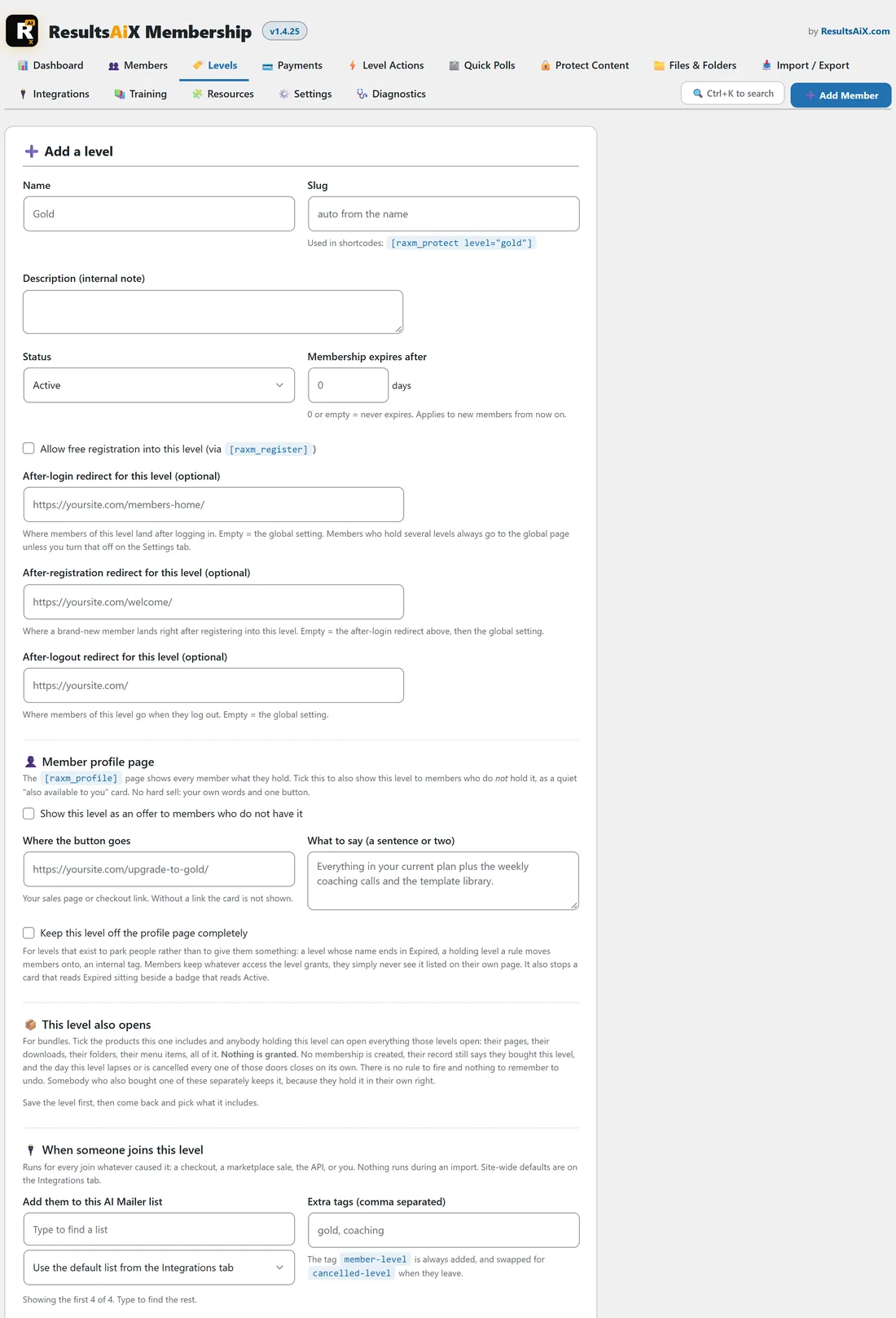
- On the Levels tab, click Add level.
- Type a Name.
- Type a Slug, or leave it empty to have it made from the name.
- Add a Description (internal note) if you like. Only you see it.
- Choose a Status and, if you want, a number in Membership expires after.
- Tick Allow free registration into this level if people may join it with [raxm_register] or a join link.
- Fill in the redirect pages if this level should have its own.
- Click Save level.
Some sections only appear once the level is saved: This level also opens, Level actions, and the link and button for sharing or selling the level.
Every setting on the level:
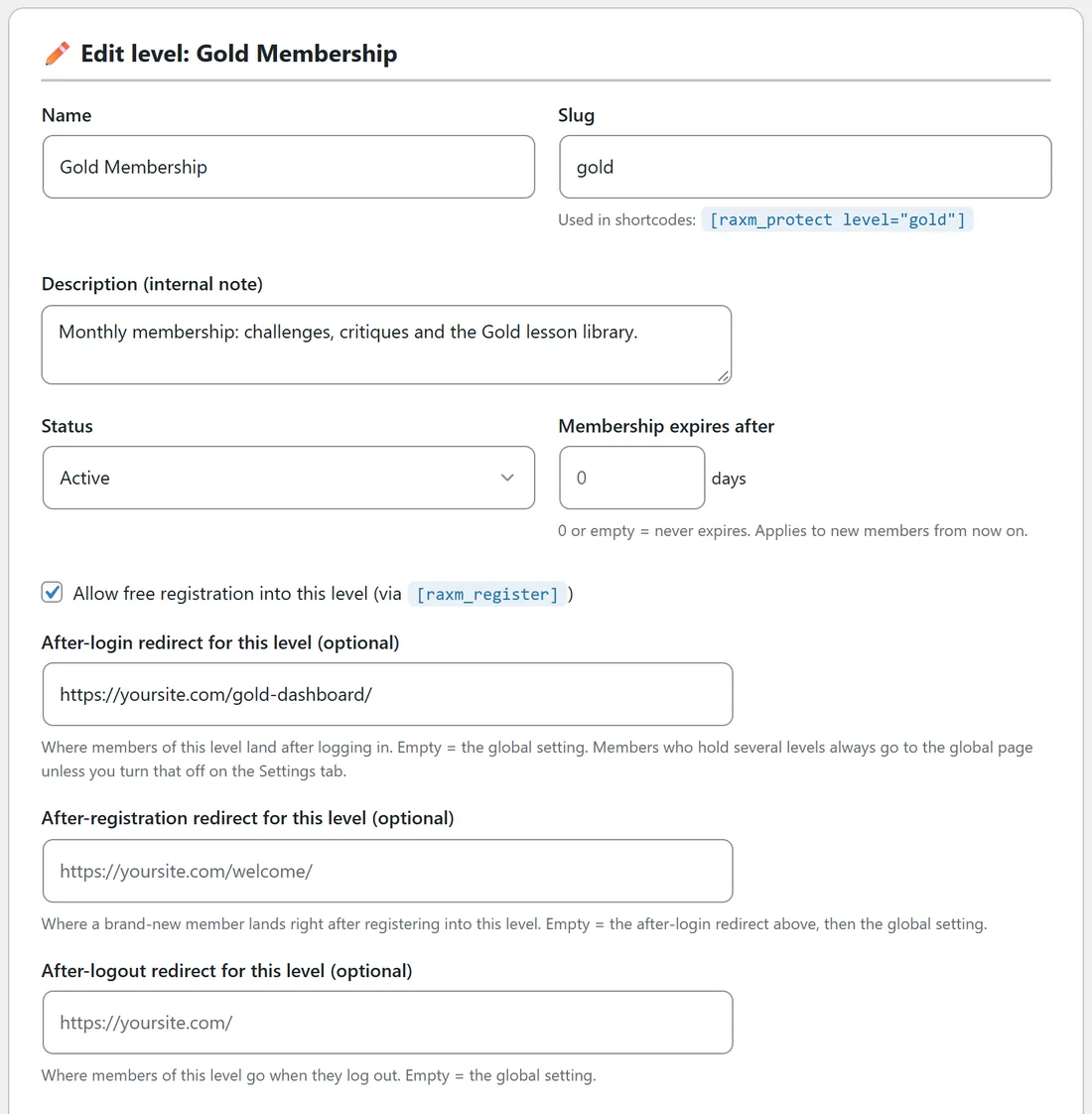
- Name: what members see on their profile and account pages. Keep it plain.
- Slug: the short name used in shortcodes, for example [raxm_protect level="gold"]. Lowercase with dashes. If the slug is already taken, a short suffix is added so the save never fails.
- Description (internal note): a reminder for you, such as where the level is sold.
- Status: Active, or Inactive (nobody gets access through it). Inactive is the way to switch a level off without deleting anything.
- Membership expires after: a number of days. 0 or empty means never. It applies to members who join from now on. A daily job marks memberships that have passed their end date as expired.
- Allow free registration into this level: opens the level to [raxm_register] and to the level's join or buy link. On a paid level the same form becomes the checkout, so tick it to sell the level too.
- After-login redirect for this level: where members of this level land after logging in. Empty means the site setting.
- After-registration redirect for this level: where a brand-new member lands right after joining. Empty means the after-login redirect, then the site setting.
- After-logout redirect for this level: where members of this level go when they log out. Empty means the site setting.
- Sort order: a number that sets the order of levels in lists, lower numbers first. It also decides which level's redirect wins for a member with several levels, when that is allowed.
The redirect fields suggest your published pages as you type, and you can also paste any address.
Redirects when somebody holds several levels:
On the Settings tab, under Login & redirects, the box Per-level redirects only apply to members who hold a single level is ticked by default. Members who hold several levels then always land on your After login (global fallback) page, which avoids an arbitrary choice between two of their levels. Untick it if you want a per-level redirect to apply anyway: the first of their levels, by sort order, that has a redirect set wins.
The member profile page section:
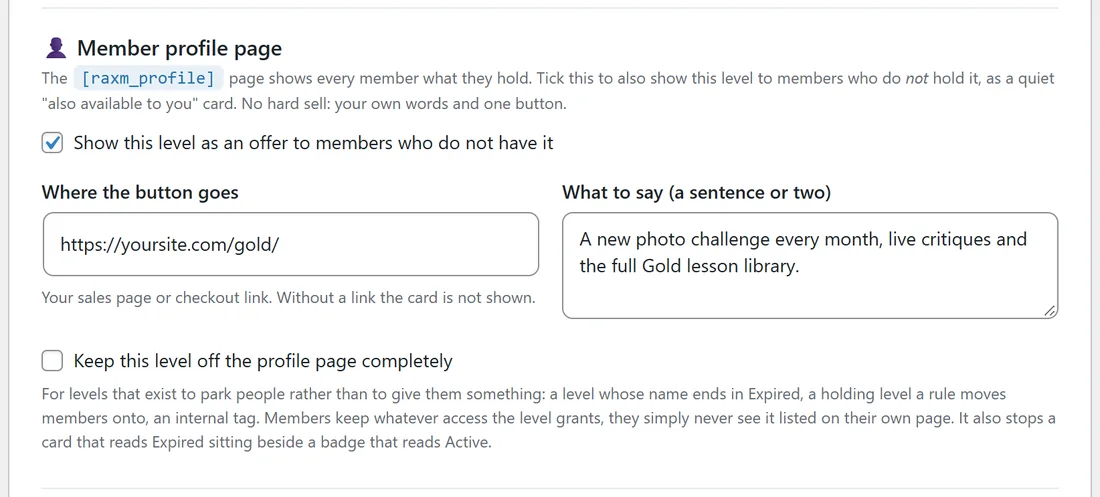
Further down the level, Member profile page controls how the level appears on the [raxm_profile] page.
- Show this level as an offer to members who do not have it: adds a quiet card under Also available to you on the profile page of members who do not hold this level.
- Where the button goes: your sales page or checkout link. Without a link the card is not shown.
- What to say: a sentence or two for the card.
- Keep this level off the profile page completely: for holding levels and internal tags. Members keep whatever access it gives, they simply never see it listed.
See The Member Profile Page And The Side Panel.
Other sections on the level:
- This level also opens: tick other levels to turn this one into a bundle. See Bundles: One Level That Opens The Others.
- When someone joins this level: shown when ResultsAiX Mailer or WP Sync is on the site. Pick the AI Mailer list, extra tags and WP Sync syncs for new members of this level. See AI Mailer And WP Sync.
- Level actions: the rules that watch this level, with buttons to add or manage them. See Level Actions And Bundles.
- Charge for this level: price, currency, how often and free trial. It appears only once Stripe is connected. See Paid Levels: Putting A Price On Access.
- Share a join link (free levels) or Sell this level anywhere (paid levels): a link, an HTML button and a shortcode for the level. See Buy Links: Sell Or Share A Level From Any Page.
A real example:
Yoursite Academy runs nine levels. Free Photo Club has registration Open and its after-login redirect set to the Members Home page. Gold Membership sends members to a Gold Dashboard page after login. Gold Trial has Membership expires after set to 14, so trial members drop off on their own after two weeks. Past Members has Keep this level off the profile page completely ticked, because it only exists to tag people for a win-back email. The All Access Bundle opens the Photo Basics Course and the Editing Masterclass, which is why it shows a Bundle of 2 badge in the list.
Deleting a level:
Click Delete on the row and confirm. The level's member rows are removed and the level is taken off any protected content. Content that was protected only by that level stays locked for administrators only, rather than going public. If you might want the level again, set its Status to Inactive instead.
Tips:
- One level per thing you sell keeps reports and marketplace mappings simple. Use a bundle to sell several together.
- Use Inactive rather than Delete while you are unsure.
- A level made on this tab also gets a protected folder of its own under files on your server, ready for its downloads, unless you turn that off on the Settings tab. See Protected Files And Whole Folders.