Quick Polls put a one-click question on your members dashboard, such as "Which camera do you shoot with most?" with two to four answer buttons. Your members are already logged in, so there is nothing to type, and every answer is saved against the member who gave it.
Use a poll when you want to learn something about your members and act on it: which lesson to make next, who is ready for a coaching offer, who runs an agency. Each answer can tag the member in ResultsAiX Mailer, so an automation can follow up with the right email.
Where to find it:
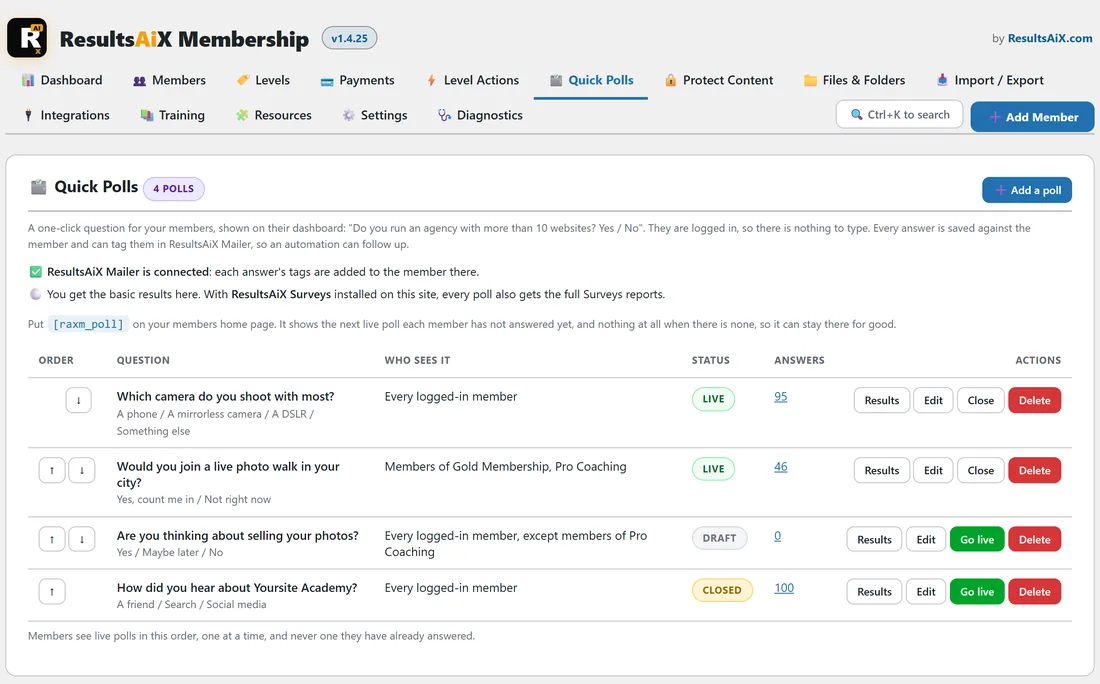
Open AiX Membership in the WordPress menu, then the Quick Polls tab. The list of polls is at the top, the Add a poll form is under it, and How many at once sits at the bottom.
The poll list:
Every poll has one row: its order, the question with its answers, who sees it, its status, how many answers it has, and the buttons Results, Edit, Close (or Go live) and Delete.
- The arrows in the Order column move a poll up or down. Members see live polls in this order, one at a time, and never one they have already answered.
- Who sees it reads as one sentence, for example "Members of Gold Membership, Pro Coaching" or "Every logged-in member, except members of Pro Coaching".
- Status is Draft (nobody sees it yet), Live (members see it) or Closed (answers kept, nobody sees it).
- The number under Answers opens the results.
The two lines above the table tell you what is connected. With ResultsAiX Mailer on the site, each answer's tags are added to the member there. With ResultsAiX Surveys installed on the same site, every live poll also keeps its answers as a survey, so you get the full Surveys reports as well as the basic results here.
Adding a poll:
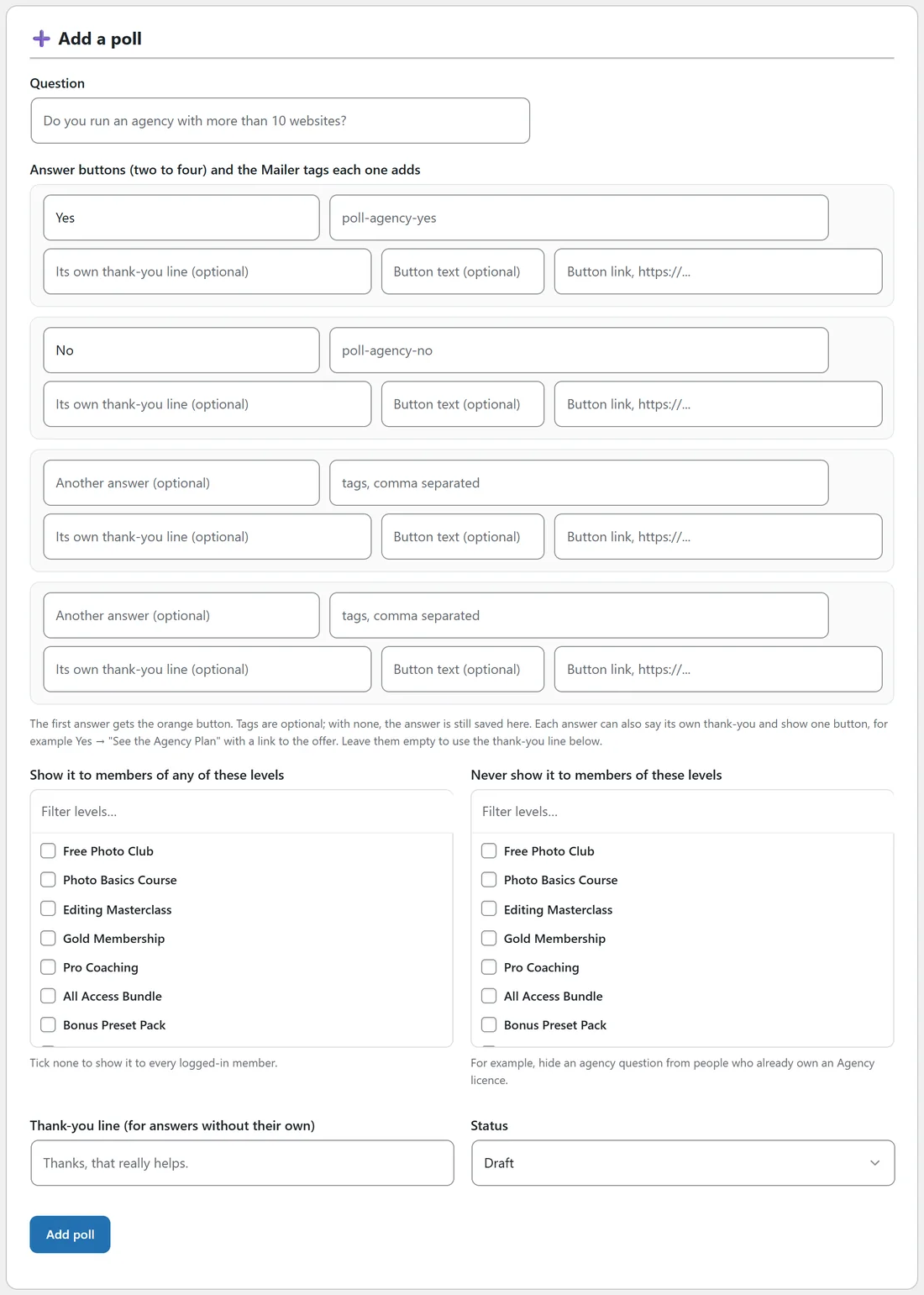
- On the Quick Polls tab, press Add a poll (or scroll to the Add a poll form).
- Type the Question, up to 200 characters.
- Fill in two to four answer buttons. The first answer gets the orange button.
- Next to each answer, type the Mailer tags it adds, comma separated. Tags are optional; an answer with none is still saved here.
- Under Show it to members of any of these levels, tick the levels whose members should see it, or tick none to show it to every logged-in member.
- Under Never show it to members of these levels, tick any level whose members should never see it.
- Type a Thank-you line, or leave it empty for "Thanks, that really helps."
- Set Status to Live (members see it) when you are ready, or leave it on Draft.
- Press Add poll.
A thank-you and a button for each answer:
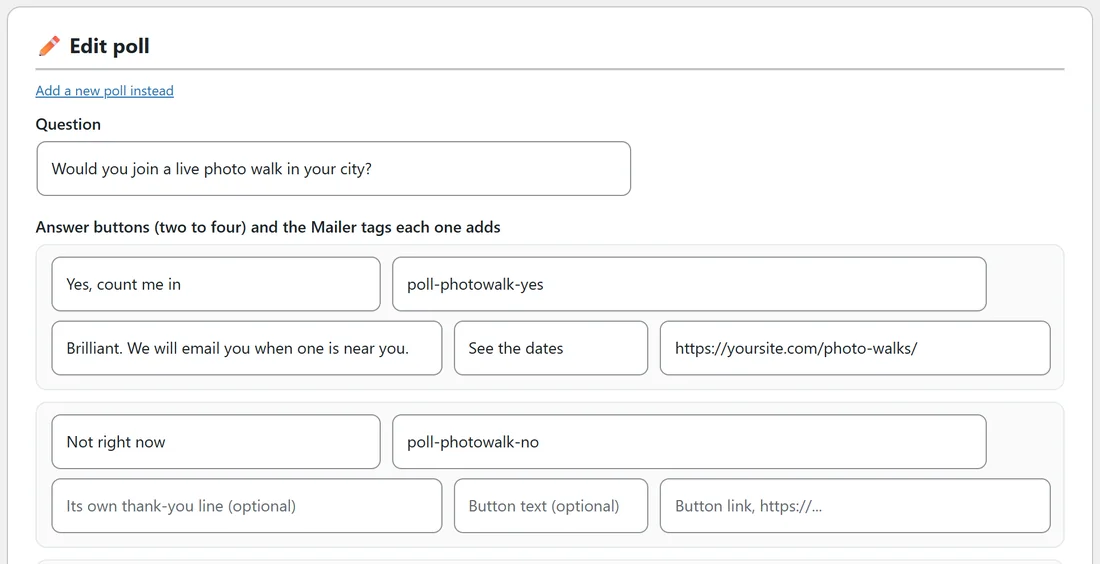
Under each answer there are three optional boxes: Its own thank-you line, Button text and Button link. A member who picks that answer sees its own thank-you line instead of the poll's, and, when a button link is filled in, one button under it. A button with a link and no text reads "Find out more". Answers without their own line use the poll's Thank-you line.
This is how a poll turns into a gentle next step. Somebody who answers "Yes, count me in" to a photo walk question can be thanked and shown a See the dates button, while "Not right now" just gets a thank-you.
Putting the poll on your members home page:

Polls only appear where the [raxm_poll] shortcode is. Add it once to your members home page and leave it there for good.
- [raxm_poll] shows the next live poll each member has not answered yet, and nothing at all when there is none, so an empty spot never shows.
- [raxm_poll max="2"] shows up to two polls together (three at most).
- [raxm_poll id="..."] shows one particular poll only. The id is the one in the Edit link of that poll.
Visitors who are not logged in never see a poll. The shortcode shows nothing to them.
How many at once:
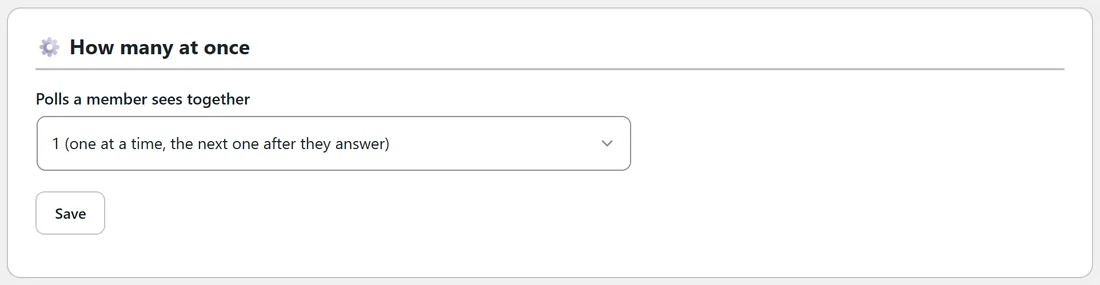
The box at the bottom of the tab sets Polls a member sees together, from 1 to 3. One at a time is the default and the best choice for most sites: the next poll appears after they answer. The max setting on a shortcode overrides it for that one page.
Seeing the results:
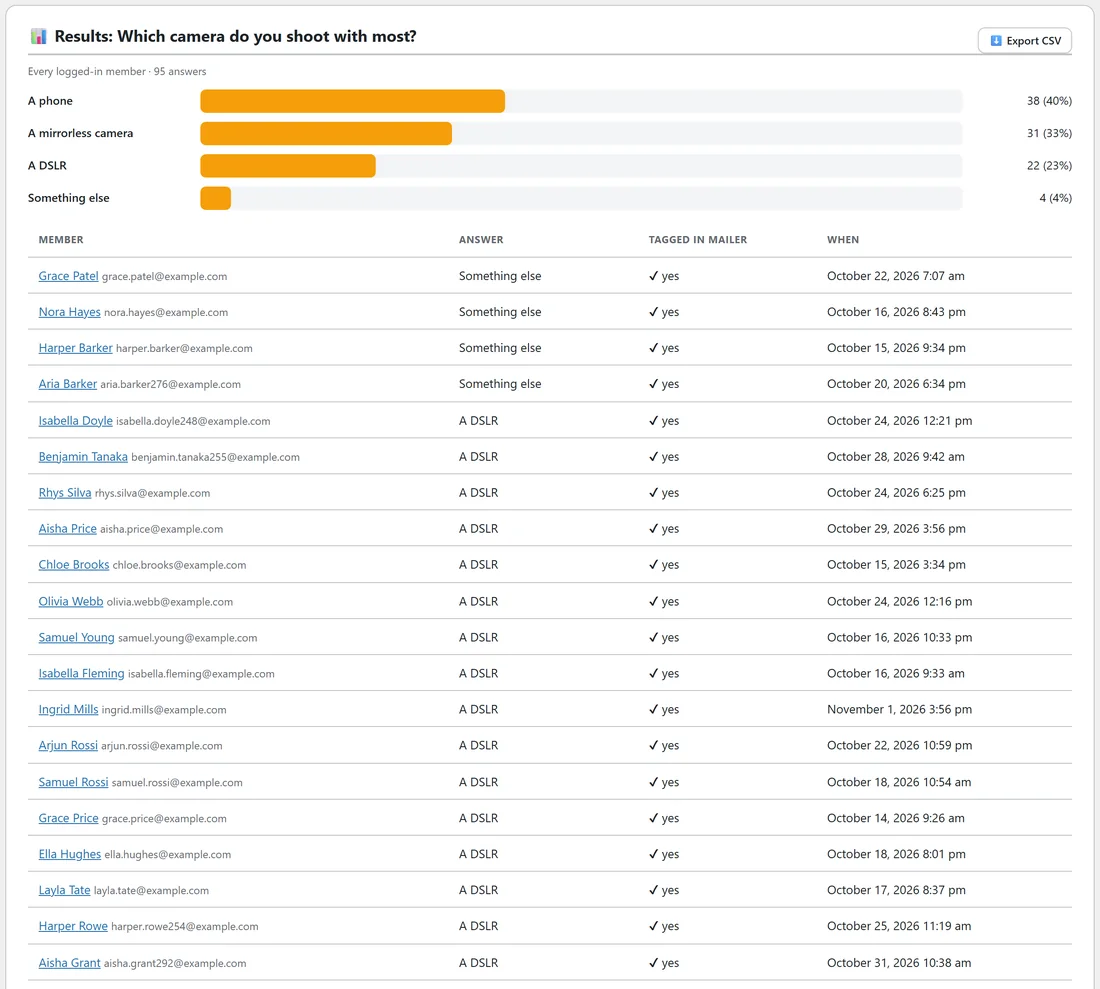
Press Results (or the answer count) next to a poll. You get a bar for each answer with its count and percentage, then a table of every member who answered: their name linked to their member page, their email, the answer, whether they were tagged in Mailer, and when. The newest 500 show on screen.
Press Export CSV for the full list, with the columns Name, Email, Answer, Tagged in Mailer and Answered. With ResultsAiX Surveys installed, Full report in Surveys opens the same answers there, with its summary, filters, AI Insights and PDF report.
Every answer is also written on the member's timeline, so you see it in their side panel next to everything else they have done.
Answering once, closing and deleting:
A member answers each poll once. A double click or a second browser tab changes nothing: only the first answer counts and tags.
- Close keeps every answer and hides the poll from everyone. Go live brings it back.
- Delete removes the poll and its saved answers. Tags already given in ResultsAiX Mailer stay where they are. If you might want the answers later, close the poll instead.
A real example:
Yoursite Academy wants to know which kit its members use before planning the next course.
- Question: Which camera do you shoot with most?
- Answers: A phone (tag poll-camera-phone), A mirrorless camera (tag poll-camera-mirrorless), A DSLR (tag poll-camera-dslr), Something else (no tag).
- Show it to: no levels ticked, so every logged-in member sees it.
- Status: Live.
A second poll asks Gold and Pro Coaching members "Would you join a live photo walk in your city?" The Yes answer has its own thank-you line and a See the dates button. Because the camera poll is first in the order, a Gold member sees the camera question first and the photo walk question after answering it.
Within a week the results show most members shoot on a phone, so the next course is a phone editing course, and everybody tagged poll-camera-phone gets the launch email first.
Tips:
- Keep questions short and answers to two or three words. Polls work because they take one click.
- Plan the follow-up before the poll goes live: create the Mailer automation that starts when the tag is added.
- Use Never show it to members of these levels to skip people the question no longer fits, such as customers who already bought the thing you are asking about.
- Close old polls rather than deleting them, so the answers stay for later.
Related guides: AI Mailer And WP Sync, The Member Profile Page And The Side Panel, Login, Registration And Account Pages.