The Connections tab is where every tool gets linked to WP Sync. Only connected apps appear in the bridge builder, so this is always your first stop. Most apps take a minute: copy a key from the app, paste it into the card, click Connect.
Find your app:
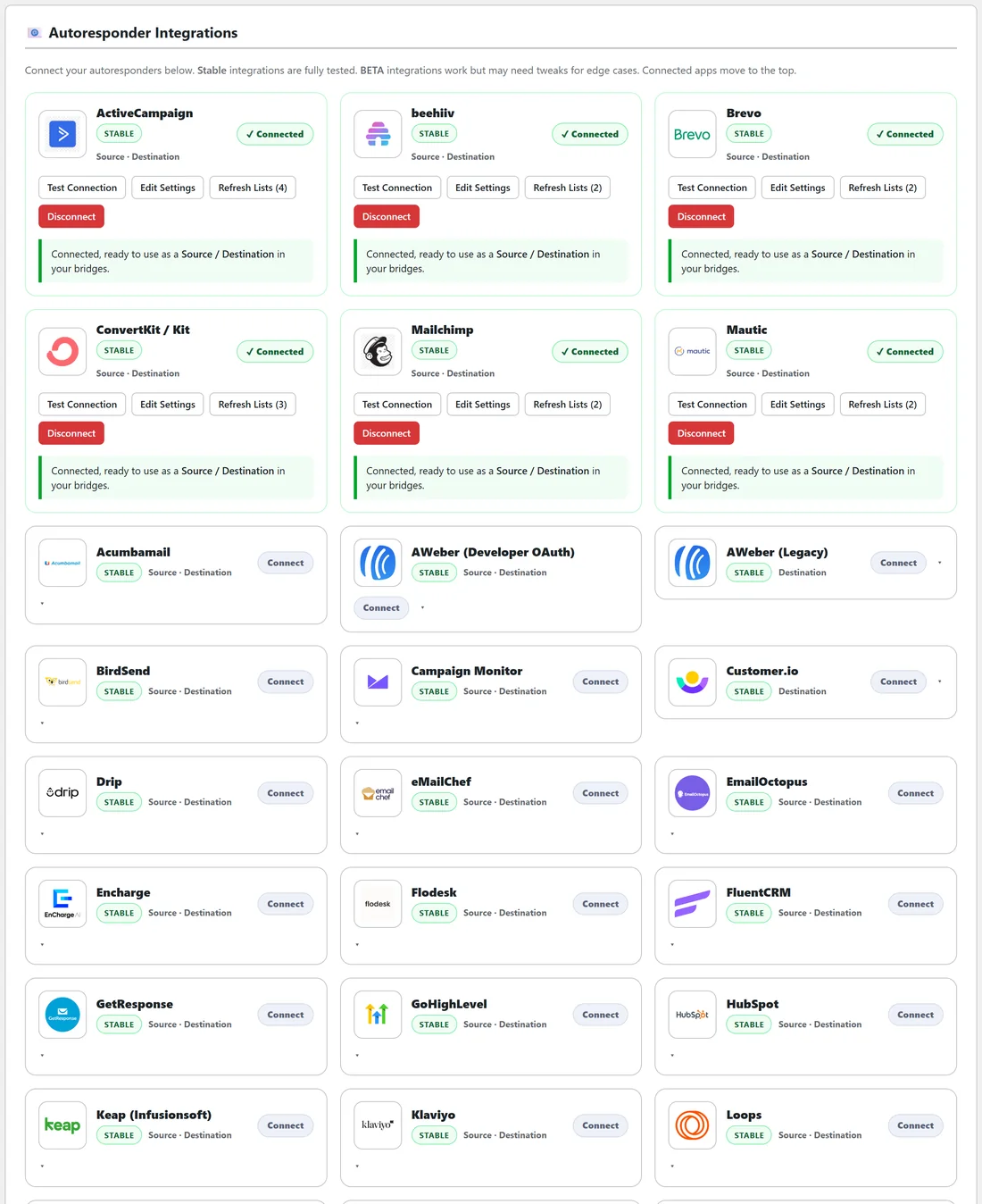
- Open WP Sync, then the Connections tab.
- Type the app's name in the search box at the top, for example mailchimp. The cards filter as you type, and a count shows how many match.
- Or scroll. Autoresponder Integrations holds the built in email apps, and ResultsAiX Mailer's card joins the ResultsAiX Connections section at the top once the Mailer is active. Connected apps move to the top of each section.
What a card tells you:
- The app's logo and name.
- A STABLE badge, or BETA on the rare connection still being confirmed.
- What it can do: Source, Destination, and Push when the app sends events to your site the instant they happen.
- Connect, or a green Connected badge once linked.
Connect it, step by step:
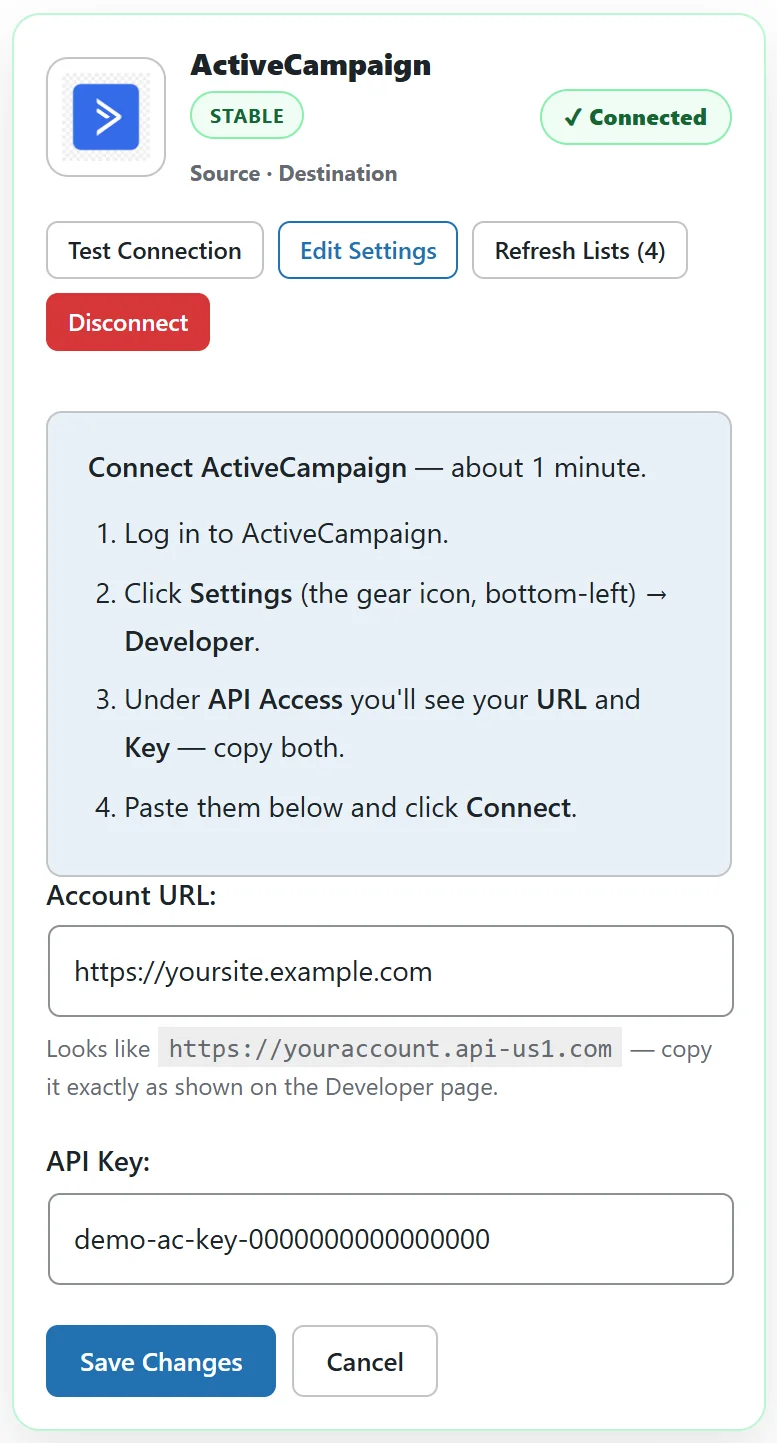
- Click the card's header to open it.
- Read the numbered steps at the top of the card. They tell you exactly where the key lives in that app.
- Paste the key, address or token into the boxes.
- Click Connect. The page reloads and the card shows Connected.
The connection methods you will meet:
- An API key, or an API key plus an account address. ActiveCampaign, Kit, GetResponse, GoHighLevel, Brevo and Mailchimp work this way.
- An OAuth app. AWeber (Developer OAuth) walks you through creating an app in AWeber and pasting back the code.
- A web form ID. AWeber (Legacy) is a quick destination only method.
- A webhook URL you paste into the other app. Stripe, PayPal, Calendly, WarriorPlus and JVZoo show you a private URL to paste into their notification settings.
- Your own install address and login. Mautic, MailWizz and Sendy run on your own server, so you enter its address and credentials.
- Nothing at all. Plugins on the same site, such as WooCommerce, FluentCRM, MailPoet and ResultsAiX Mailer, are detected automatically.
- A channel webhook or a bot token. Slack, Discord and Telegram.
- A service account. Google Sheets uses a JSON key, and you share each sheet with the service account email shown on the card.
Buttons on a connected card:
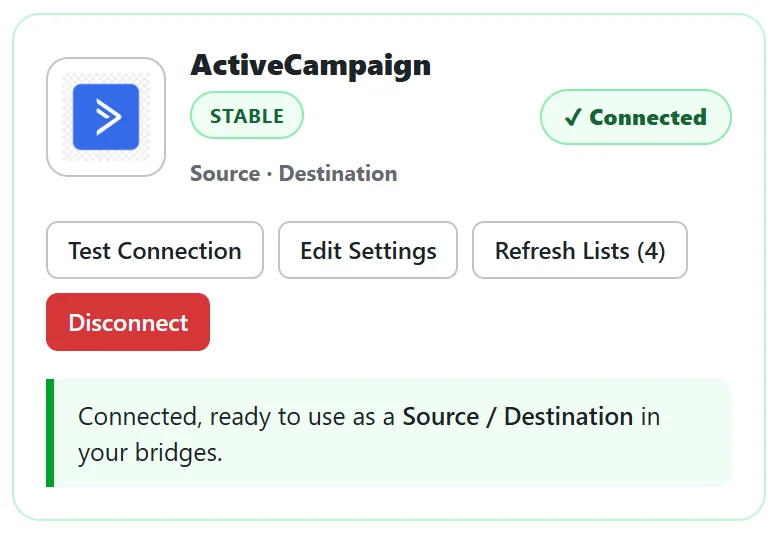
- Test Connection checks the credential and prints a plain result on the card.
- Edit Settings reopens the form with your saved values, so you can change a key without disconnecting.
- Refresh Lists re-reads lists, forms, sheets, webinars or channels from the app, and shows how many it found.
- Disconnect removes the stored credentials for that app.
A real example:
yoursite.com connects ActiveCampaign first.
- In ActiveCampaign, Settings, Developer shows the URL and Key.
- On the ActiveCampaign card, paste the URL into Account URL and the key into API Key.
- Click Connect. The card turns green and Refresh Lists (4) shows its four lists: Newsletter, Webinar Leads, Customers and VIP Clients.
What each app calls a list:
The bridge builder always says list, but each app has its own word, and the card fetches the right thing.
- Mailchimp: audiences.
- Kit: forms, with tags for tag actions.
- MailerLite: groups.
- Mautic: segments.
- beehiiv: your publication, shown as All subscribers.
- ActiveCampaign, GetResponse, Brevo and most others: lists.
If Test Connection reports a problem:
- Click Edit Settings and check each box for a stray space at the start or end.
- Make sure the key is the right kind. The numbered steps on the card say exactly which key to copy.
- For apps with an address, check it is the full address, starting with https.
- Click Save Changes, then Test Connection again.
Diagnostics keeps the app's own reply in the debug log, which helps support if you need it.
Changing a key later:
Click Edit Settings, paste the new key and click Save Changes. Your bridges keep working, because the connection itself is not removed.
Tips:
- Connect at least one source and one destination before opening the bridge builder. It only opens when both exist.
- Click Refresh Lists after you create a new list in the other app, so it appears in the builder.
- Next, read Sources Versus Destinations, then Building Your First Bridge Step By Step.