This walk through takes about five minutes and leaves you with a filed, checked library and your first email ready to send. The built in Training page gives the same advice in three steps: import your emails, connect one AI key, train the voice.
- Activate your licence. Open AiX Email, Settings, paste your key into the Licence key field and press Activate. See Installing ResultsAiX Email And Activating Your Licence Key.
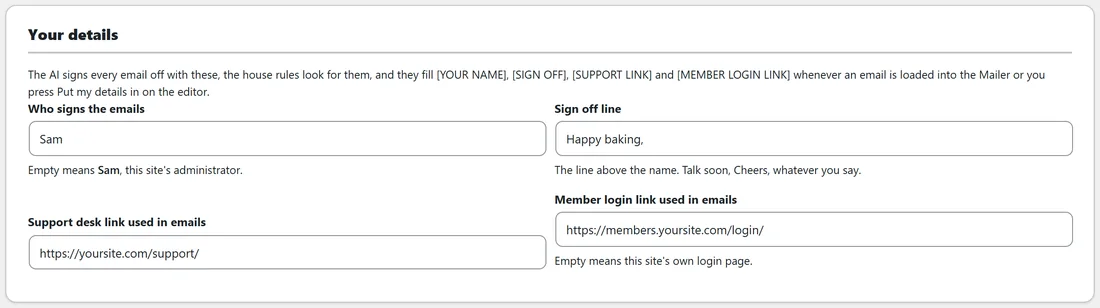
- Fill in Your details. On the same Settings tab, type the name that signs your emails into Who signs the emails, your sign off line, your support desk link and your member login link. Press Save settings. The house rules and the AI both read these.
- Fill in Your domains. Type the domain your sales pages live on into Where your sales pages live, and any links that must never appear in an email, such as a checkout page. Press Save settings again.
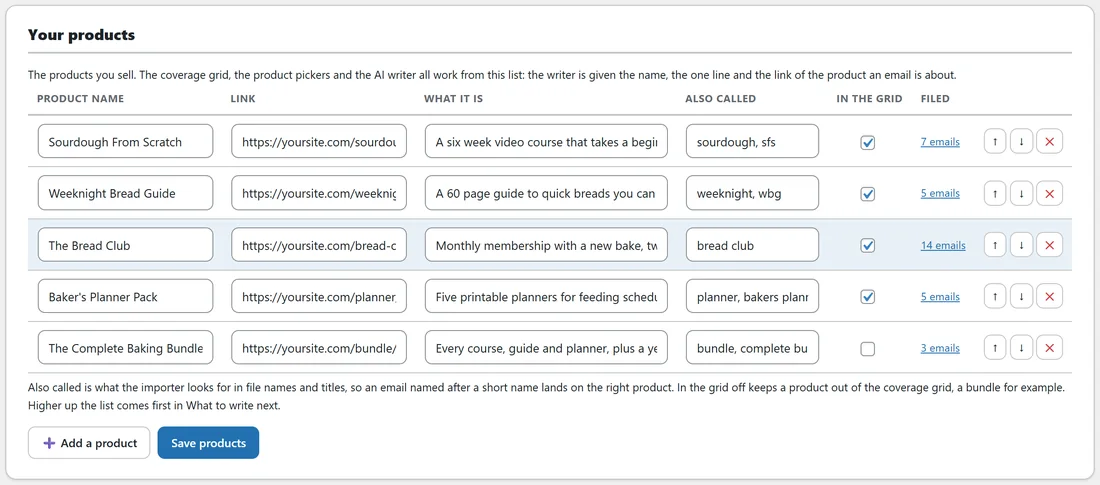
- Add your products. Open the Your products tab, type each product you sell with its link and one line on what it is, and press Save products. See Your Products: Telling The Plugin What You Sell.
- Bring in your own emails. Open Import and export. Read a folder of .txt files on your server, upload a zip of .txt files, or use Paste one in for a single email. Each email is filed, checked against the house rules and made searchable. See Importing Your Emails, Adding New Ones And Exporting The Library.
- Connect one AI key. Open AI Connect, open How to get your key in 60 seconds on a provider card, paste the key, press Test connection, then press Save AI settings. Google Gemini carries a Free key available pill, and one key is enough.
- Train the voice. Open Voice training and press Train it on the House voice card. Tick the emails that already sound the way you want to sound, then press Train it. Choose emails you wrote yourself: the starter templates are scaffolds, not anybody's writing.
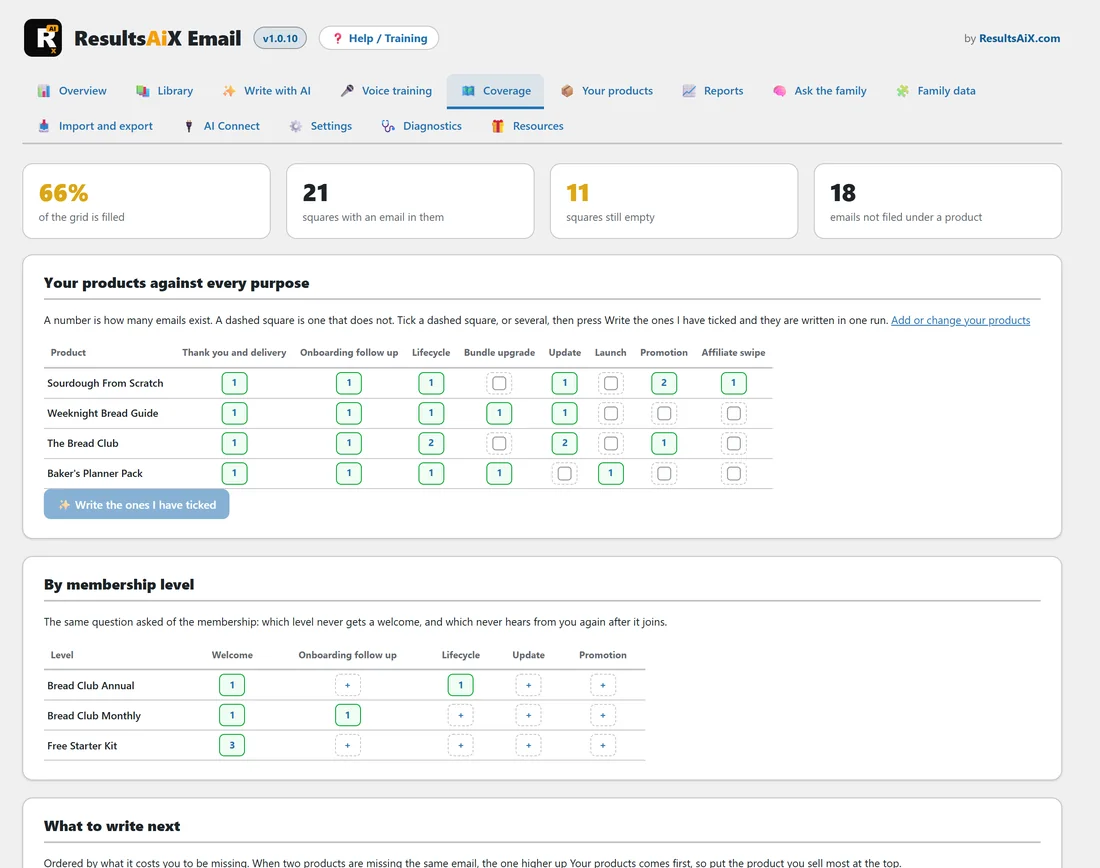
- See what is missing and use an email. Open Coverage, where a number is how many emails exist for a square and a dashed square is one that does not exist yet. Then load an email into your sending tool: with ResultsAiX Mailer on the same site, press Insert from ResultsAiX Email in the broadcast composer; with any other autoresponder, open the email, press Copy the body and paste it in.
A worked example:

Sam installs the plugin on yoursite.com. In Settings, Sam types Sam into Who signs the emails and Happy baking, into Sign off line, and adds yoursite.com as the sales domain. On Your products Sam adds Sourdough From Scratch, Weeknight Bread Guide, The Bread Club and Baker's Planner Pack.
Sam's emails already live in a folder on the server, one .txt file per email or sequence, so Sam reads that folder on Import and export. The notice says Read 16 files, found 21 emails. Sam connects a free Google Gemini key, trains House voice on two favourite emails, and opens Coverage. The planners have no update email, so Sam ticks that square and presses Write the ones I have ticked. Two minutes later the draft is in the library.
What you see when it works:
- The Overview shows your email count, coverage and an average house rule score.
- The Library lists every email with a score on the right.
- The Voice training card says Trained on and the date.
- The Diagnostics tab shows a tick beside Licence, AI and Voice.
What to do next:
- Open Overview for a one screen summary. See The Overview Screen At A Glance.
- Press Help / Training in the brand bar of any screen. It opens the built in guide.
- Open the Starter templates in the library and replace every [BRACKET] with your own words. See Personalising An Email: Placeholders, Merge Tags And Your Own Links.
- On Overview, Check every email again runs the house rules over the whole library whenever you want a fresh score.