Your licence key switches on the whole plugin, PRO included, and brings updates. This article covers the licence panel, updates, and calm fixes for the questions people ask most.
Where to find it:
Click AiX Testimonials, then Settings. The License panel is at the top.
The licence panel:
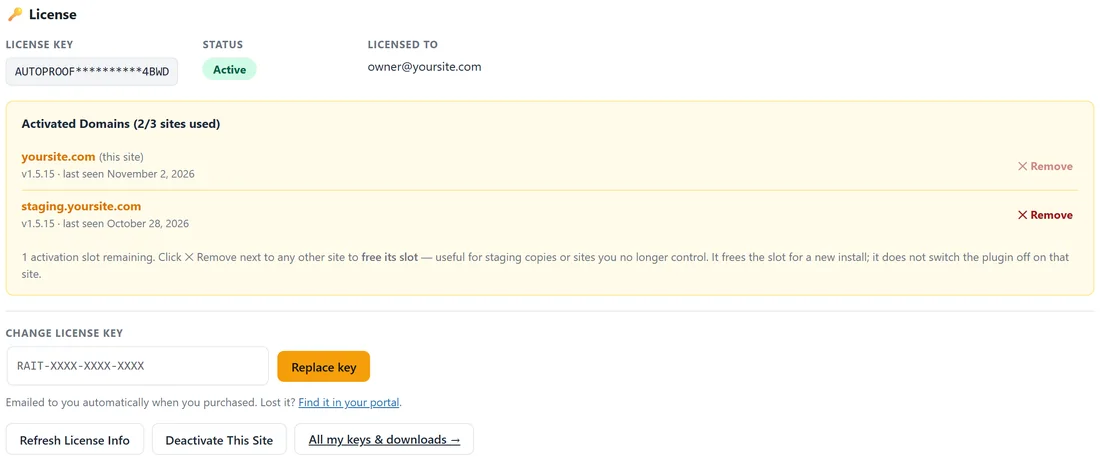
- LICENSE KEY: your key, masked so only the start and the last four characters show
- STATUS: Active when all is well
- LICENSED TO: the email address of the licence
- Activated Domains: every site using this key, with a count such as 2/3 sites used. Your current site is marked (this site).
Under it:
- CHANGE LICENSE KEY: type a new key and click Replace key
- Refresh License Info: checks the licence server again
- Deactivate This Site: frees this site's slot, for example before moving to a new site
- All my keys & downloads: opens your customer portal
Freeing a slot from another site:
Click ✕ Remove beside any other site in the list. That frees its slot for a new install, which is handy for staging copies or a site you no longer look after. Use Deactivate This Site for the current site.
Moving to a new site:
- On the old site, open Settings and click Deactivate This Site.
- Install the plugin on the new site and activate your key.
- To bring your testimonials too, use Export on the old site and Import on the new one. See ResultsAiX Testimonials PRO: Upgrade Features.
Updates:
Updates arrive through WordPress like any plugin. When one is ready, you see it under Dashboard, Updates and on the Plugins screen. Click Update now. Your testimonials and settings stay as they are.
If a message appears when you activate:
- License key not recognized: copy the key again from your purchase email, with no spaces at either end.
- This key is valid but does not include ResultsAiX Testimonials: the key is for another product. Use the key from your ResultsAiX Testimonials purchase email.
- This license has no available sites left: free a slot with Remove or Deactivate This Site on a site you no longer use, then try again.
- Too many attempts: wait a minute and try again.
If a display shows nothing:
- Check you have approved testimonials: the Live count on the Testimonials tab.
- Check the display's filters: a product, tag or rating with no matching testimonials shows nothing. Remove them one by one.
- Check Minimum rating shown on the Settings tab.
- Embed-only testimonials never show on walls, carousels or popups. Place them with ids or a hand-picked batch.
If the form does not appear:
Check Enable the public submission form is ticked under Collection & moderation on the Settings tab.
If a gift or thank-you email does not arrive:
- Check the Activity tab for the event.
- Make sure the testimonial has an email address.
- Send a test from the Gifting tab with Send test email.
- Install an SMTP plugin if your site does not send email reliably, and set Email sender address on the Gifting tab to an address on your own domain.
If the embed shows nothing on an outside page:
Tick Allow the JS embed to read from other domains under Embed on the Settings tab, and check the data-autoproof address is your WordPress site.
If a page looks unstyled:
Make sure the plugin is active, and that your page builder outputs shortcodes as shortcodes, not as plain text.
Custom question answers:
Answers to your own form questions are stored for the default form. Add custom questions there. See Designing Your Testimonial Forms.
Still need a hand?
Open Diagnostics, click Copy for support, then Contact support and paste the report into your ticket.
Tips:
- Keep the licence panel tidy: Remove old staging sites so your slots are free.
- Update when a new version arrives. Each one brings fixes and new features.