A batch is a saved, named set of testimonials with its own default look. You build it once, then use it on as many pages as you like. When you change the batch, every page that uses it changes too.
There are two kinds:
- Hand-picked: an exact list of testimonials, in the order you tick them
- Live filter: rules such as product and minimum rating, which add new matching testimonials by themselves as you approve them
Where to find it:
Click AiX Testimonials, then the Display & Embed tab. STEP 1 is Build & save a batch. STEP 2 is Display your batch.
Your saved batches:
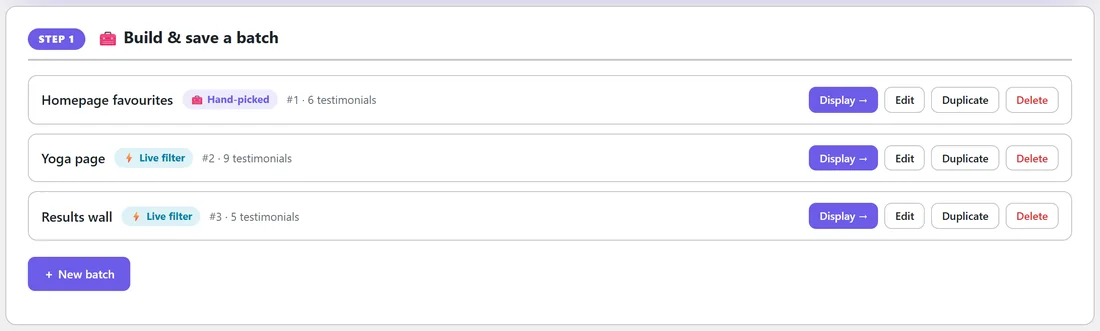
STEP 1 lists your batches with their name, kind, ID and number of testimonials, and Display, Edit, Duplicate and Delete buttons. Click New batch to make one.
Making a hand-picked batch:
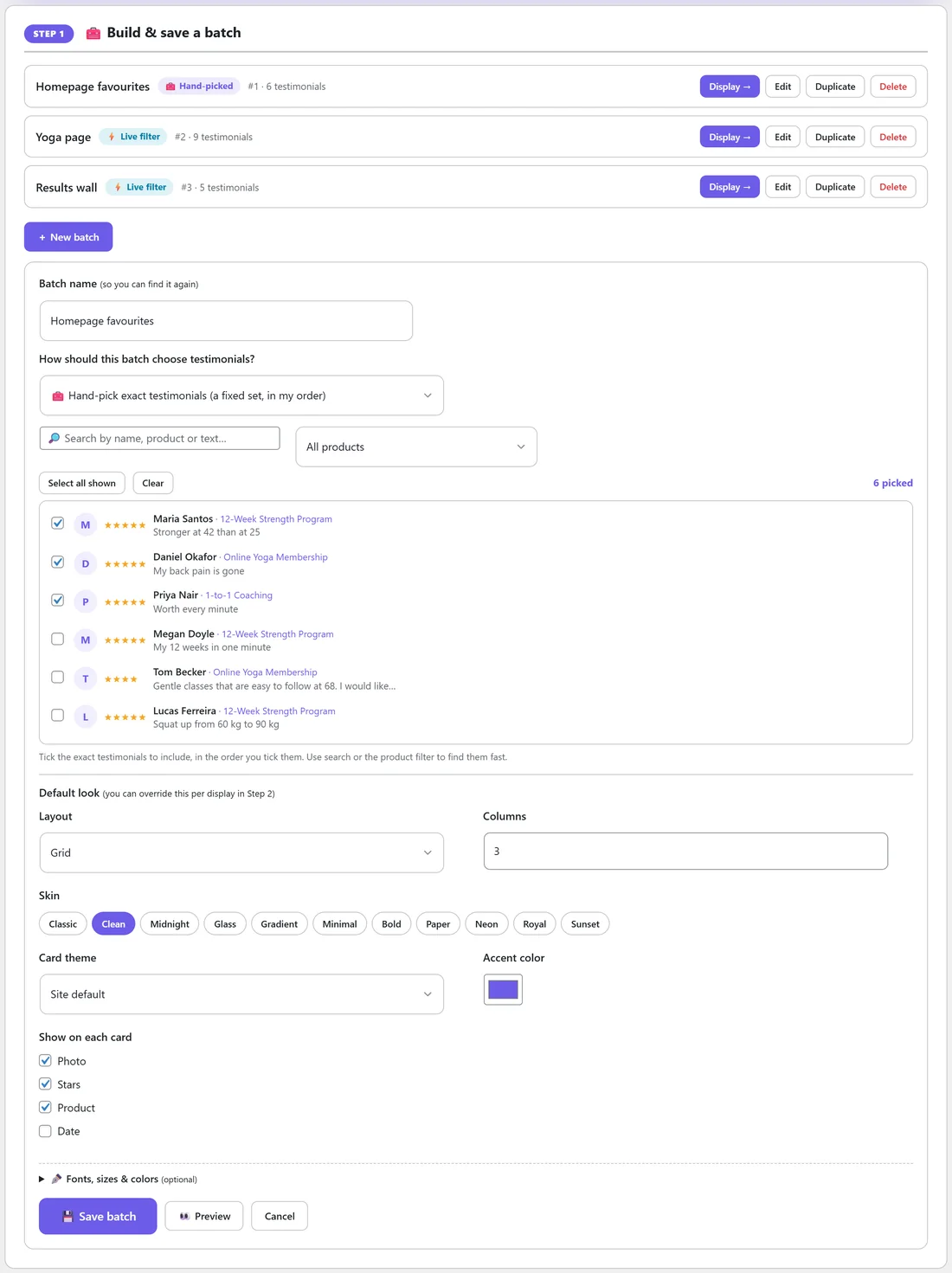
- Click New batch.
- Type a Batch name, for example Homepage favourites.
- Under How should this batch choose testimonials?, choose Hand-pick exact testimonials (a fixed set, in my order).
- Use the search box or the product filter to find testimonials. Tick them in the order you want them shown. Select all shown and Clear help with long lists.
- Set the Default look (see below).
- Click Preview to check, then Save batch.
Making a live filter batch:
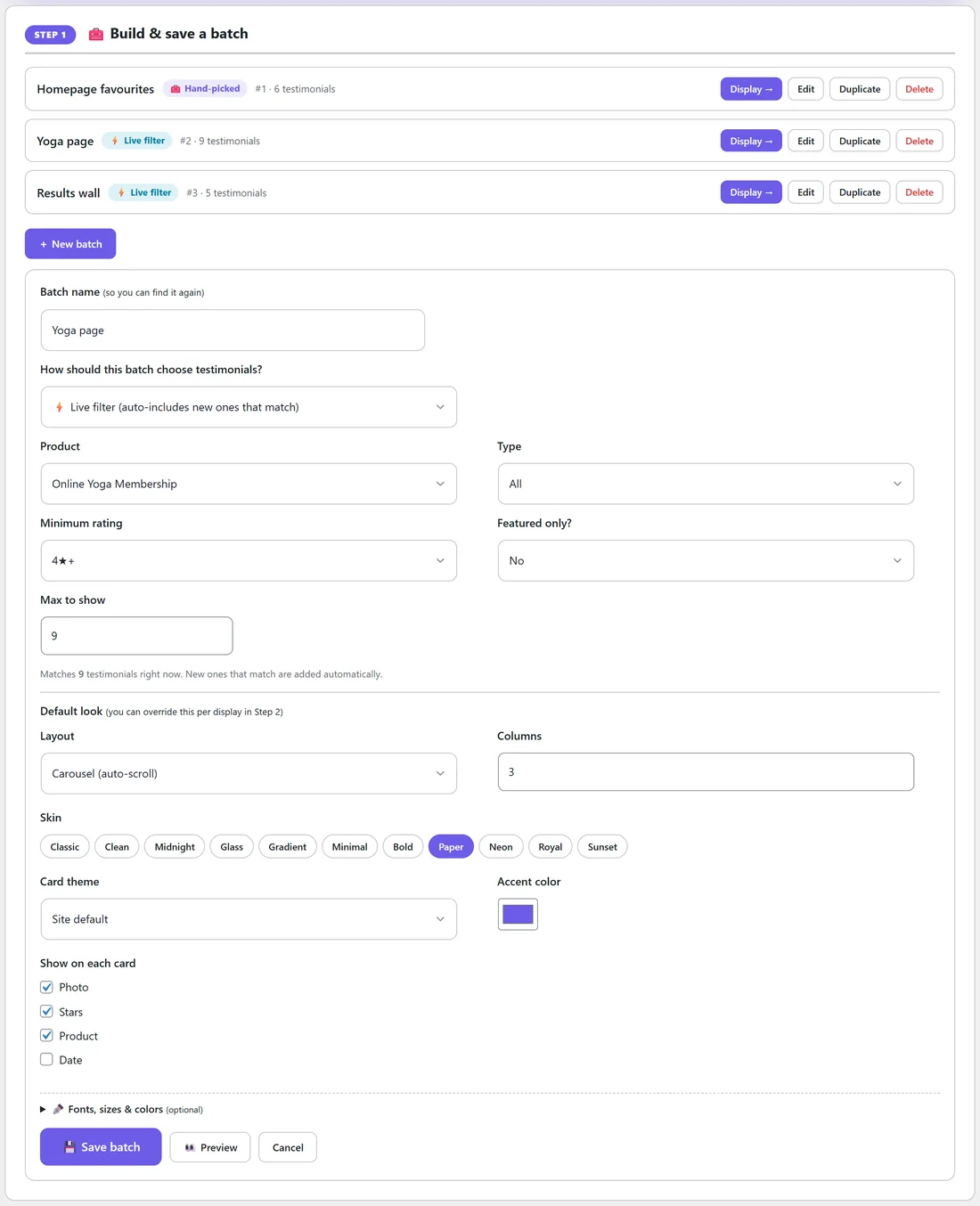
- Click New batch and type a name, for example Yoga page.
- Choose Live filter (auto-includes new ones that match).
- Set the rules: Product, Type (All, Testimonials only, Results / proof only or JV proof only), Minimum rating (Any, 5★, 4★+ or 3★+), Featured only? and Max to show (up to 100).
- The line under the rules tells you how many match right now.
- Set the Default look and click Save batch.
The default look:
- Layout: Grid, Masonry, List, Carousel (auto-scroll), Single (one big quote) or Gallery (image-first + zoom)
- Columns
- Skin: one of the eleven skins
- Card theme: Site default, Light or Dark
- Accent color
- Show on each card: Photo, Stars, Product and Date
- Fonts, sizes & colors (optional): Font, Text size (Small, Medium, Large), Corners (Square, Soft, Rounded, Extra round) and colours for the card background, text and stars
Displaying a batch:
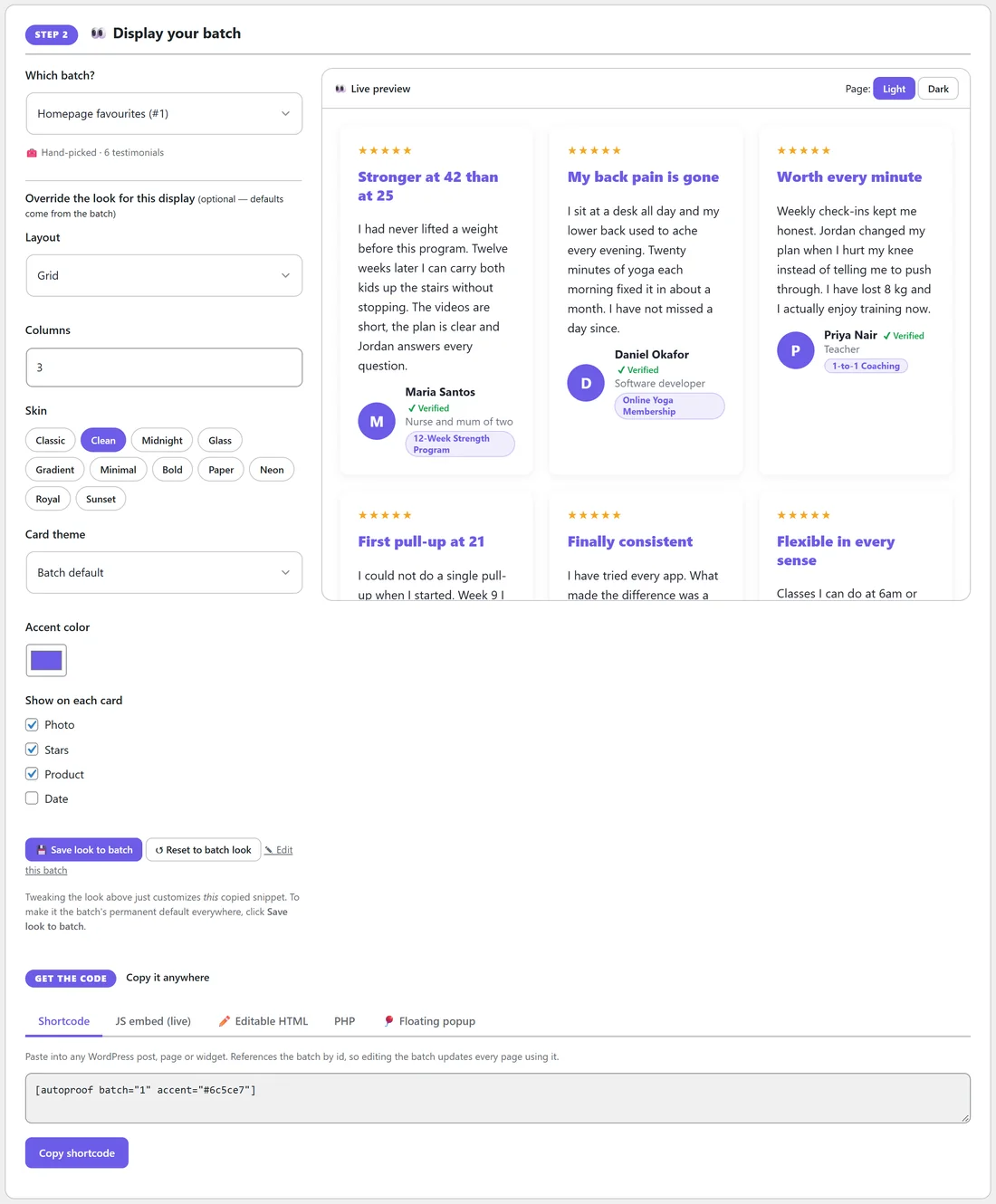
- In STEP 2, choose the batch under Which batch?
- Optionally change the look for this one placement under Override the look for this display. The Live preview updates as you go, and Page: Light or Dark previews it on a light or dark page.
- Click Save look to batch to make your changes the batch's default everywhere, or Reset to batch look to undo them.
- Under GET THE CODE, choose how to use it.
The five ways to use a batch:
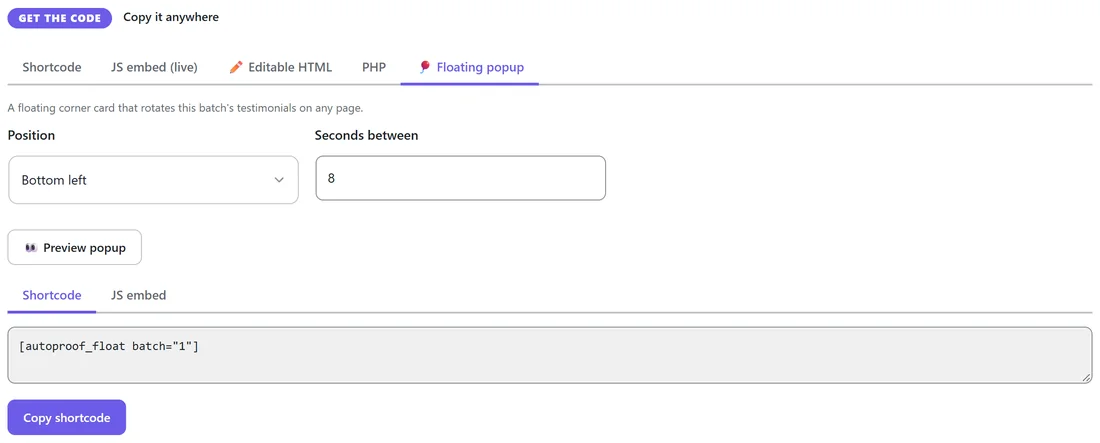
- Shortcode: for any WordPress page, post or widget, for example [autoproof batch="1"]. It points at the batch by ID, so editing the batch updates every page.
- JS embed (live): a script tag for pages outside WordPress. It pulls the batch live from your site. See Showing Testimonials on Any HTML Page.
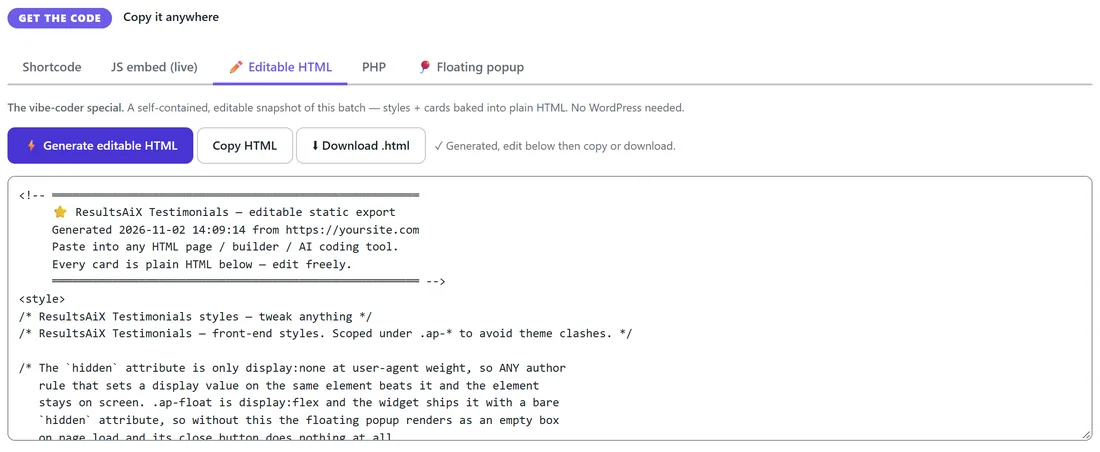
- Editable HTML: click Generate editable HTML to make a plain HTML copy of the batch, styles and cards included, that needs no WordPress. Copy HTML or Download .html. This is a snapshot, so it does not update by itself.
- PHP: a guarded one-line snippet for your own theme or plugin code. It does nothing if the plugin is off.
- Floating popup: choose Position and Seconds between, click Preview popup, then copy the shortcode, for example [autoproof_float batch="1"], or its JS embed.
Ready-made walls:
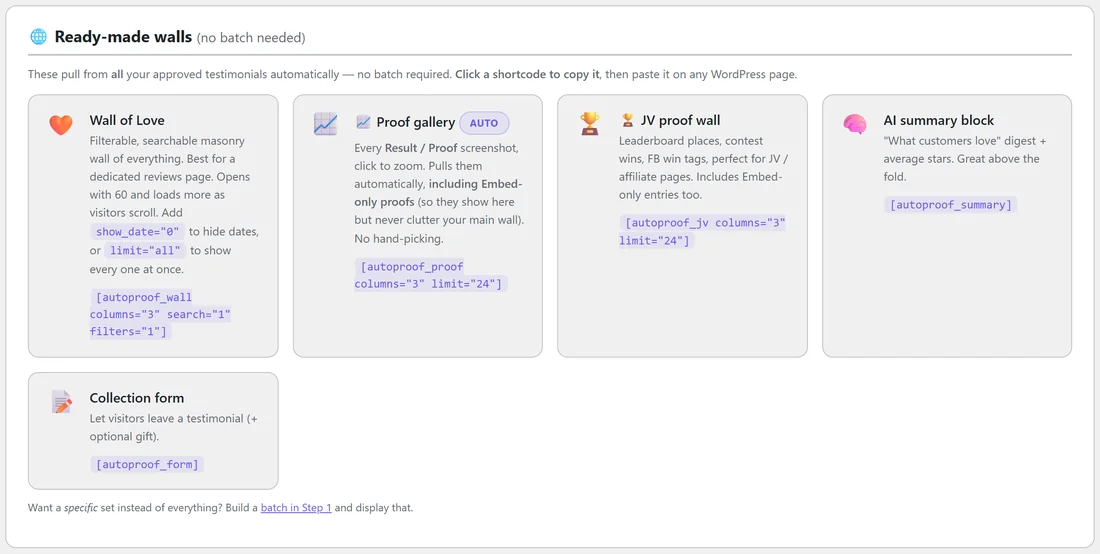
Under Ready-made walls (no batch needed), click a shortcode to copy it:
- Wall of Love: [autoproof_wall columns="3" search="1" filters="1"]
- Proof gallery: [autoproof_proof columns="3" limit="24"]
- JV proof wall: [autoproof_jv columns="3" limit="24"]
- AI summary block: [autoproof_summary]
- Collection form: [autoproof_form]
Using it in your own code:
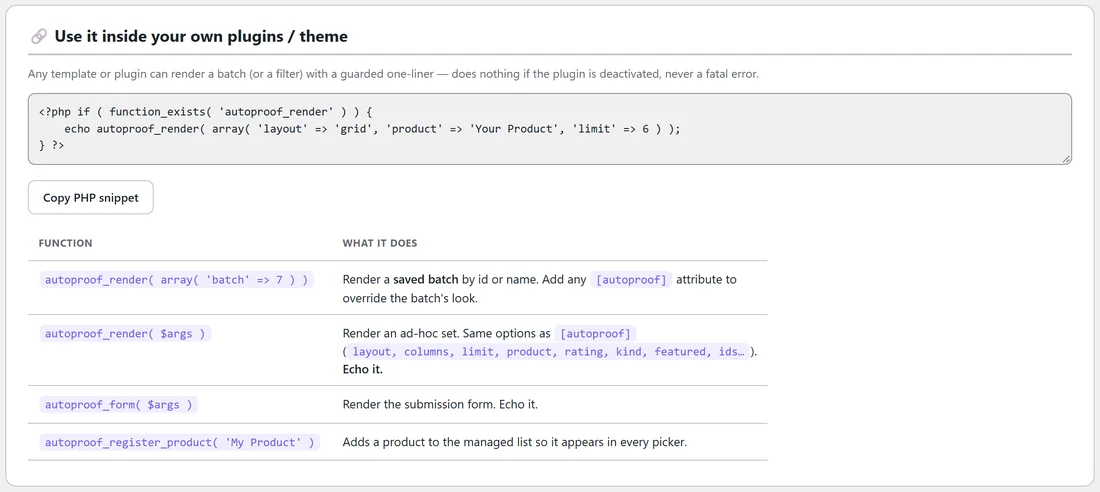
Use it inside your own plugins / theme gives you a PHP snippet and a table of the functions: autoproof_render( array( 'batch' => 7 ) ) for a saved batch, autoproof_render( $args ) for any set, autoproof_form( $args ) for the form, and autoproof_register_product( 'My Product' ) to add a product to your list.
A real example:
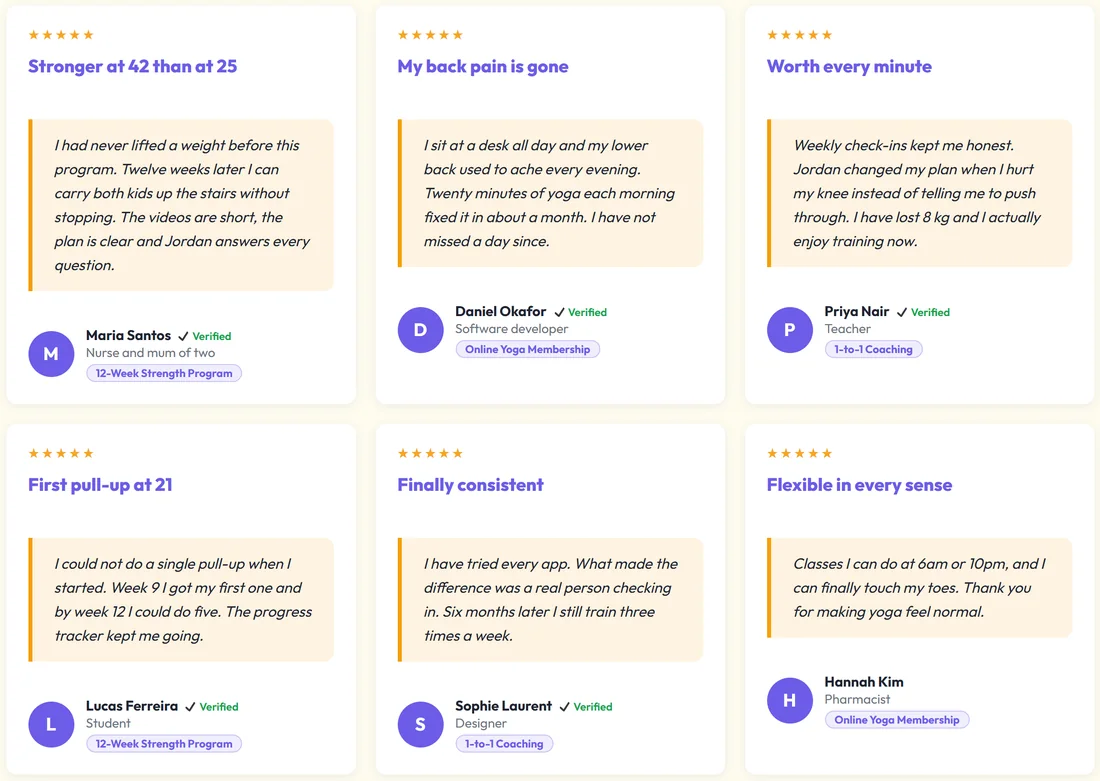
Fit at Home Academy has three batches:
- Homepage favourites: hand-picked, six testimonials in the Clean skin, used on the home page with [autoproof batch="1"]
- Yoga page: a live filter for Online Yoga Membership with 4★+, nine testimonials as a carousel in the Paper skin
- Results wall: a live filter for Results / proof only, shown as a gallery
When a new 5 star yoga review is approved, it joins the yoga page by itself.
Tips:
- Use hand-picked batches for important pages, where you want full control over order.
- Use live filters for product pages, so they stay fresh without work.
- Duplicate a batch to try a different look without touching the one that is live.