Most questions have a quick answer. Work through the steps in order; the first three solve most of them.
If a campaign is not showing:
- Check it is live. In the Campaigns list the badge should say Live. Paused means it is not on the site; click the badge to set it live.
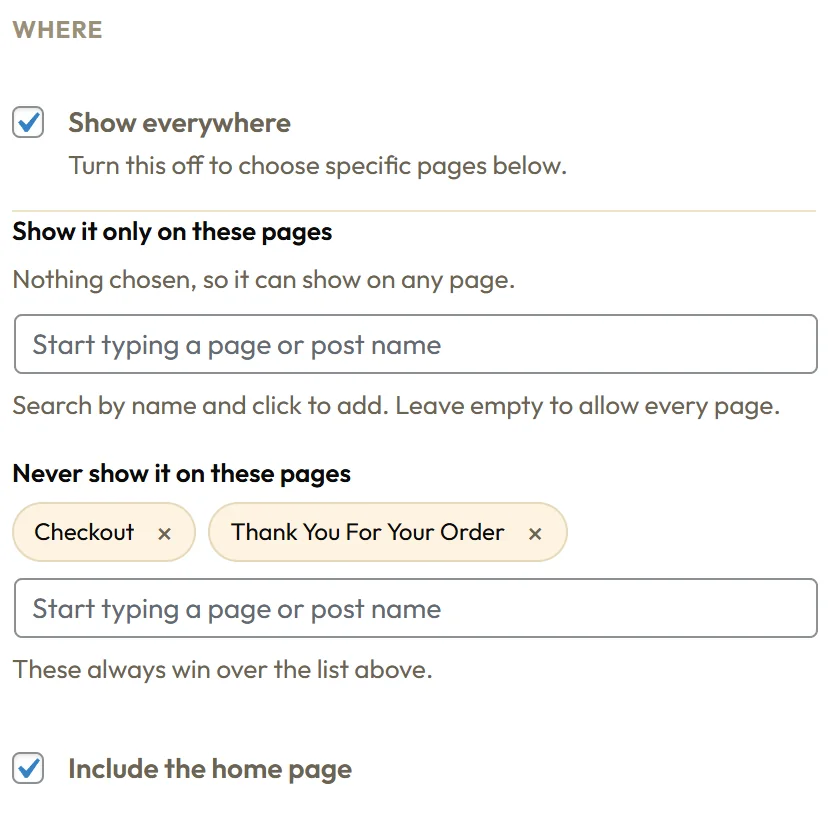
- Check the Targeting tab. If Show everywhere is off, the page must be in Show it only on these pages. Anything in Never show it on these pages always wins.
- Check how often it shows. Engage remembers in your browser that you already saw or closed it. Open a private window, or set Show this campaign to Every page view while you test.
- Check Devices on the Targeting tab and Hide this campaign on mobile on the Design tab.
- Check the dates under When. A past End date switches the campaign off.
- Check Members and roles. If Administrator is ticked under Never show it to these roles, you will not see it while logged in. Use a private window.
- Check the countdown. If When it reaches zero is Hide the whole campaign and the date has passed, the campaign is hidden.
- Check for another popup. Popups take turns, so a second popup shows after the first one closes.
If the exit popup does not open:
Exit intent works on desktop and opens when the mouse leaves the top of the browser window. Test it on a computer: load the page, wait a moment, then move the mouse up past the tabs. On phones, use a scroll or time trigger instead.
If a click trigger does not open:
Check that CSS selector to watch matches your button. A class is written with a dot, for example .watch-masterclass, and an id with a hash, for example #signup.
If the In-Content Box does not appear:
It is placed in single posts and pages. Check the post has paragraphs, and if your theme uses an unusual layout, put its content selector, for example .entry-content, in Content area on the Design tab.
If leads do not reach your autoresponder:
Every lead is safe on the Leads tab first. Then:
- Check the campaign's Opt-in tab: Autoresponder must be a service, not Save on this site only, and a List must be chosen.
- Open Diagnostics and read the delivery line for that lead.
- If the provider says the key was refused, open Connections, click Edit key, paste a fresh key and click Connect, then Test.
- If the list cannot be found, click Refresh beside the List box on the Opt-in tab and choose it again.
- Send one more test opt-in and check the new delivery line.
If the form needs a thank you page:
Add the address in Redirect after opt-in on the Opt-in tab. Without one, visitors see your Success message and the campaign closes after a couple of seconds.
If the numbers look low:
Check Visitor consent in Settings. On Automatic, views and clicks are counted for visitors who say yes to your consent banner. Check Respect Do Not Track too.
If a bar covers your menu:
On the Design tab, tick Push the page down instead of overlapping it, or move the bar to the bottom with Position.
If the success message shows but the welcome email does not arrive:
The lead reached Engage and was passed on. Check the Debug Log on the Diagnostics tab for the delivery line, then check the welcome email or automation inside your email service, and your spam folder.
If a popup cannot be closed:
Open it in the builder and tick Show a close button under Behaviour on the Content tab, then click Update. That also brings back closing with Escape and with a click on the dimmed page.
If the chat bubble opens by itself:
That is by design: the Chat Bubble Callout opens into its message card a few seconds after it appears, so it gets noticed. Visitors whose device asks for reduced motion see the bubble only, and open it with a click.
If the admin screens look out of date after an update:
Refresh the page once with Ctrl and F5, or Cmd, Shift and R on a Mac.
Still stuck:
Copy the support report from the Diagnostics tab and open a ticket at the ResultsAiX support desk. See Diagnostics And The Support Report.