Many podcasts start life as a video: a Zoom call, a webinar replay, a lesson recorded in OBS, or a phone video. ResultsAiX Podcasts turns it into the episode audio for you, right in your browser, so you never need a separate converter.
Where to find it:
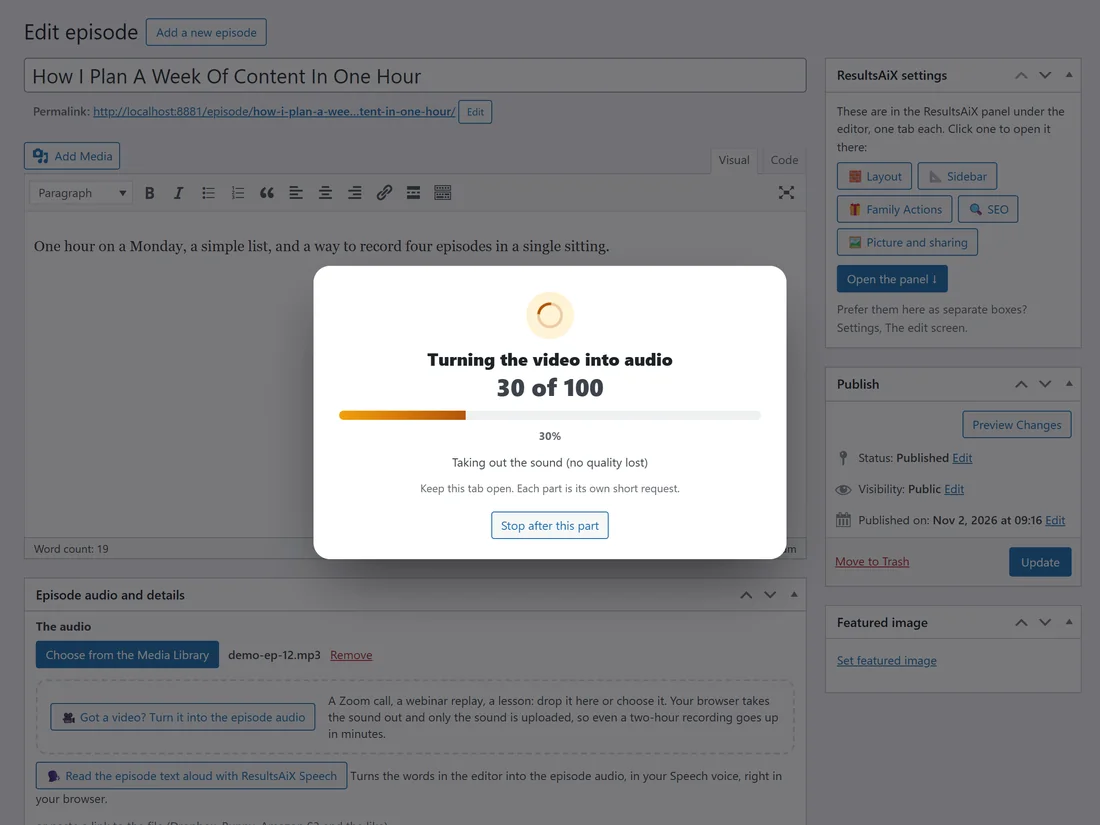
On any episode, in the Episode audio and details box, under The audio: the Got a video? Turn it into the episode audio button, inside a dashed drop area.
How to use it:
- Open the episode in Podcasts, Episodes, or start a new one with Add Episode.
- Press Got a video? Turn it into the episode audio and choose the video, or drag the video file onto that area.
- Watch the popup. It shows each stage: Reading the video, Taking out the sound (no quality lost), and Uploading the audio with how many MB have gone up so far.
- When it says The episode audio is ready, it also tells you the length and size of the audio. Save or publish the episode to keep it.
You can press Stop at any point while it works. The popup then says Stopped. Nothing was uploaded.
What happens to your video:
Your browser takes the sound track out of the video on your own computer, and only the sound is uploaded to your site. The video itself never leaves your computer, so a large recording goes up in a fraction of the time, and your hosting never stores a video it does not need.
The audio lands in your Media Library as an M4A or MP3 file, attached to the episode, and the episode's length is filled in. If the episode is members-only, the file goes straight into the protected folder.
Which videos it takes:
- MP4, MOV and M4V recordings, which is what Zoom, OBS, phones and most video editors make, keep their exact sound. The sound is saved as an M4A file with no quality lost and nothing re-encoded.
- MKV or WebM recordings with AAC sound are saved as M4A in the same way.
- WebM and MKV recordings with other sound (common for browser and Chrome screen recordings) are turned into an MP3. The popup shows Turning the sound into an MP3 for these.
Long recordings:
The audio is uploaded in small pieces, so the upload size limit on your hosting never gets in the way, however long the recording is. Diagnostics shows your host's upload limit and notes that video to audio uploads in pieces.
In testing, a two-hour, 616 MB Zoom recording became 70 MB of audio and was on the episode in about 90 seconds. It was tested in Chrome and Edge.
Webinar replays:
With ResultsAiX Webinars installed, the Integrations tab lists your webinars that have a replay video, each with a Make an episode button. It opens the replay as a new draft episode and starts by itself: your browser takes out the sound and only the sound is uploaded. See With ResultsAiX Webinars: A Replay Becomes An Episode.
If the popup shows a message:
- This video has no sound track to take out: the file is a silent video. Export it again with sound.
- This video is a type your browser can only turn into audio in one go, and it is too long for that: save it as an MP4 (Zoom, OBS, phones and most editors do) and drop that in instead.
- This video could not be read in your browser: try the same file in Chrome or Edge, or save it as an MP4.
A real example:
After a 90-minute client Q and A on Zoom, you add a new episode called Answering The Questions From Last Month to Your Business Podcast, drop the Zoom MP4 on the button, and a couple of minutes later the episode has its audio and its length. You press Make the transcript with AI next, then publish.
Tips:
- Keep the browser tab open until the popup says The episode audio is ready.
- The M4A it makes is ready for the AI transcript straight away, at any length.