An episode is one recording in a show. You add the audio, pick its show, fill in the details you use, and publish. Everything else, the player, the feed entry and the episode page, is made for you.
Where to find it:
Podcasts, Add Episode (or the New episode button on the plugin's screen). The Episode audio and details box and the Transcript and AI box sit under the editor.
Add an episode:
- Go to Podcasts, Add Episode and give it a title.
- In Episode audio and details, press Choose from the Media Library and pick or upload the audio, then Use this audio. Or paste a link to a file you keep elsewhere, such as Dropbox, Bunny or Amazon S3.
- Got a video instead of audio? Press Got a video? Turn it into the episode audio. See Turning A Video Into Episode Audio.
- Pick its Show (or No show, for a single episode), and set the Episode number, Season and Type if you use them.
- Write the show notes in the editor and a short summary in the Excerpt box.
- Add chapters if you like, and a transcript (or let the AI make one).
- Publish, or schedule it for later with WordPress's own Publish box.
Every field in Episode audio and details:
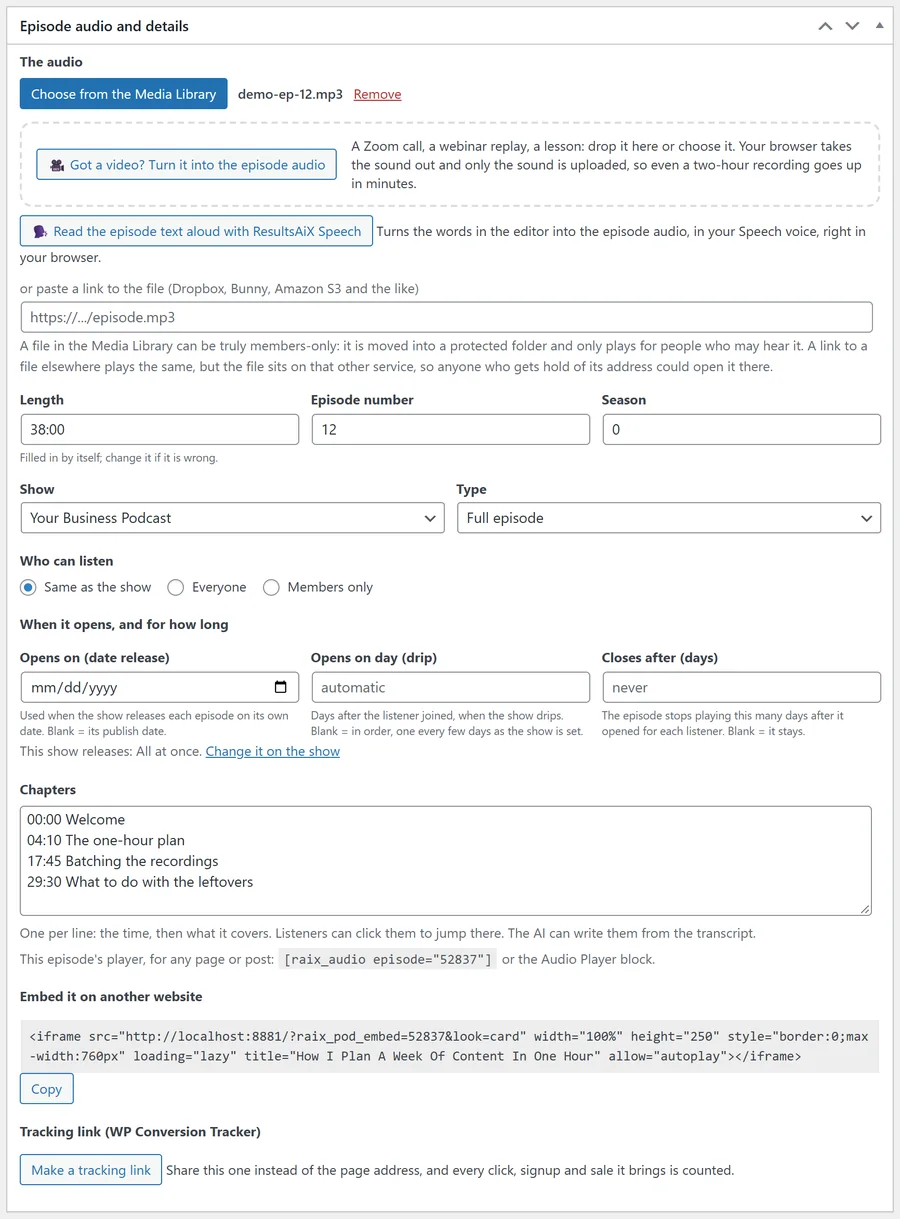
- The audio: a file from your Media Library, with Remove to take it off. Audio files only.
- Read the episode text aloud with ResultsAiX Speech: shown when ResultsAiX Speech is installed.
- The link box: a link to an audio file somewhere else. A Media Library file wins if you set both.
- Length: read from the file by itself. Type it as 45:10 or 1:02:30 if it is wrong; a typed length always wins.
- Episode number and Season: numbers the apps show. Leave them at 0 if you do not number episodes.
- Show: the show it belongs to, or No show (a single episode). An episode with no show is public.
- Type: Full episode, Trailer or Bonus, as podcast apps understand them.
- Who can listen: Same as the show, Everyone or Members only, with levels to tick when ResultsAiX Membership is active.
- When it opens, and for how long: Opens on (date release), Opens on day (drip) and Closes after (days). See Drip Release And Episodes That Close.
- Chapters: one a line, a time and what it covers.
- The player shortcode for this episode, for example [raix_audio episode="12"].
- Embed it on another website: the embed code with a Copy button, for published public episodes.
- Tracking link: shown when WP Conversion Tracker is installed.
Chapters and transcript:
Add chapters one a line, a time and then what it covers, for example 12:40 How we found our first customers. Listeners open Chapters on the player and jump to any of them.
Paste a transcript into the Transcript box, or let the AI make one. Start a paragraph with a time in square brackets, such as [12:40], and that time becomes a button that jumps the player there.
The episode page:
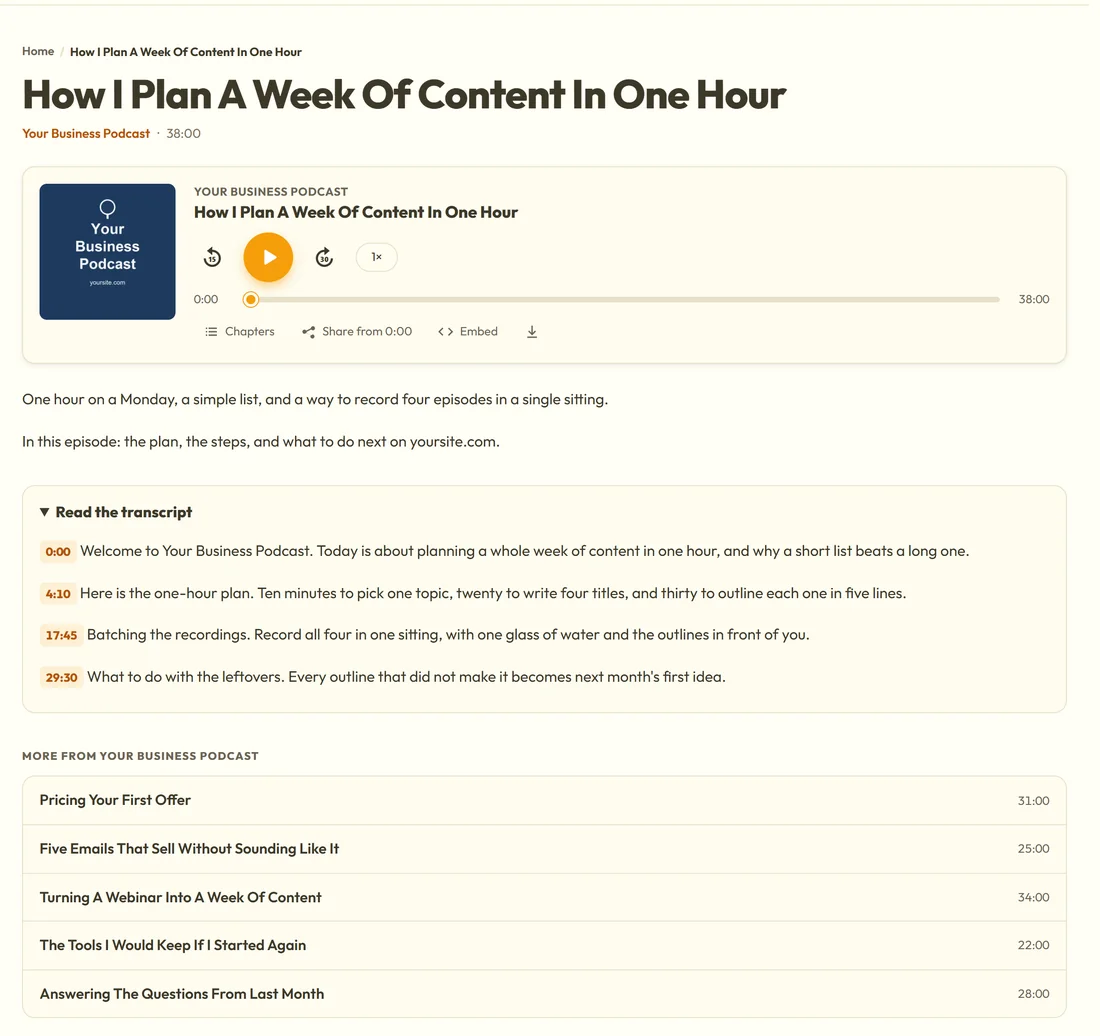
Every episode has its own page at yoursite.com/episode/episode-name/. Under any theme it shows the show's name and the length, the player at the top, your show notes, the transcript folded away under Read the transcript, and More from your show with up to six other episodes and an Every episode link.
The player at the top and the transcript can each be switched off on the Settings tab. If you put your own Audio Player block or [raix_audio] shortcode in the episode, the automatic player steps aside so there is only one.
Members-only audio files:
A members-only episode's audio file from your Media Library is moved into a protected folder. The box then says This file is in the protected folder. It only ever plays through your site, which checks the listener every time, and its real address is never shown.
A link to a file on another service also plays for members only, but because the file lives on that service, it cannot be locked away in the same way. For a private show, upload the file to your Media Library.
A real example:
For episode 12 of Your Business Podcast you upload ybp-episode-12.mp3, pick Your Business Podcast as the show, set Episode number 12, Season 1, Type Full episode, and paste four chapters: 00:00 Welcome, 04:10 The one-hour plan, 17:45 Batching the recordings and 29:30 What to do with the leftovers. You press Make the transcript with AI, then Write show notes, chapters and SEO, read it through and publish. The episode page and the feed update straight away.
Tips:
- Save the episode once before using the AI buttons, so they have something to work on.
- Want a members-only bonus in a public show? Set this episode's Who can listen to Members only.
- See AI Transcripts, Show Notes, Chapters And Blog Posts for the three AI buttons.