Every episode has a Transcript and AI box with three buttons. They save you the slow parts of publishing: typing up what was said, writing show notes and chapters, and turning an episode into a blog post. They use your own AI key, nothing runs until you press a button, and every call is listed with its cost on the AI tab.
Where to find it:
- The buttons: on every episode, in the Transcript and AI box under Episode audio and details.
- Your keys: Podcasts, Dashboard, AI tab.
- Which AI makes transcripts: Podcasts, Settings, at the bottom of The player card.
Your AI key:
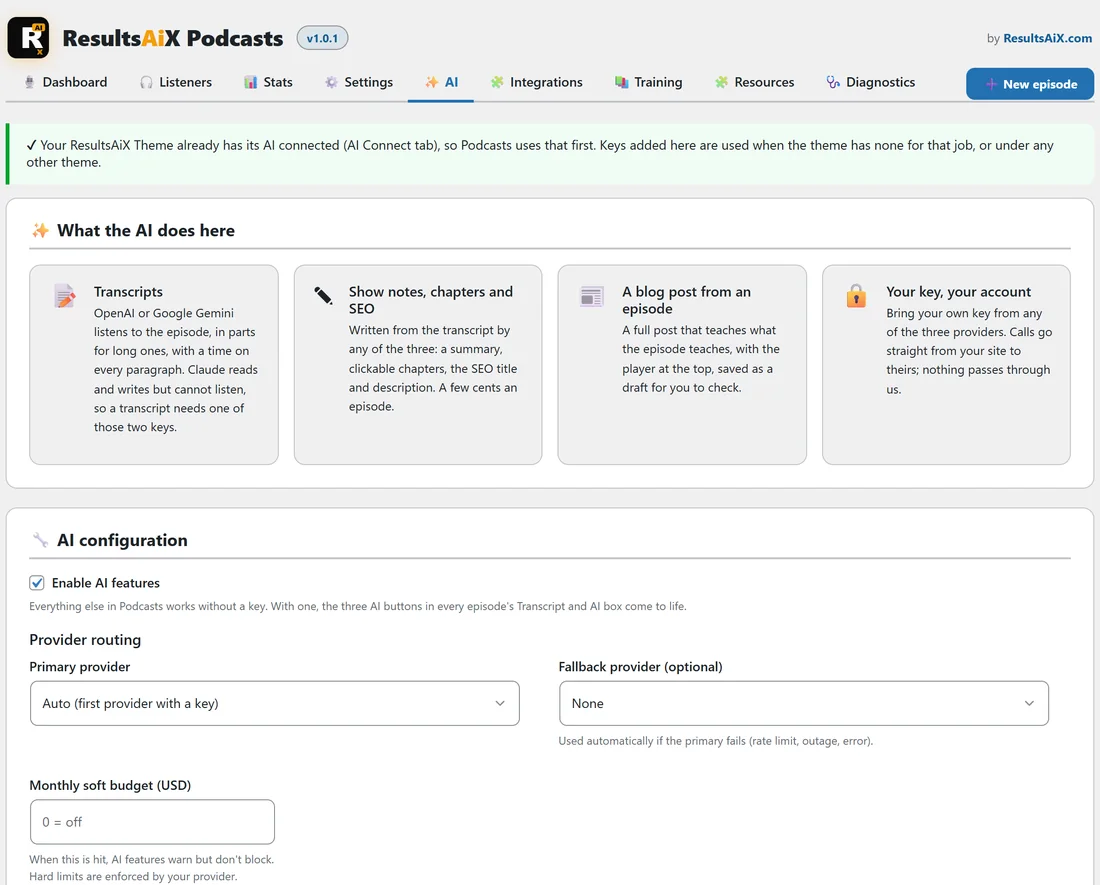
- Under the ResultsAiX Theme with its AI connected, Podcasts uses the theme's keys.
- Anywhere else, add a key on the plugin's AI tab. Keys added there are also used when the theme has none for that job.
Add a key on the AI tab:
- Open the AI tab and find Your AI providers: Google Gemini, Claude and OpenAI.
- Open How To Get Your Key In 60 Seconds under the provider you want and follow the steps. Google Gemini has a free key.
- Paste the key into API Key and choose a Model, or keep the recommended one.
- Press Save AI settings, then Test connection to check it.
One key is enough. The first key you add becomes the main one.
Every setting on the AI tab:
- Enable AI features: on by default. Everything else in Podcasts works without a key.
- Primary provider: Auto (first provider with a key), Google Gemini, Claude (Anthropic) or OpenAI. This is the writing AI for show notes and blog posts.
- Fallback provider (optional): used automatically if the primary fails (rate limit, outage, error).
- Monthly soft budget (USD): 0 = off. When it is passed, the AI tab shows a heads-up; the AI keeps working.
- Model, for each provider. Gemini Flash (always current), GPT-5 mini and Claude Sonnet 5 are the recommended ones.
- Advanced, Custom API address: leave it empty to connect directly. Only fill it in if you send AI requests through your own gateway.
- AI usage: total jobs, jobs in the last 30 days, spend and errors over 30 days, and Recent AI jobs with type, status, model, cost, duration and when.
Button 1, Make the transcript with AI:
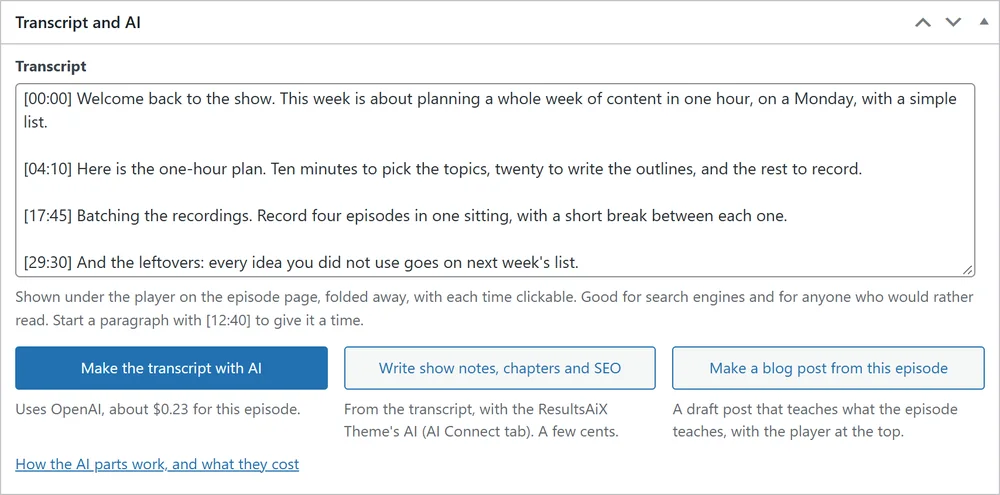
A transcript needs an OpenAI or a Google Gemini key, because Claude cannot listen to audio. Under the button you see which AI will be used and about what this episode costs.
- Save the episode once with its audio.
- Press Make the transcript with AI.
- A popup says which AI will listen, for how many minutes, in how many parts, and about what it costs on your own key. Press Make it (or Not now).
- Keep the tab open while it shows Listening to part 1 of 3 and so on. Stop after this part stops cleanly.
- When it says Transcript ready, the words are in the Transcript box, with a time on every paragraph.
Long episodes are sent in parts of about 8 MB (roughly 8 minutes of a normal MP3), each its own short request, so no host time limit is ever reached. Times in the transcript run from the start of the whole episode.
With both keys saved, Which AI makes transcripts on the Settings tab chooses: Whichever key I have (Gemini first), Google Gemini or OpenAI.
Long episodes need to be MP3 or M4A to be sent in parts. Shorter ones can also be WAV, OGG or WEBM. A video turned into audio by the plugin is already MP3 or M4A. Audio added as a link is fetched by your site for the transcript.
Only have a Claude key? Paste the transcript in yourself (many recording tools give you one), and the next two buttons still work.
Button 2, Write show notes, chapters and SEO:
From the transcript, with your writing AI (Claude, OpenAI or Gemini). It writes the show notes, a short summary, the chapters and the SEO title and description, and saves them. It costs a few cents. Read them through before you publish.
Button 3, Make a blog post from this episode:
Writes a full blog post that teaches what the episode teaches, with the episode's player at the top. It is saved as a draft with an Open the draft button, and nothing is published until you publish it.
A real example:
Episode 12 of Your Business Podcast is 38 minutes. With a Gemini key saved, you press Make the transcript with AI; the popup says Gemini will listen to about 38 minutes in a few parts. Once the transcript is ready you press Write show notes, chapters and SEO, check the four chapters it wrote, then press Make a blog post from this episode and schedule the draft for Thursday on yoursite.com.
Tips:
- The AI only uses what was said. Read everything before you publish.
- Clear, single-speaker audio gives the best transcripts.
- If a button shows a message, it keeps the AI provider's own words, so you know exactly what to fix.