This guide covers the housekeeping jobs: keeping your key active, deactivating and deleting the plugin, starting again from the shipped settings, and moving your setup to another site.
Where to find it:
- Your key: AiX Consent, Settings tab, the License panel.
- Start again and Move this setup to another site: AiX Consent, Settings tab, near the bottom.
- Deactivating and deleting: Plugins in WordPress.
Keeping your key active:
The License panel shows the key's Status and Renews date. The licence is checked once a day in the background, and if the licence server cannot be reached for a moment, nothing changes on your site.
If the AiX Consent menu opens the Activate your licence screen, paste your key into Your key and press Activate. Every key you own is listed in your account portal. See Installing The Plugin And Activating Your Licence Key.
Deactivating the plugin:
Deactivating it on the WordPress Plugins screen stops the banner and blocking, and releases this site's licence slot. All your settings and records stay in place for when you switch it back on.
Deleting the plugin:
Deleting the plugin removes its settings, your cookie declaration and the licence details from this site. The consent log stays, on purpose: those records are your evidence that consent was given, and the question can come months later.
If you want the records gone as well:
- Open the Consent log tab and press Download CSV, if there is any chance you will want them.
- In the Empty the log box, type DELETE in capitals and press Delete every record.
- Then delete the plugin.
Start again:
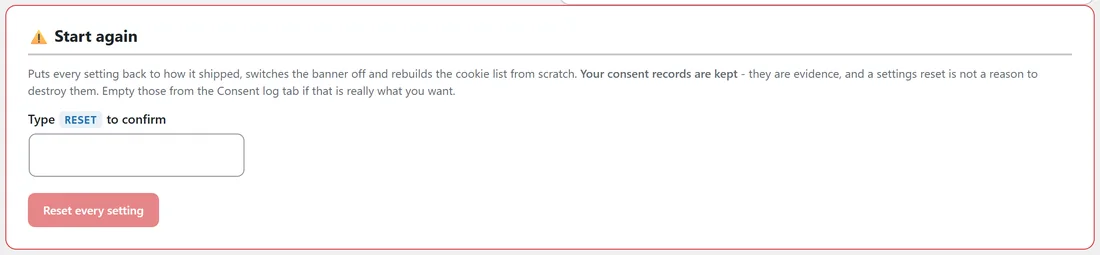
On the Settings tab, Start again puts every setting back to how it shipped, switches the banner off and rebuilds the cookie list from scratch.
- Type RESET in capitals into the box.
- Press Reset every setting.
Your consent records are kept. The wording version moves up by one, so existing visitors are asked again once you switch the banner back on.
Moving your setup to another site:
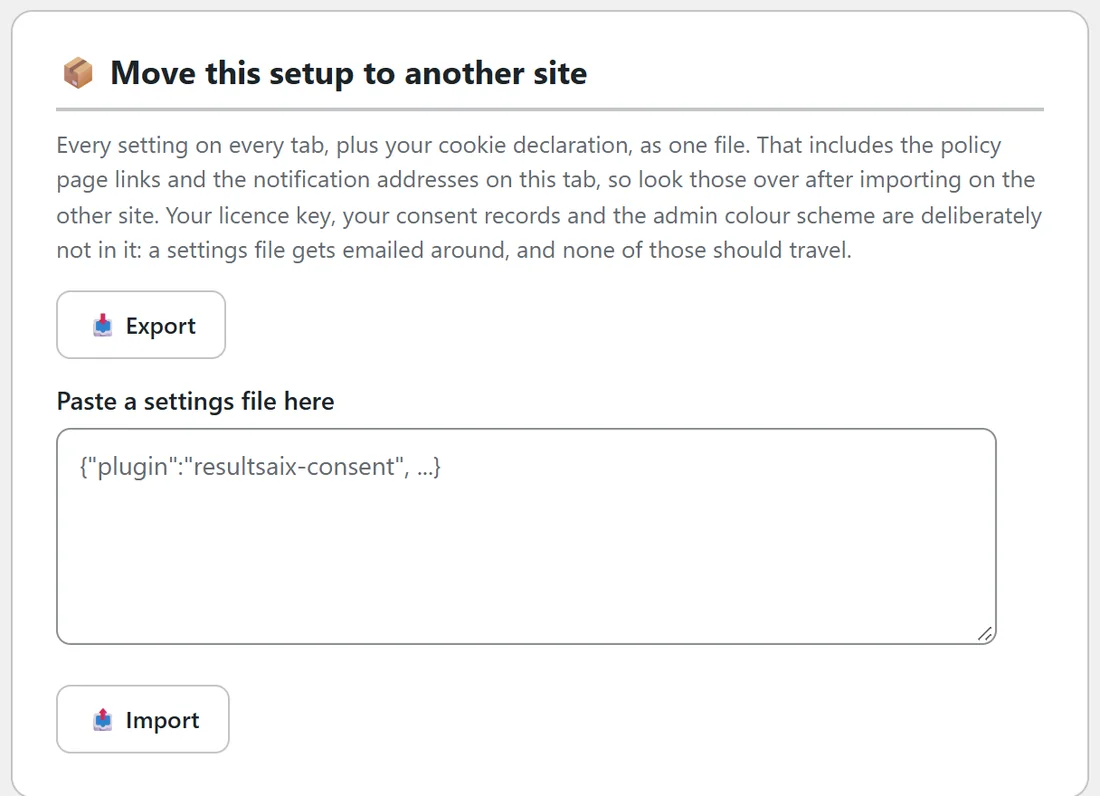
Move this setup to another site copies every setting on every tab, plus your cookie declaration, as one file.
On the old site:
- Open the Settings tab and find Move this setup to another site.
- Press Export. A settings file downloads.
On the new site:
- Install the plugin and activate your key.
- Open the settings file in a text editor and copy all of it.
- Paste it into Paste a settings file here.
- Press Import.
- Check the Banner and Cookies tabs, then switch the banner on when you are ready.
What travels and what stays:
- Travels: every setting on every tab, your cookie declaration, the policy page links and the notification addresses. Look those over on the new site.
- Stays behind: your licence key, your consent records and the admin colour scheme.
- The new site keeps its own wording version and its own banner switch. An import never switches the banner on.
- Every value in the file is checked on the way in, exactly as the tabs check what you type, and anything the plugin does not recognise is ignored.
- If the pasted text is not a ResultsAiX Consent settings file, nothing is changed.
A real example:
Juniper Lane Pottery opened a second site for wholesale orders at shop.yoursite.com. The owner pressed Export on yoursite.com, pasted the file into Paste a settings file here on the new site and pressed Import. The banner wording, colours, blocking rules and cookie declaration arrived in one go. The owner changed the two policy links to the new site's pages, then ticked the switch on the Banner tab.
Moving to a new domain, the full route:
- On the old site, press Export under Move this setup to another site.
- Deactivate the plugin on the old site, which releases its licence slot.
- Install the plugin on the new site and activate the same key.
- Paste the settings file into Paste a settings file here and press Import.
- Update the two policy links on the Banner tab, run Scan my site now, then switch the banner on.
Your consent records stay in the old site's database. Download a CSV from the old site's Consent log tab before you retire it, so the evidence travels with you.
Tips:
- Export your settings before a big change. The file is a quick way back.
- After moving, run Scan my site now on the new site, because it may load different services.
Next steps:
See Diagnostics, Repair And Troubleshooting, and The Consent Log And Proof Of Consent: What Is Stored, CSV Export And Retention.