ResultsAiX Consent keeps everything on one admin page with ten tabs. This tour tells you what each tab is for, so you can go straight to the right place.
Where to find it:

Click AiX Consent in your WordPress admin menu. The tabs run across the top of every screen, with a View your site button at the end of the row that opens your site in a new browser tab. The menu also has direct links to Dashboard, Banner, Cookies, Consent log and Settings.
Dashboard:
Your starting point. While the banner is off it shows the Set Me Up box. Once the banner is live it shows:
- A line saying how many tracking services are held until a visitor says yes, with three buttons: Design the banner, Scan the site and See it live.
- Five tiles: Answers, 30 days; Accepted something; Rejected everything; Cookies declared; Services held.
- Where you stand, a checklist of ten items with a Fix button next to anything still to do.
- The last 30 days, a chart with a bar for every day, and How people answered, which counts each kind of answer.
- What the rest of your site sees, with short code examples for other plugins and your theme.
- A Tracker Watch alert, when the weekly scan finds a new service.
Banner:
The switch that turns everything on, the shape and position, the wording, the policy links, the colours, the little reopen button, the languages and the names of the five groups. A live preview at the bottom shows the real banner as you change things. The last box, Show this banner on your other pages, gives you one line to paste into landing pages that WordPress does not build.
Cookies:
Scan this site, which reads your pages and names the services on them, and Your cookie declaration, the list your visitors read in the choices panel and on your cookie policy page. Putting it on a page gives you the shortcode for the cookie table.
Blocking:
Holding trackers back, Google Consent Mode v2, the table of services with a Hold until choice for each, Anything else for your own patterns, The placeholder for blocked videos and maps, and Checking it works, a five step test.
Consent log:
Proof of consent, the table of every answer with filters, plus Export with its Download CSV button and the Empty the log box.
Policies:
Creates and rebuilds the Cookie Policy, Do Not Sell or Share My Personal Information and Your Data Requests pages, shows your WordPress privacy policy page, and lists the four shortcodes.
Training:

The built-in guide, in eleven sections from Getting started to When something breaks, with a Search this page box at the top.
Resources:
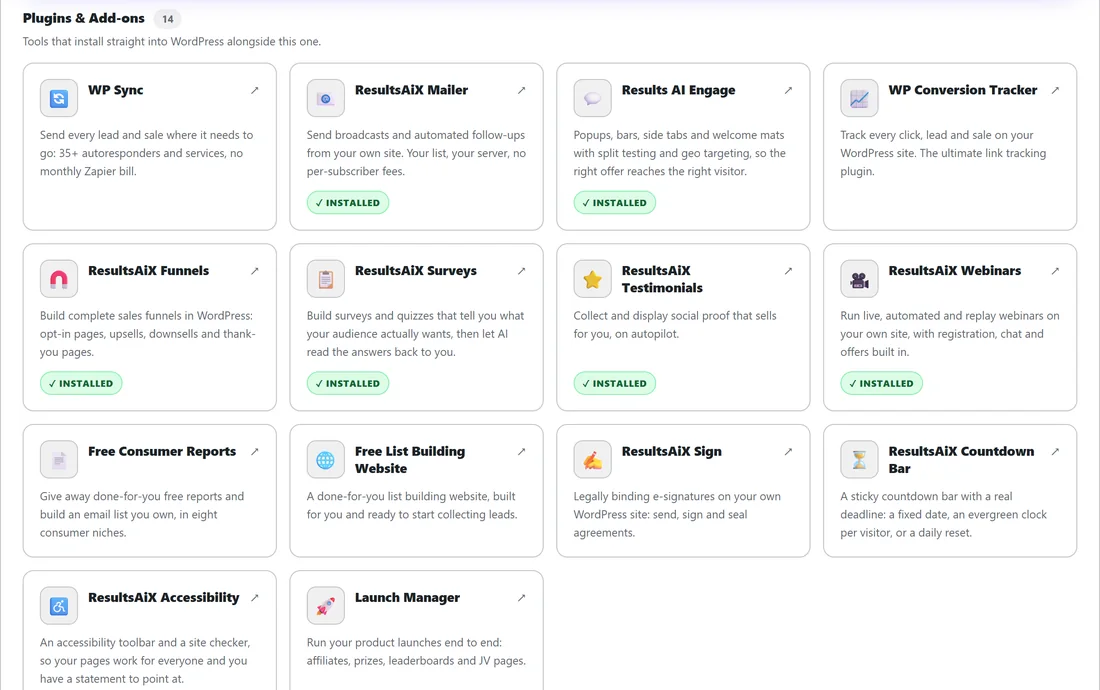
Other plugins and services from the same team. Anything already running on your site is marked Installed.
Settings:
From top to bottom: the License panel, Help & your account, Who gets asked, How long an answer lasts, The record, Tracker Watch, Data requests, then a Save settings button. Below that are Appearance, Check for new trackers now, Ask everyone again, Move this setup to another site and Start again, each with its own button.
Appearance:
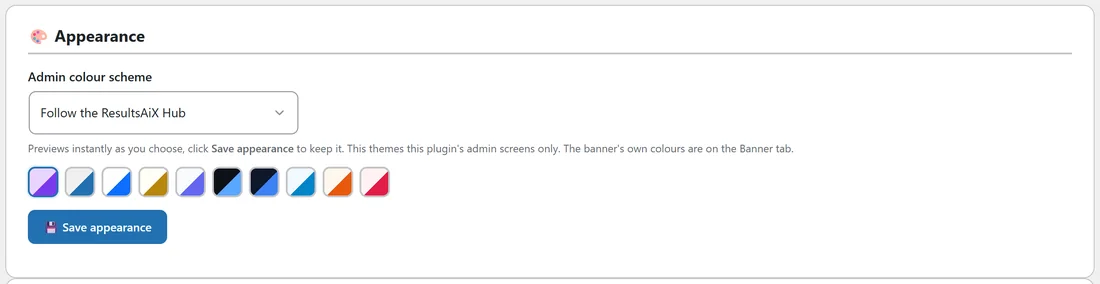
Appearance changes the colour scheme of these admin screens only. Pick one from Admin colour scheme or click a colour swatch, and the screen previews it straight away. Press Save appearance to keep it. The banner's own colours are on the Banner tab.
Diagnostics:
A Health report with an OK or CHECK badge on every row, What blocking can and cannot catch, a Support report you can copy into a ticket, Test it yourself, and the plugin's own Error log.
The banner is switched off notice:
While the banner is off, every screen of the plugin shows a notice that begins The banner is switched off. It reminds you that nothing is being blocked and nobody is being asked until you switch it on, with Set me up and switch it on on the Dashboard or the switch at the top of the Banner tab.
Saving:
Each tab has its own save button: Save the banner, Save the declaration, Save blocking and Save settings. Each one saves only the fields on its own tab, so saving one tab never changes another.
Tips:
- New to the plugin? Open the Training tab and read Getting started. It is five short steps.
- When something looks odd, open Diagnostics first. The Health report tells you in one glance what is running.
Next steps:
See Five Minute Quick Start With Set Me Up to go live, then Designing The Cookie Banner: Layouts, Colours, Presets And Live Preview.