Free Consumer Reports is a WordPress plugin that turns your site into a library of free report funnels. Each report has its own opt-in page, its own download page, its own PDF and its own cover. You pick the reports you want live, connect your email list, and add the offer you want readers to see after they download.
This guide is the map. It explains what is in the box, the order to set things up in, and which article covers each screen. If you are brand new, read it top to bottom once, then follow the links.
What you get:
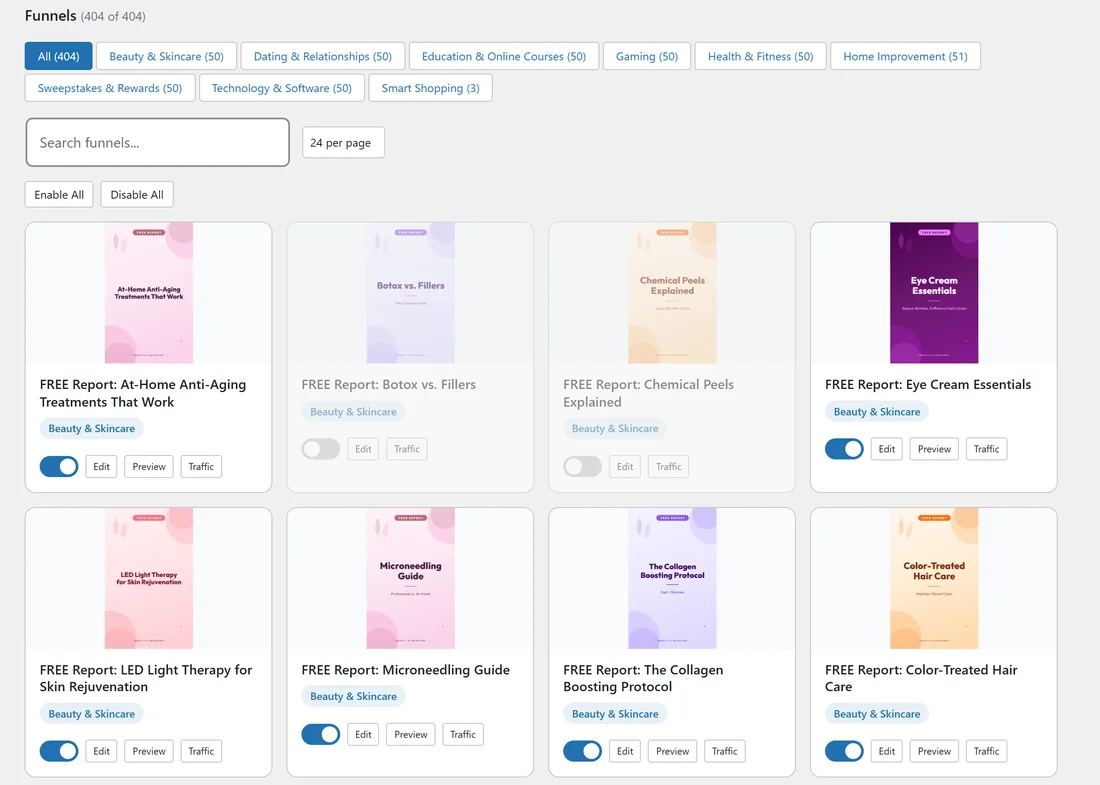
- 400 report funnels, 50 in each of 8 consumer niches.
- An opt-in page (the squeeze page) and a thank you page with the PDF (the download page) for every report.
- A cover image and a social share image for every report.
- 14 ways to send leads to your list: AWeber Quick Setup plus 13 provider connections, including a Custom HTML Form for any other service.
- A PDF Rebrander that adds your own call to action page to the reports.
- Geo Smart Links that send each reader to the right offer for their country.
- A Showcase page and unlimited Splash Pages that list your reports in one place.
- A Traffic Toolkit with ready written posts, pins, emails and a video script for every report.
- Stats, a Lists tab with every email collected, and a CSV export.
The 8 niches:
- Beauty & Skincare
- Dating & Relationships
- Education & Online Courses
- Gaming
- Health & Fitness
- Home Improvement
- Sweepstakes & Rewards
- Technology & Software
Your licence key decides which niches are on your site. A key for all 8 niches shows all 400 reports. Keys for single niches stack, so a second niche key adds its 50 reports next to the first. See Installation And Licence Activation.
Where to find it:
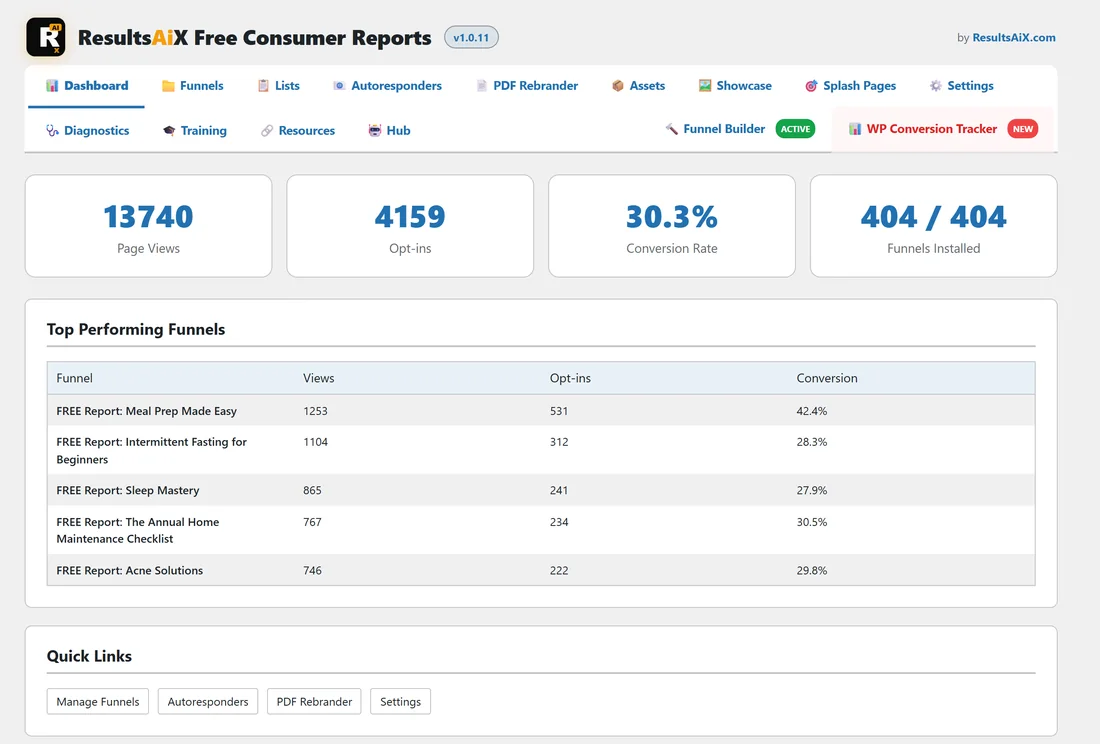
After activation you get a Free Consumer Reports menu in the WordPress sidebar. Click it to open the Dashboard. Every screen has the same tab bar across the top: Dashboard, Funnels, Lists, Autoresponders, PDF Rebrander, Assets, Showcase, Splash Pages, Settings, Diagnostics, Training, Resources and Hub. See The Admin Tabs At A Glance.
The order to set it up:
- Install the plugin and add your licence key. See Installation And Licence Activation.
- Run the Setup Wizard. It walks you through your email list, your default offer link and the report files. See The Setup Wizard Step By Step.
- Check the report files are on your site. The Assets tab should say every funnel is installed. See Installing Your Funnel Assets.
- Choose which reports run. Every report starts switched on. Switch off any you do not want. See Choosing And Publishing Report Funnels.
- Connect your email provider and pick the list. See Connecting Your Autoresponder.
- Set your offer. Add a Default Affiliate Link in Settings, and Geo Smart Links if your offer changes by country. See Geo Smart Links And Per Country Offers.
- Rebrand the PDFs so every report carries your call to action page. See Rebranding The PDF Reports.
- Share your links. Use the Traffic Toolkit, the Showcase page and Splash Pages. See The Traffic And Share Toolkit.
- Watch the numbers on the Dashboard and the Lists tab. See Tracking What Works.
Words used in these guides:
- Report, or report funnel: one free report with its squeeze page, download page and PDF.
- Squeeze page: the opt-in page with the cover, headline and button.
- Download page: the thank you page with the PDF button and your offer.
- Niche: one of the 8 topic groups of 50 reports.
- Slug: the report's name in its address, such as HealthMealPrepMadeEasy.
- URL Prefix: the word before the slug in every address, reports to start with.
- Smart link: the report's /go address, which sends each reader to your offer for their country.
- Assets: the report's files on your server.
- Autoresponder: your email service.
A real example:
Your Site (yoursite.com) runs a small blog about smart buying. The owner activates an all niche key, runs the wizard, connects Mailchimp to a list called Your Site Free Report Readers and sets https://yoursite.com/recommends/smart-buys as the default offer. A month later the Dashboard shows 13,740 page views, 4,159 opt-ins and a 30.3% conversion rate, with Meal Prep Made Easy as the top report at 42.4%.
That report has its own list (Health Readers) and its own offer link, set on its Edit page. Everything else uses the defaults. That is the usual pattern: set good defaults once, then fine tune only the reports that earn the most.
Where to go next:
- How A Report Funnel Works End To End, to see what a visitor sees.
- Settings Reference, for every option on one page.
- Troubleshooting Common Problems, if a page or a lead does not show up the way you expect.
Want your own reports next to the 400? The Funnel Builder add-on lets you build funnels from your own PDFs. See Funnel Builder Add-on: What It Does.