The Dashboard is the first screen under AiX Sign. It tells you in one look what is waiting for a signature, what has finished, and which documents you worked on last.
Use it as your morning check: anything still out for signature is one click away.
Where to find it:
Click AiX Sign in your WordPress sidebar. The Dashboard tab opens first. You can also click the Dashboard tab from any other screen of the plugin.
The top banner:
The dark banner at the top has two buttons. New Document opens the editor. Browse the 20 Templates opens the Templates tab.
The four counters:

- Out for signature: documents that have been sent and are not finished yet
- Completed this month: documents where everyone signed during the current calendar month
- Completed all time: every completed document on this site
- Completion rate: completed documents as a share of all documents that have closed, meaning completed, declined or expired. Voided documents and drafts are not counted.
In the example, Oakridge Web Studio has 9 completed, 1 declined and 1 expired document, so the rate reads 82%.
Recent documents:
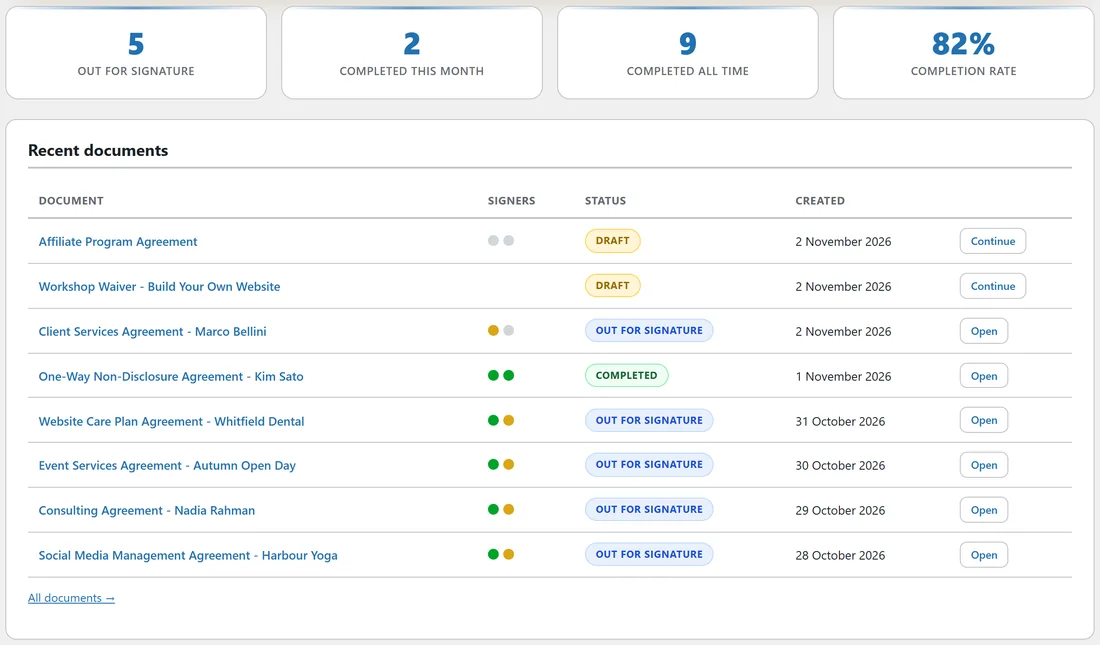
The table lists your eight newest documents with their title, a dot for each signer, the status badge and the date created. The dots show each signer's progress:
- Green: signed
- Amber: invited or has opened the document
- Grey: waiting for their turn
- Red: declined
Hover a dot to see that signer's name and status. Click a title, or the button at the end of the row, to open it. Drafts show Continue and open in the editor. Everything else shows Open and goes to the document's status page.
Click All documents under the table to see the full list on the Documents tab.
The Quick start card:
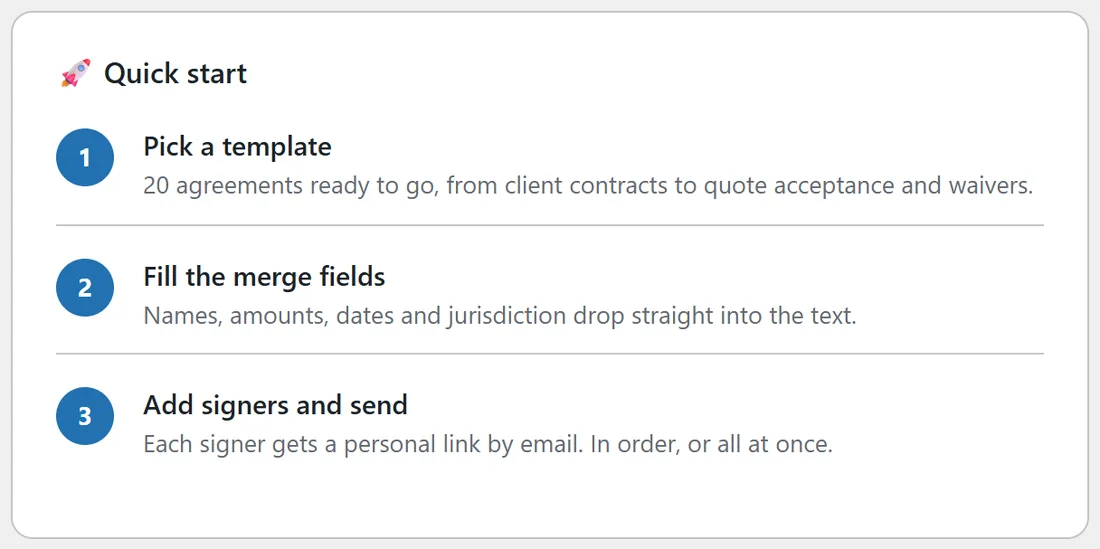
At the bottom, the Quick start card repeats the three basic steps: pick a template, fill the merge fields, add signers and send. Next to it, a short card describes the evidence the plugin records on every document.
A real example:
On a Monday morning Sam opens the Dashboard and sees 5 out for signature. Two rows show an amber dot for the client, so Sam opens those to check whether the clients have viewed them yet. See Tracking Status And Managing Sent Documents.
Tips:
- A document with a grey dot is waiting for an earlier signer. In order signing invites the next person automatically.
- A low completion rate usually means deadlines are too short. Raise the default expiry on the Settings tab.
- With PRO, automatic reminders chase unsigned signers for you. See Deadlines, Expiry And Chasing Signatures.