Once you have adjusted a template to how you really work, save it. Next time you start from your own version instead of repeating the same edits.
Saved templates keep everything in the text: your wording, any merge fields you left in, and the signer fields.
Where to find it:
- To save: at the bottom of the editor, in the box called Save as reusable template.
- To use or delete: the Templates tab, in the section called Your templates under the built in cards.
How to save a template:

- Open a document in the editor. It can be a new one, a draft, or one you just loaded from a template.
- Make your changes to the text. You can leave merge fields such as {client_name} in place so they are ready to fill next time.
- Scroll to Save as reusable template at the bottom of the screen.
- Type a name in the Template name box, for example Oakridge Website Care Plan.
- Click Save Template.
The Templates tab opens with the note Template saved. It now appears under "Your templates" below.
The template saves the text that is in the editor at that moment. It does not save the signers, the message or the document title.
Using a saved template:
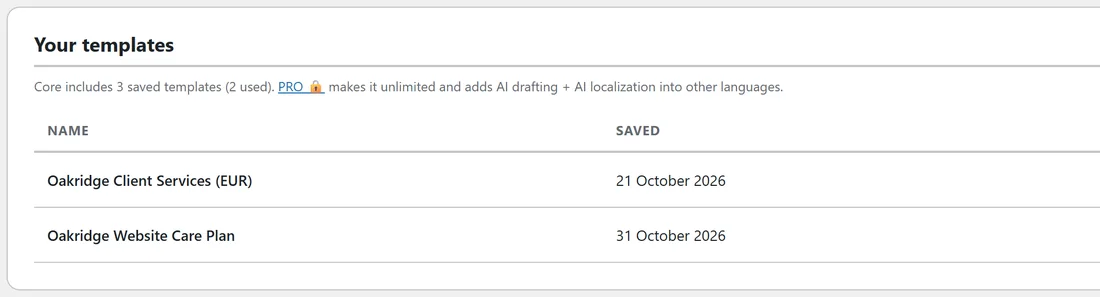
- Open the Templates tab and scroll to Your templates.
- Click Use next to the template.
- The editor opens with your text and the template name as the document title.
- Change the title, fill any merge fields, add signers and send.
Deleting a saved template:
Click Delete next to it and confirm. Documents you already created from it are not affected.
How many you can save:
The core plugin keeps up to 3 saved templates. The Your templates section shows how many you have used. With PRO active there is no limit.
If you see the message that Core includes 3 saved templates, delete one you no longer use, or activate PRO.
Two messages you may see:
- Give the template a name first: type a name in the Template name box.
- The template is empty: the editor has no text yet.
A real example:
Sam took the Client Services Agreement, filled in Oakridge Web Studio as the provider, EUR as the currency and Ireland as the jurisdiction, and saved it as Oakridge Client Services (EUR). The client name, scope and amount stay as merge fields, so each new client needs only those three filled.
Tips:
- Fill in the details that never change, such as your company name, before saving. Leave client details as merge fields.
- A saved template is a good home for a care plan or service agreement you wrote in the editor.
- With PRO, AI Localize also saves its translated copies here. See AI Draft And AI Localize With Your Own Key (PRO).