ResultsAiX Support Desk is a helpdesk that lives inside your WordPress admin. It takes your customers' questions from your contact page, your support mailbox and your chats, keeps every conversation in one inbox, and uses AI to sort each ticket, look the customer up and write the reply for you.
Use it when you want support handled on your own site, with your own data, and an AI that does the slow parts while you stay in charge of what gets sent.
Where to find it:
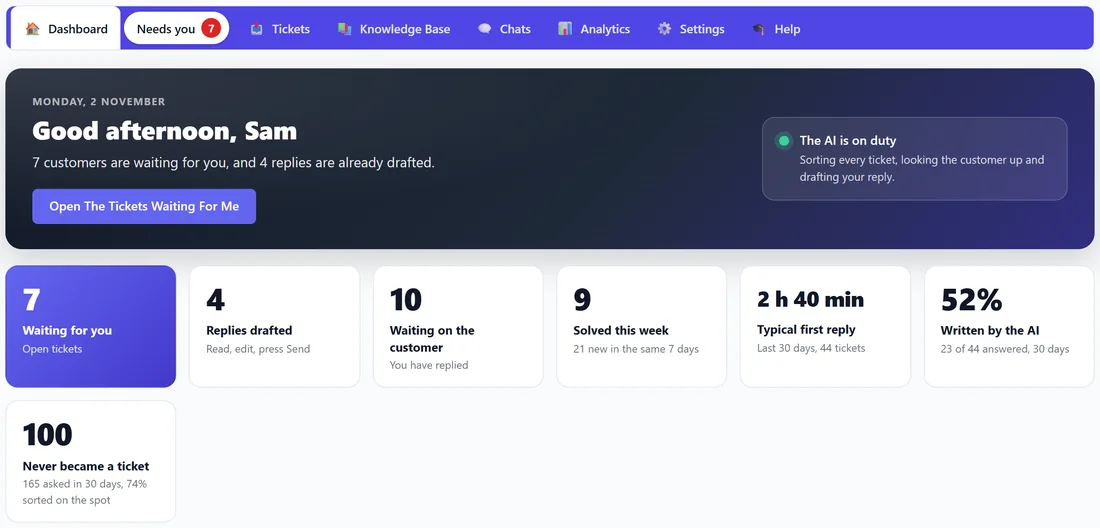
After you activate your licence, a new menu called AiX Support appears in your WordPress admin. It opens on the Dashboard. Across the top of every screen is one coloured menu bar: Dashboard, Needs you, Tickets, Knowledge Base, Chats, Analytics, Settings and Help. Point at a section and its pages show underneath, for example Tickets holds Inbox, Contacts, Macros and Import.
The desk needs WordPress 5.8 or newer and PHP 7.4 or newer. Tickets, contacts, messages, recorded sales, the AI log and the knowledge base index all live in your own WordPress database.
Where tickets come from:
- Your contact page, made with the [asd_submit_ticket] shortcode. Visitors can ask the help centre first and open a ticket only if they still need a person.
- Your support mailbox, when you switch on Read my support mailbox under Settings, Email.
- A customer replying to one of your emails, or adding to a ticket from their My Tickets page.
- The chat on your contact page, when a signed-in customer presses Talk to a person.
- The REST route asd/v1/submit, if you post tickets from another app.
- The Import screen, for history you already have in Freshdesk, Zendesk, Help Scout, LiveAgent or a CSV file.
What happens to a new ticket:
- The ticket gets the next number as its reference, for example 1042, and the sender is matched to a contact by email address.
- The customer gets a We got your message email with that number, and you get a new ticket alert, following your choices under Settings, Email.
- The AI sorts it: a category, a mood, a priority, the product it is about, and how sure it is.
- If Try to resolve it is on and the AI is sure enough, it looks up the customer's purchases and licence keys, or answers from your knowledge base.
- Everything else gets a draft reply, saved on the ticket as a private note for you to read, edit and send.
- Only if you switch on Send drafts without me when confidence is high does a reply go out by itself, and even then sales questions and replies that hand the question to your team still wait for you.
Who does what:
- You decide what the AI may do alone, under Settings, AI. Out of the box it sorts, tries to resolve and drafts; nothing is sent by itself until you switch that on.
- The AI does the reading: sorting the ticket, finding the customer's purchases and keys, searching your knowledge and writing the reply.
- Your customers help themselves first: the contact page answers from your help centre before a ticket is opened, and their My Tickets page holds their keys and downloads.
- You stay in charge of the rest: anything about payments, anything the AI is unsure of, and anything that needs a person.
The screens you will use most:
- Dashboard: who is waiting, what the AI did, and how the last days went. See Your Dashboard: The Support Desk Home Screen.
- Inbox: every ticket, filtered by where it stands. See Working The Inbox.
- A ticket: the conversation, the customer's purchases and keys, and the reply box. See Inside A Ticket: Thread, Replies And Notes.
- Knowledge Base: what the desk answers from. See Building The Knowledge Base.
- Settings: your name, the AI, your products, your emails and your safety nets. See Settings Reference.
Ticket statuses in plain words:
- New, not answered yet: nobody has replied.
- Customer replied: the customer spoke last and it is your turn.
- Open: answered, but still yours, for example after you pressed Still Needs Me.
- Waiting on the customer: you or the AI replied and the next move is theirs.
- Solved and Closed: finished. A customer writing back reopens it.
- Spam: junk, kept out of every count.
What stays private:
Your private notes, the AI's drafts until you send them, and anything about what a customer has spent are never shown to the customer, on their page, in an email or in a chat. Amounts are for your screens only.
How the AI is paid for:
The desk ships with no AI credit of its own. You connect your own Claude, OpenAI or Gemini account under Settings, AI and pay that service directly for what you use. A monthly ceiling you set stops the AI when it is reached, and tickets keep arriving as normal. See Connecting Your AI (Claude, OpenAI Or Gemini) And Choosing Your Models.
A real example:
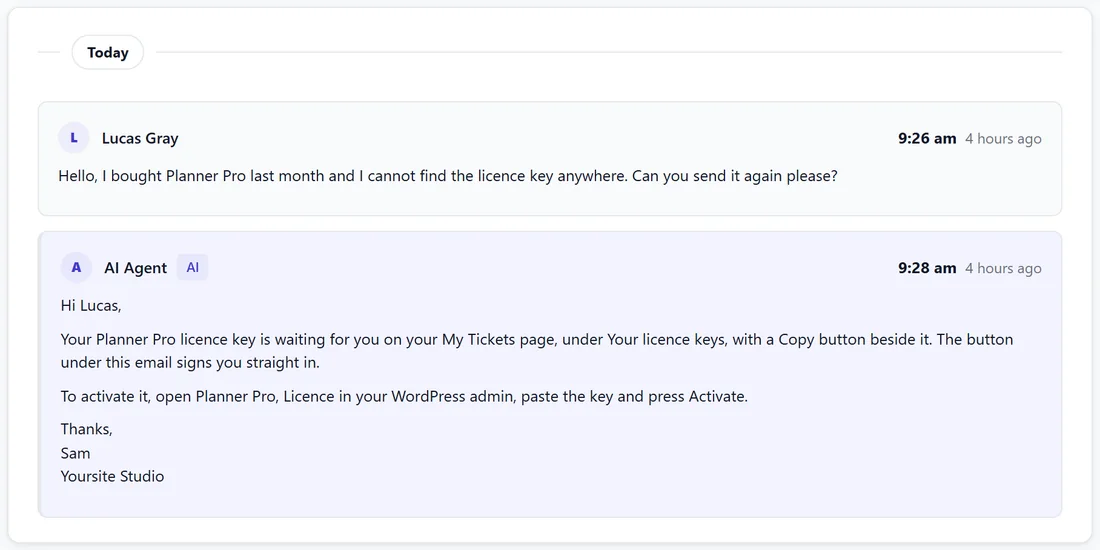
Lucas Gray bought Planner Pro from Yoursite Studio last month and emails support@yoursite.com: "I cannot find my licence key." The desk makes ticket 1003, sorts it as a licence question at 97 percent, finds his purchase and his key, and replies within two minutes telling him the key is waiting on his My Tickets page with a Copy button. Sam, who runs Yoursite Studio, never had to open it. A trickier ticket about a booking form showing the wrong times lands in Needs you with a draft already written.
Beyond tickets:
- Chats puts a sales chat on your sales pages and a members helper in your members area. See Chats: A Sales Chat And A Members Helper On Your Pages.
- Reports and Chat history show every conversation and the sales that followed it. See Chat Reports, Chat History And Live Chats.
- The Support Centre and the designed help article pages give your support pages your own header and footer. See The Support Centre And Your Help Centre Pages.
Tips:
- Start with the Setup Wizard. Five short steps connect your reply address, the AI and your customer pages. See The Setup Wizard, And What The Desk Picks Up By Itself.
- Feed the knowledge base early. The AI can only answer what you have written down somewhere. See Feeding It Your Own Documentation, And The Search That Answers.
- Every admin screen needs the manage_options capability, so the desk is for administrators only.