Most tutorials touch WordPress's own screens at some point. This article shows each one with Privacy Recording Mode on, using the demo site Harbor Lane Coffee, so you know exactly what your viewers will see.
The settings used here:
Email Addresses, Names (any format), First Names, Last Names, Usernames and IP Addresses switched on, with the Partial reveal style. The banner reads 6 filter(s) masking sensitive data.
The Users screen:
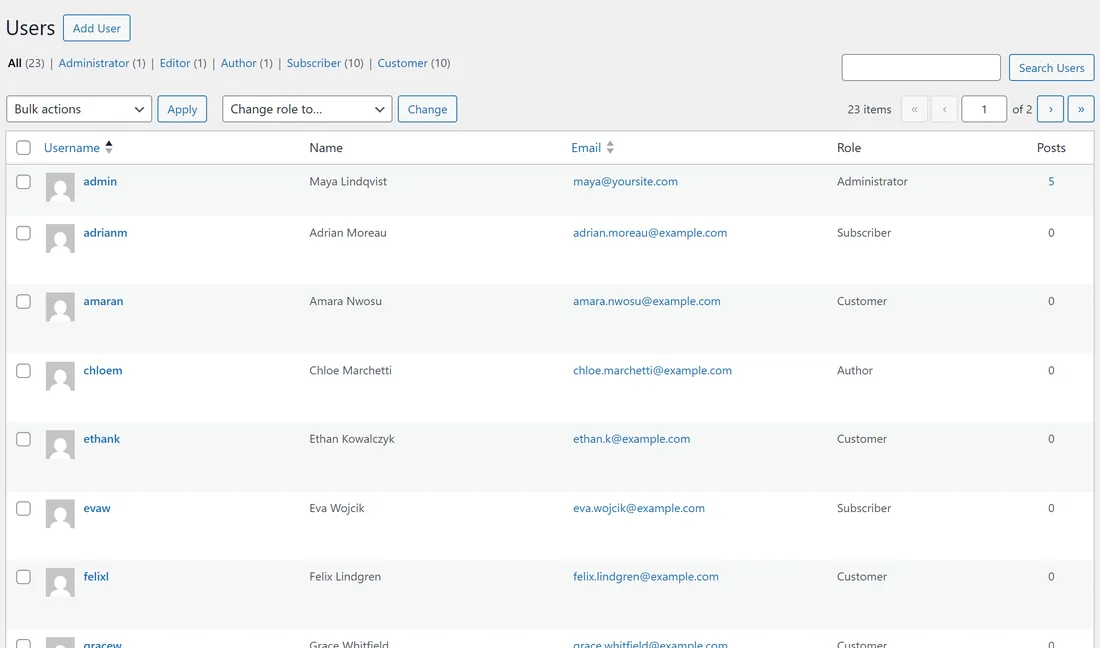
Go to Users, All Users. With the switch off you see every username, name and email in full.
With the switch on:
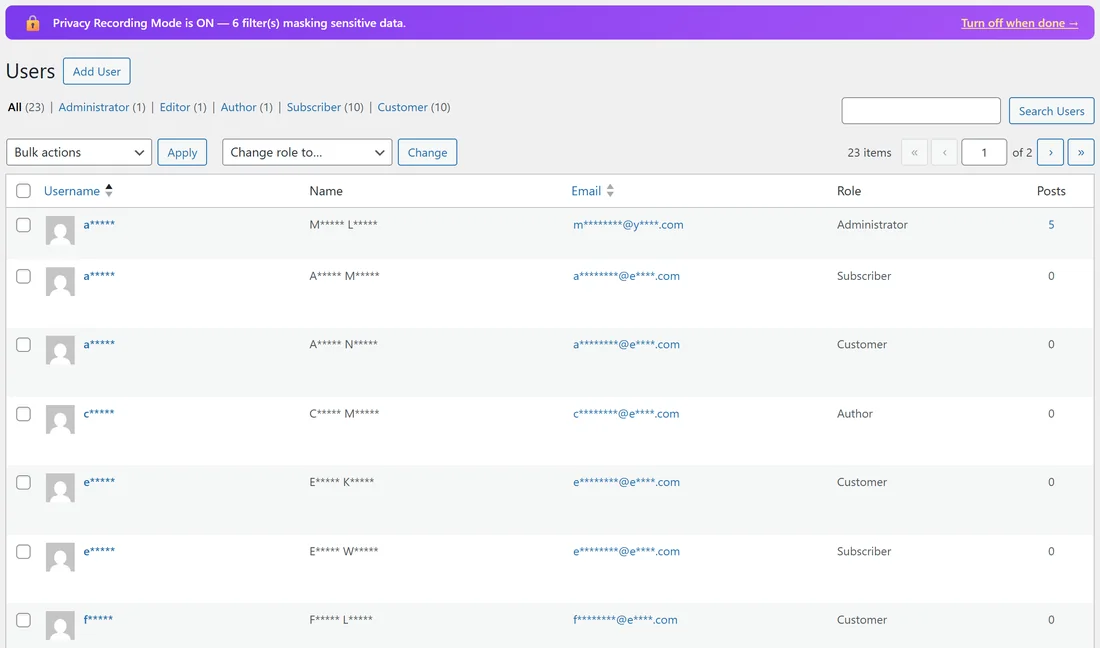
- Username: every login is masked, including admin, because the column is headed Username.
- Name: first and last names keep their first letters.
- Email: each address keeps its first letter, the first letter of the domain and the ending.
- Role and Posts stay readable, so viewers can still follow what you are showing.
- The role counts along the top, such as Customer (10), and the 23 items count stay as they are.
Avatars stay as they are, because they are pictures. If your users have real photos as avatars, keep the Users screen out of close-up shots, or use the Blurred style for that recording.
The Comments screen:
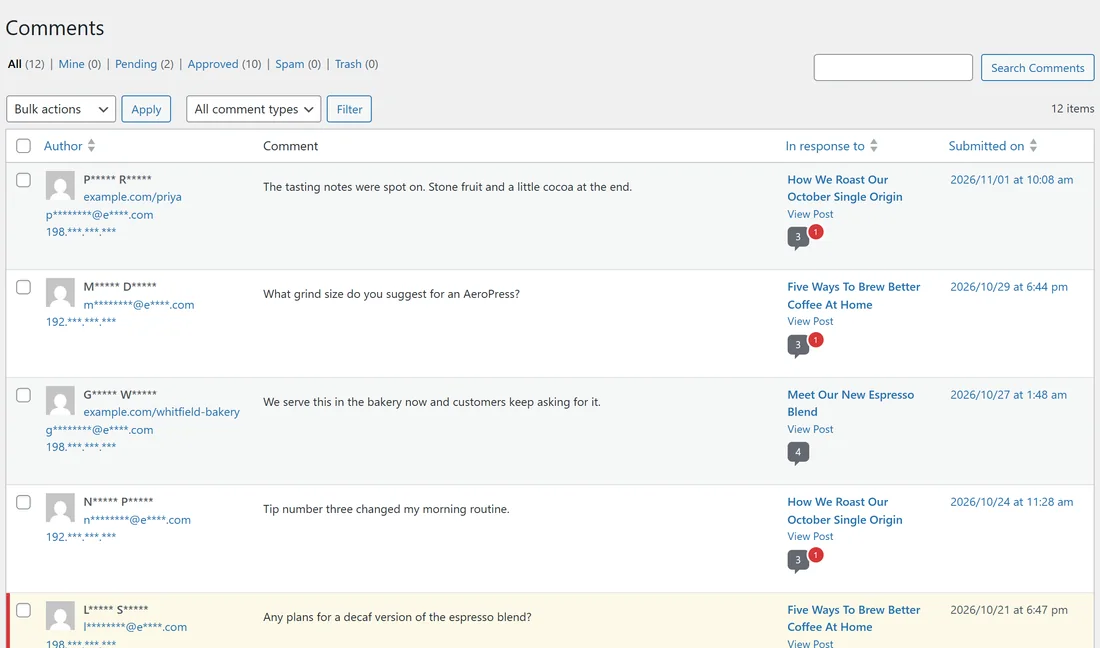
Go to Comments. Each comment's Author column shows the commenter's name, website, email and IP address. With the switch on, the name, email and IP are masked. The comment text itself stays readable, unless it holds something a filter recognises, such as an email address or a phone number.
WordPress shows the commenter's website without the http:// part, so even Visible URLs leaves it readable. If your demo comments have websites, pick one of those links with Point & Mask and choose 🚫 Anything else, then check every row in your test run.
The Profile screen:
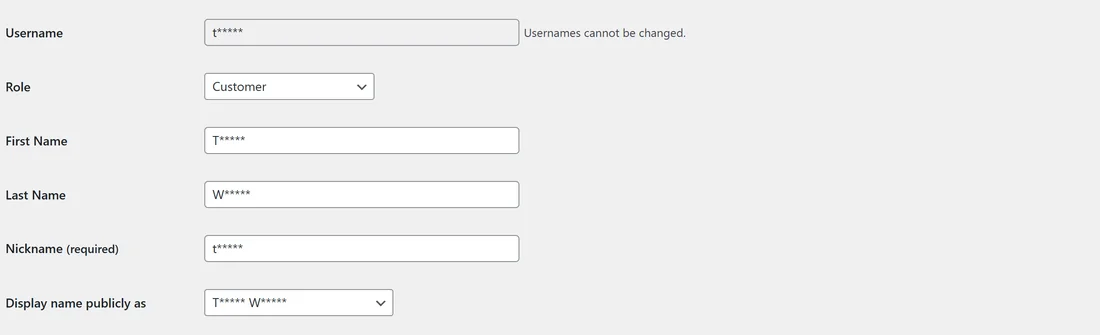
Open any user to edit them. The Username, First Name, Last Name, Nickname and Display name publicly as fields all look masked, and so does Email. Saving the profile keeps every real value, because the form sends what is really in each field, not what you see.
If you click into a masked field, it empties and shows the mask as a hint. Type a new value and your new value is saved. Click away without typing and the real value stays.
A worked example:
Maya records How to find a customer's account for her team:
- She switches on the six filters above, clicks Save Settings, then clicks ▶ Turn On Privacy Mode.
- She opens Users and checks page 1 and page 2 of the list.
- She opens Comments and checks the Author column. Two comments show a website, so she Point & Masks one and checks the other.
- She opens one customer's profile and scrolls through it once without changing anything.
- She records the whole walkthrough, then clicks ⏸ Turn Off Privacy Mode.
Tips:
- Searching for a person by name shows what you type. Search for a role or a word that isn't personal instead.
- Hover links carefully. Your browser shows a link's address at the bottom of the window, and email links are not rewritten.
- Long user lists: keep them paginated. Pages over 2MB of code skip the server layer.