Most visitors read on a phone. The Accessibility button and panel change shape on small screens so they take up little room and stay easy to use with a thumb. This article shows what a phone visitor sees and the one setting that controls it.
What counts as a phone:
Everything here applies on screens 820 pixels wide or narrower, which covers phones and most small tablets held upright.
The button on a phone:
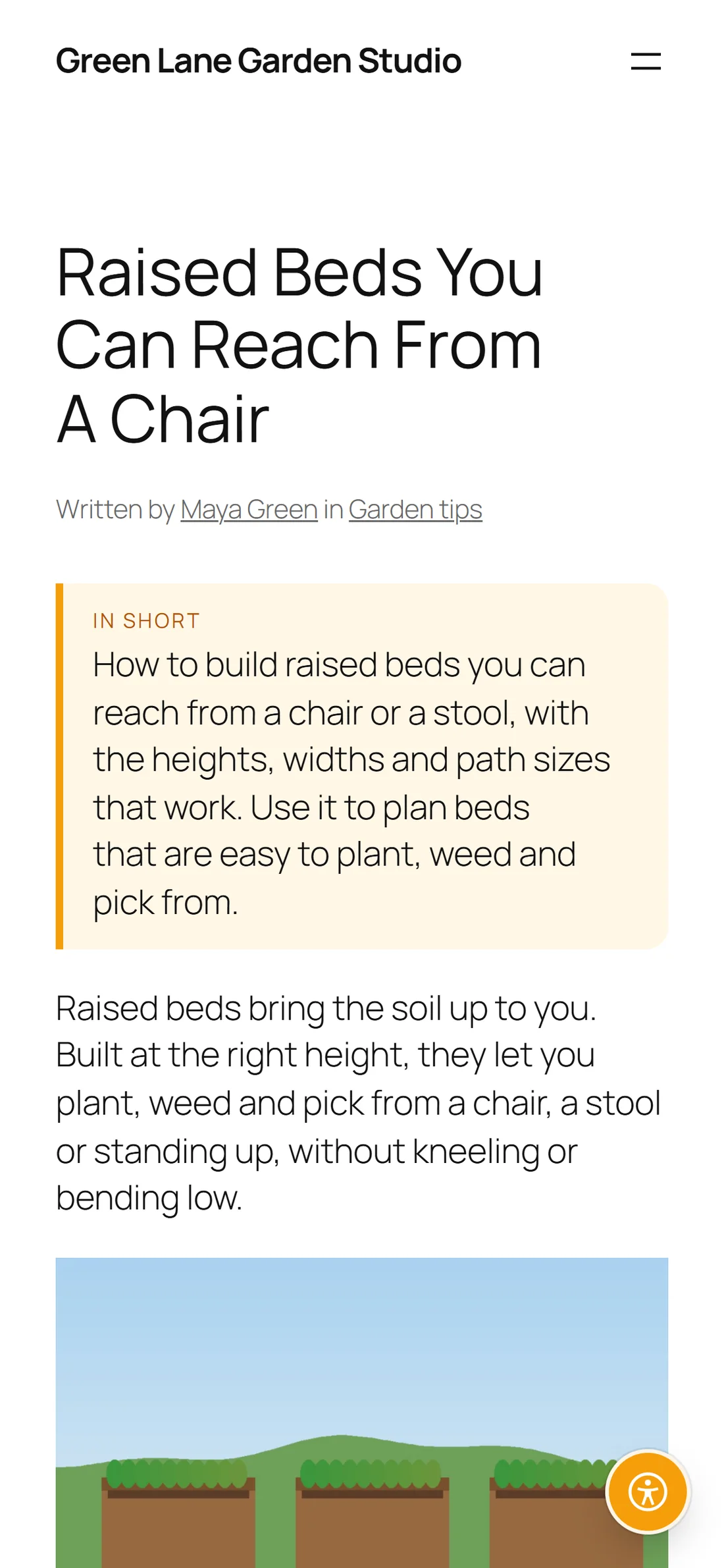
The word on the button folds away and the round universal access symbol stays. The button keeps its colour and its corner, and sits 14 pixels from the edge whatever distance you set for larger screens, to save space.
The reading bar under the title is hidden on phones. Everything it carries, Listen, text size, Focus and In short, is in the panel behind the button instead, so nothing is lost and the article starts higher up the screen.
The In short box itself still shows under the title when a post has one.
The panel as a sheet:
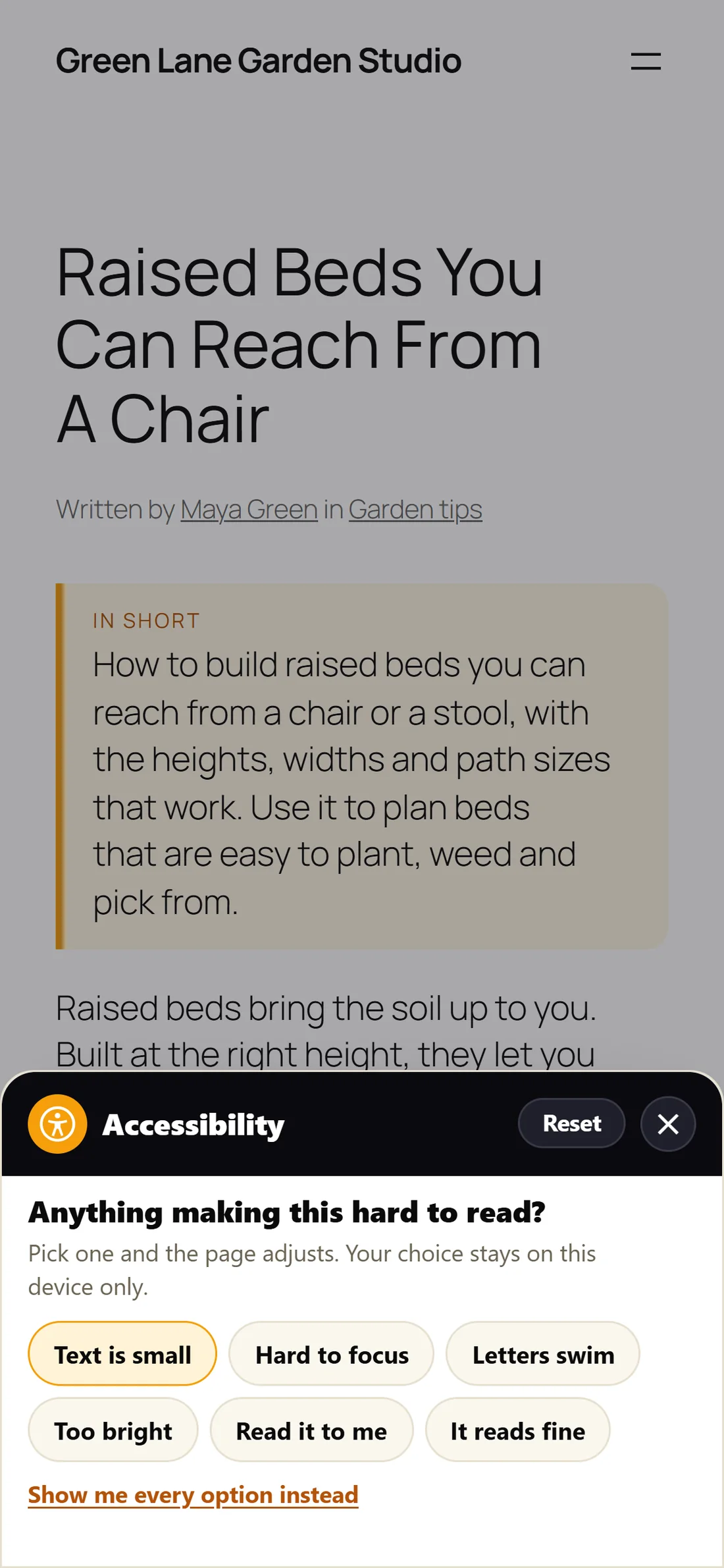
Tapping the button opens the panel as a sheet that slides up from the bottom of the screen. The page behind it is dimmed. Tapping the dimmed area, or the close button, shuts it.
The first-visit question appears in the sheet exactly as on a computer, with the same six answers.
Every option, one scroll:
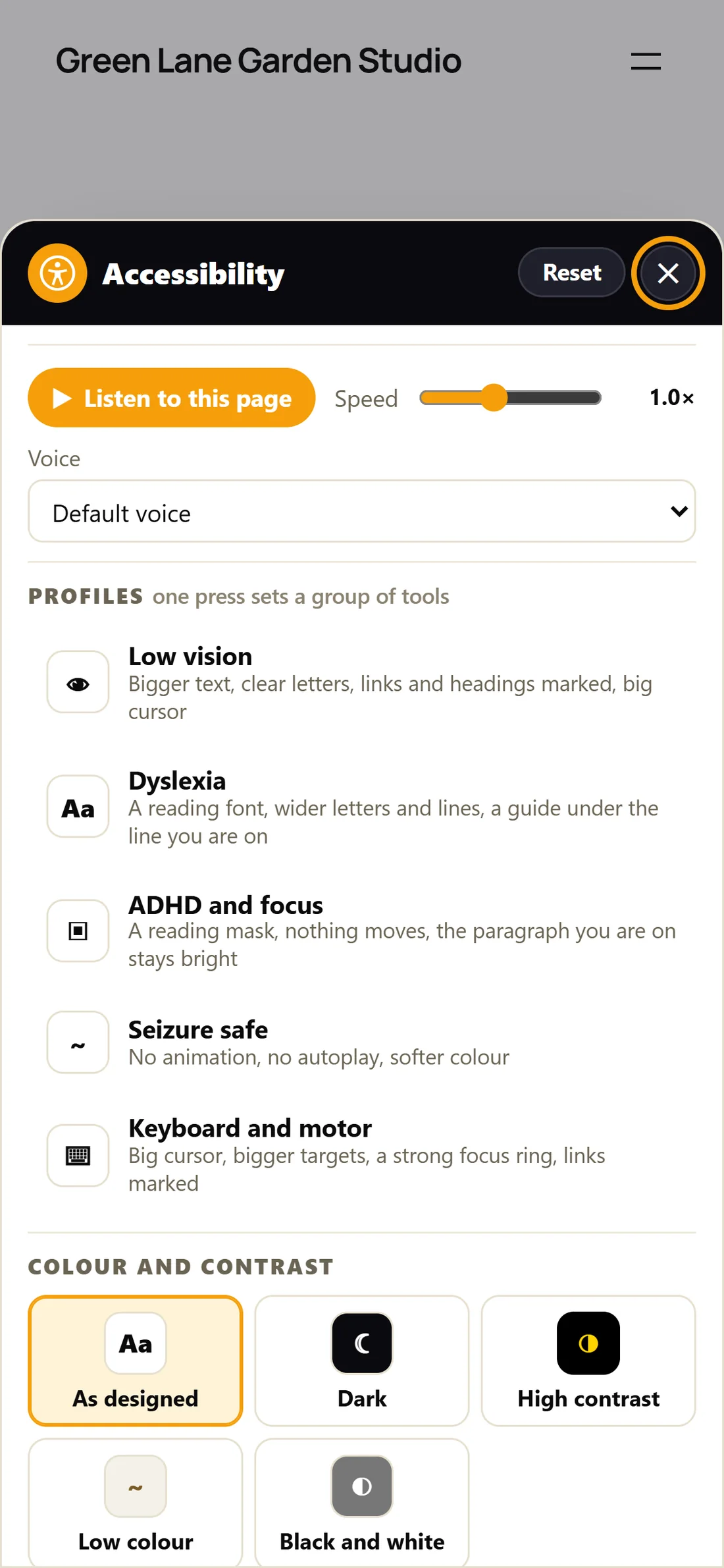
After the question, or after Show me every option instead, the sheet holds the full panel: Listen to this page with Speed and Voice, Profiles, Colour and contrast, Text, Tools, the page map and the keyboard shortcuts. The visitor scrolls inside the sheet.
Listen on a phone:
Listen uses the voices built into the phone, so it works on most phones with nothing to install. The voices on offer depend on the phone and its browser. See Listen, Focus And In Short.
Show the button on phones:
On the Reading tools tab, under The button, the switch Show the button on phones is on by default. Switch it off and the button is hidden on screens 820 pixels wide or narrower. Alt + A still opens the panel on a phone with a keyboard attached.
A good value is On. Phone readers are often the ones who need larger text most.
A real example:
A visitor opens Raised Beds You Can Reach From A Chair on her phone at yoursite.com. She sees the In short summary under the title and the gold round symbol in the bottom corner. She taps it, the sheet slides up and asks Anything making this hard to read?. She taps Too bright and the page turns dark. Next time she visits on the same phone, the page is dark from the first moment.
Tips:
- To check your own site, open it on your phone in a private tab so you see the first visit.
- If a cookie notice or a sticky bar sits along the bottom of your phone screen, the button moves up to sit clear of it.
- Choices are kept per browser. A visitor who uses both a phone and a computer sets each one once.