In a picture book the main character has to look the same on every page. The character lock does that: the plugin makes one reference sheet of your character, you approve it, and from then on every page image is made with that sheet handed to the image provider as a reference.
Which books use it?

- Story / Picture Book: always. The character step runs for every story book.
- Coloring Book and Activity Book: when you tick Lock a character for this book (recommended) in step 2 of the wizard. The box only appears when a Google or FLUX (fal.ai) image key is saved, and it starts ticked.
- Journal / Planner: never. Journals have no character.
What it needs:
A reference capable image provider with a saved key. The plugin looks for Google (Gemini / Nano Banana) first, then FLUX (via fal.ai), and uses the first one whose key you saved on the Providers tab. Both rows carry a Character Lock badge. A free Google AI key is enough.
The approval panel:
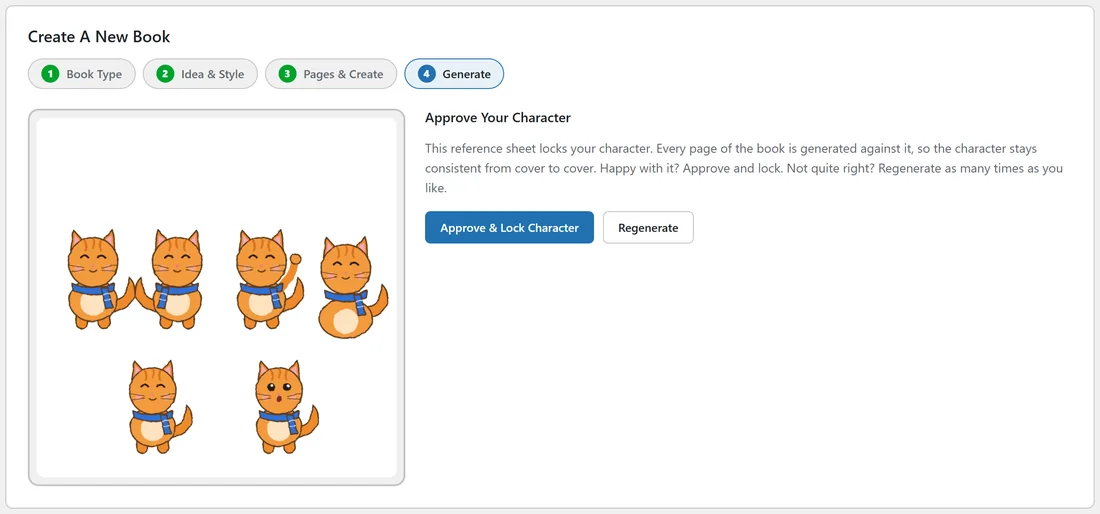
After Create Book, a book that needs a character opens the panel Approve Your Character. On the left the reference sheet appears: the same character in four poses and two facial expressions on a plain white background. While it is being made the panel says Generating your character sheet... this can take up to a minute.
On the right there are two buttons:
- Approve & Lock Character: locks this sheet to the book and starts making the pages straight away.
- Regenerate: makes a fresh sheet. Use it as often as you like until the character looks right.
What happens after you approve:
- The sheet is saved to the book as its locked character.
- The plugin plans the pages. For a story book the AI writer writes the story, a picture description for each page, and the book's title.
- Every page image, the cover and every later reroll is made with the locked sheet sent to Google or FLUX as a reference. Those pages always use that provider, whatever your default image provider is.
- The cover prompt also includes your character's description, so the cover shows the same character.
How to describe your character:
Give the character a name and say exactly what they look like: kind of animal or person, size, colors, clothing and one or two signature items. A small round orange tabby cat with a blue knitted scarf, big friendly eyes and a curly tail works far better than a cute cat. The more visual anchors, the steadier the character.
A real example:
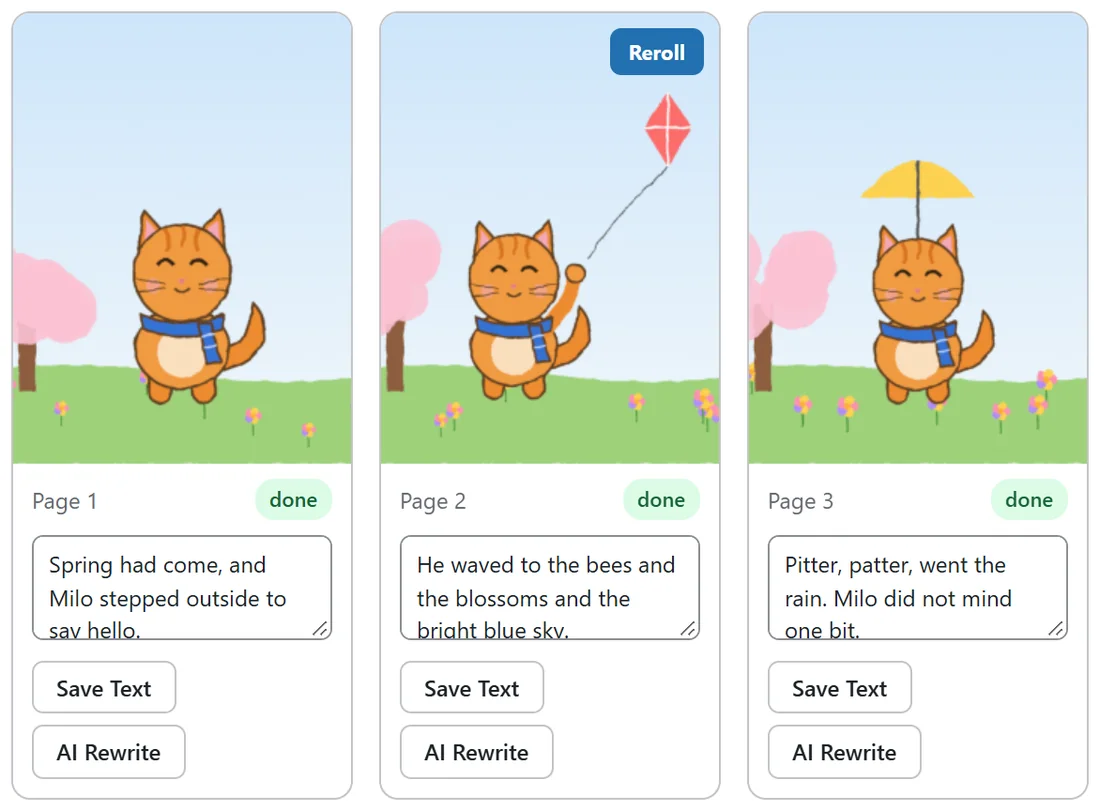
Ella's story book stars Milo, a small round orange tabby cat with a blue knitted scarf, big friendly eyes and a curly tail. She approved his sheet, and the cover and all 24 pages show the same cat with the same scarf, from spring blossoms to winter snow.
If the character panel shows a message:
- Character sheets need a reference-capable image provider. Add a free Google (Gemini) key or a fal.ai key on the Providers tab: save a Google or FLUX key on the Providers tab, then click Regenerate.
- Describe your character first, then generate the sheet: in version 1.0.20 the sheet is made from a saved character description. Open Diagnostics, click Copy For Support and send it to support, who can help you get the book started.
Tips:
- Expect an occasional page where the character wanders a little on a long book. Reroll that page; it is made again against the same locked sheet. See Rerolling A Bad Page And Editing Page Text.
- A locked character in a coloring book makes it feel like a real series. Two signature items, such as a scarf and a hat, help most.